Preferences
Preferences change how Apiome looks and behaves for you. They are personal and stored in this browser: they apply to every workspace you open on this device, and nobody else sees them. Keyboard and preferences is the two-minute version; this page covers every setting.
Open Preferences
- Press Ctrl / ⌘+, anywhere, or
- click Preferences at the foot of the sidebar, or
- open your user menu and choose “Preferences”.
The pane opens on the right with four tabs — Appearance, Account, Notifications and Shortcuts. Every change applies and saves the moment you make it (Saved automatically); click “Done”, the close button or press Esc to close it.
/ade/dashboardAppearance
Theme
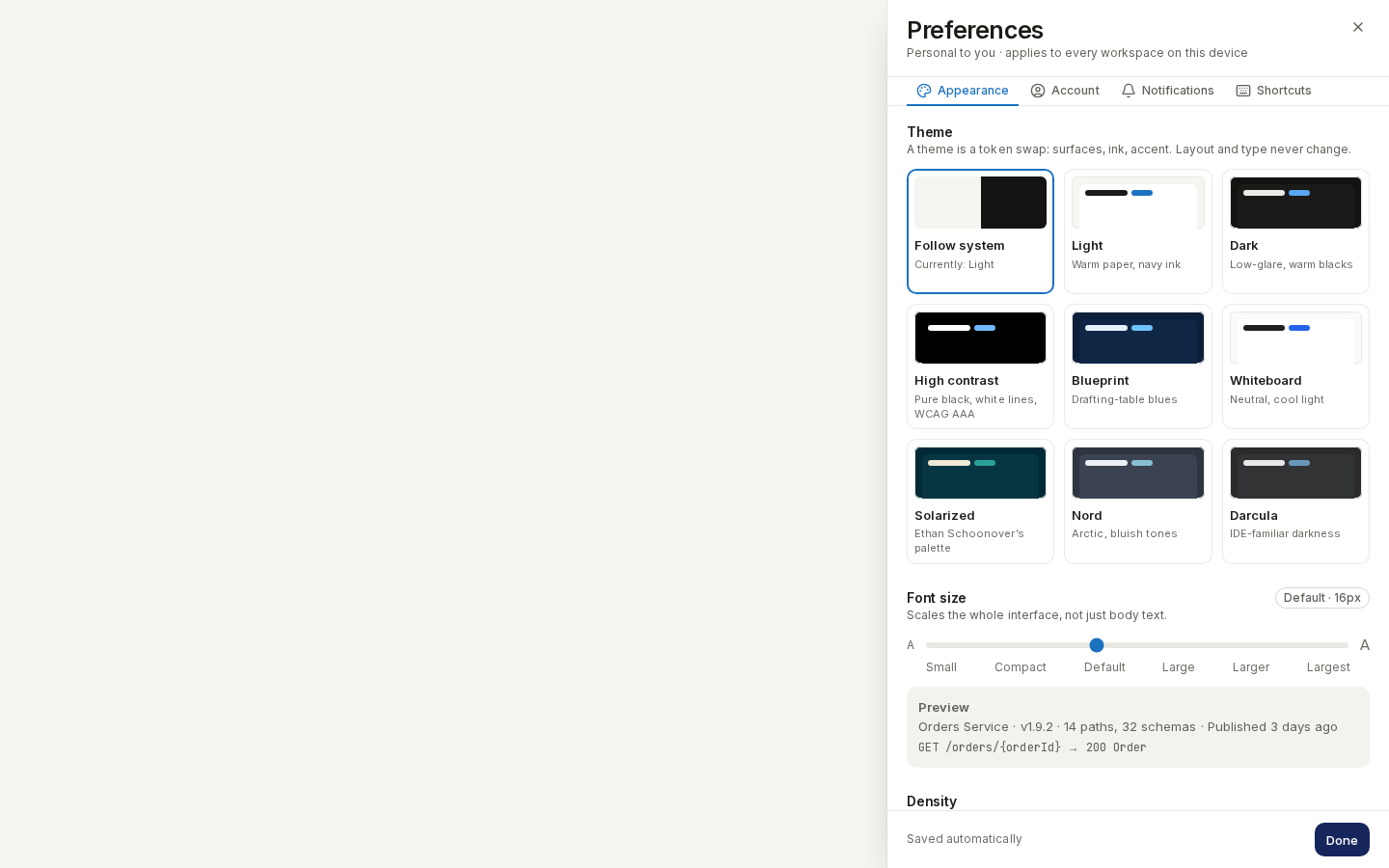
Pick one of nine cards. A theme is a token swap — surfaces, ink and accent change; layout and type never do — so every screen works the same in all of them. Follow system is selected until you choose another, and its card says which theme it is using right now (Currently: Light).
Font size
The slider scales the whole interface, not just body text, in six steps. The chip beside the title reads the current step (Default · 16px), and the Preview card under the slider is drawn at that size.
| Step | Base size |
|---|---|
| Small | 14 px |
| Compact | 15 px |
| Default | 16 px |
| Large | 17 px |
| Larger | 18 px |
| Largest | 20 px |
Density
Comfortable (the default) gives rows, controls and page padding more room. Compact tightens them for large screens, so more rows fit. Arrow keys move between the two.
Switches
| Switch | Off (default) | On |
|---|---|---|
| Reduce motion | Menus, dialogs and the rail animate — unless your operating system asks for less | Transitions and animated progress are off |
| Collapse sidebar by default | The sidebar opens with labels | The sidebar starts as an icon rail; hover to peek at labels |
| Switch | On (default) | Off |
|---|---|---|
| Monospace for identifiers | Ids, hashes and versions are set in JetBrains Mono | They use the body font |
| Show keyboard hints | Shortcut chips appear on buttons and menus | The chips are hidden; the shortcuts still work |
Reduce motion follows your operating system's reduce motion setting until you turn it on here. Ctrl / ⌘+\ (or the handle on the sidebar's edge) flips Collapse sidebar by default too, so the sidebar stays the way you left it.
Account
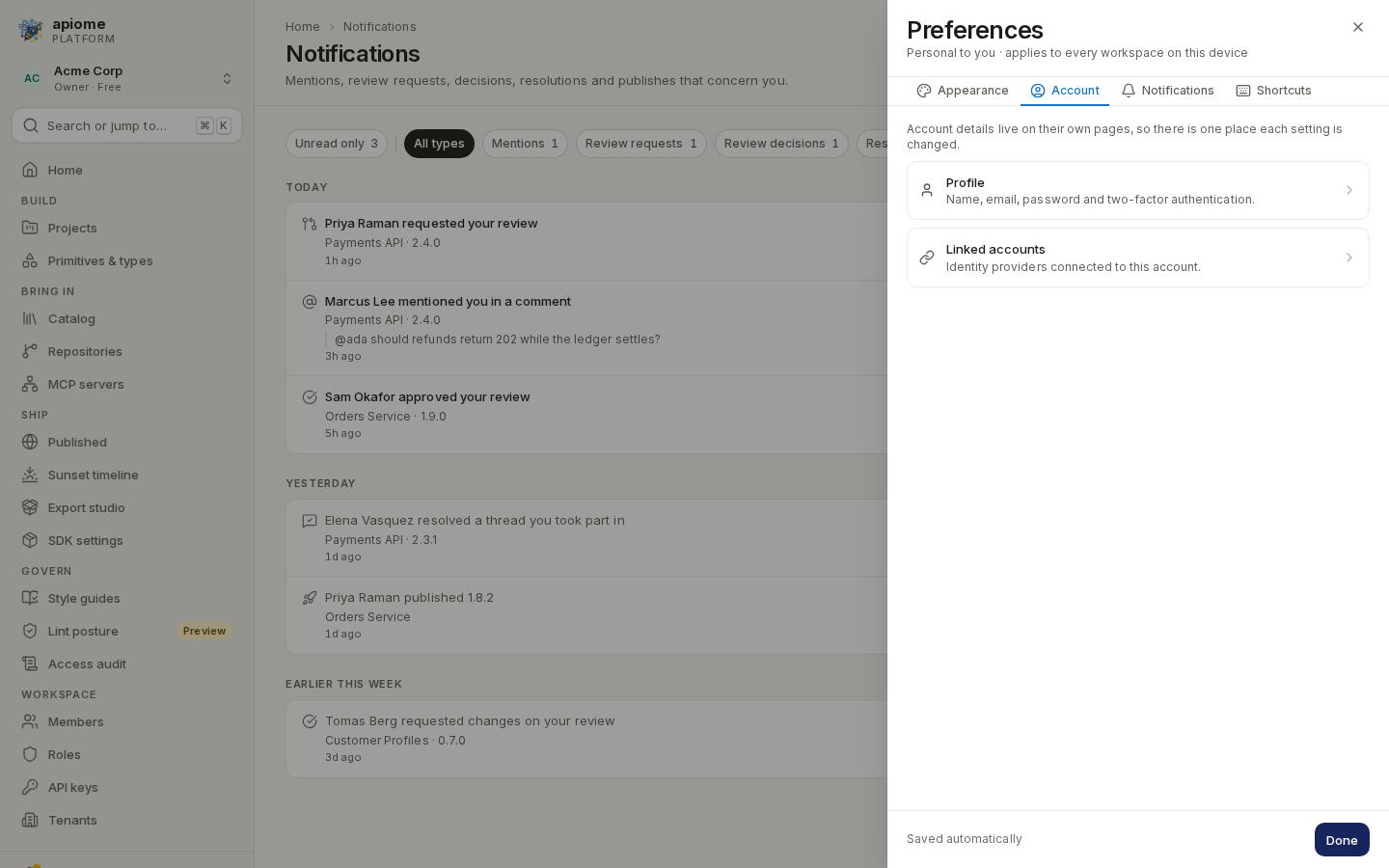
Account details live on their own pages, so there is one place to change each of them. The tab links to:
- Profile — name, email, password and two-factor authentication (Profile & security);
- Linked accounts — the identity providers connected to your account (Linked accounts).
/ade/dashboardNotifications
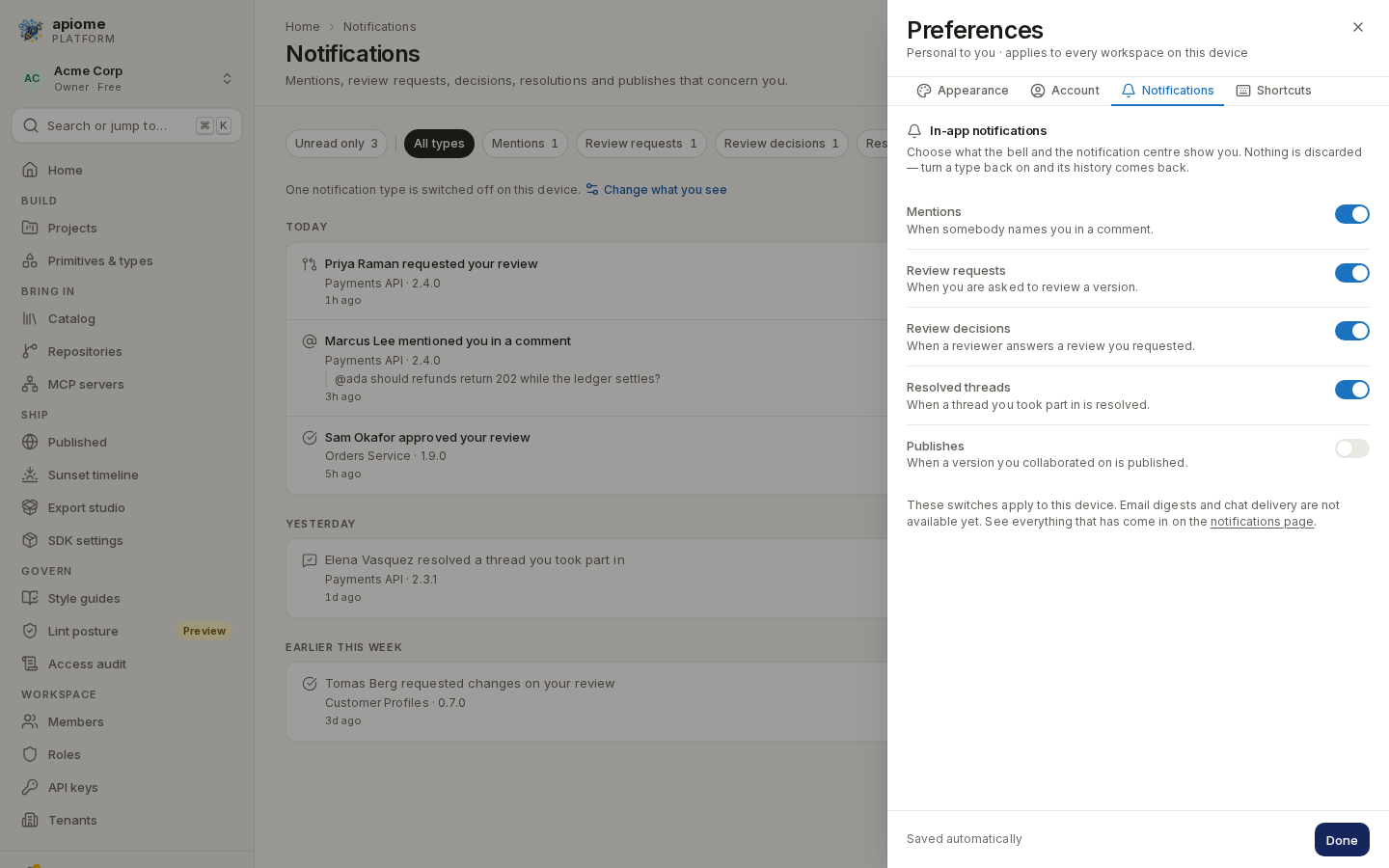
In-app notifications has one switch per kind of notification — Mentions, Review requests, Review decisions, Resolved threads and Publishes. Turning a type off hides it from the bell's count and list and from the notifications page; nothing is discarded, so turning it back on brings its history back. The switches apply to this device only. Email digests and chat delivery are not available yet.
/ade/dashboardSee Notifications for the bell and the notifications page.
Shortcuts
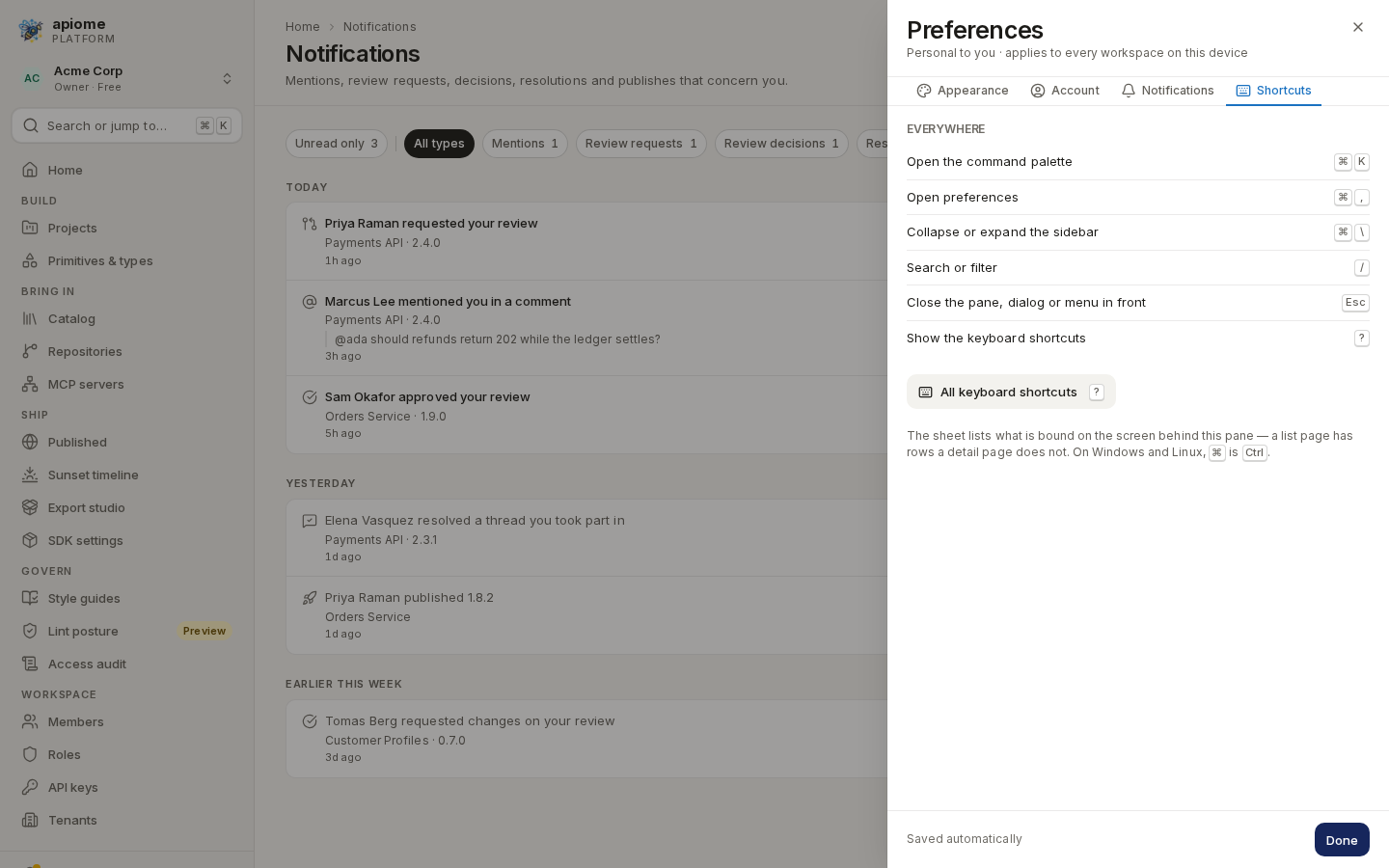
Everywhere lists the shortcuts that work on every screen, and “All keyboard shortcuts” (?) closes the pane and opens the full sheet for the screen behind it. See Help & shortcuts.
/ade/dashboardTheme gallery
The same screen — the notification centre — in each of the nine themes.
Follow system
Matches your operating system's light or dark setting, and switches when it does. This image follows this site's theme: switch the site between light and dark to see both.
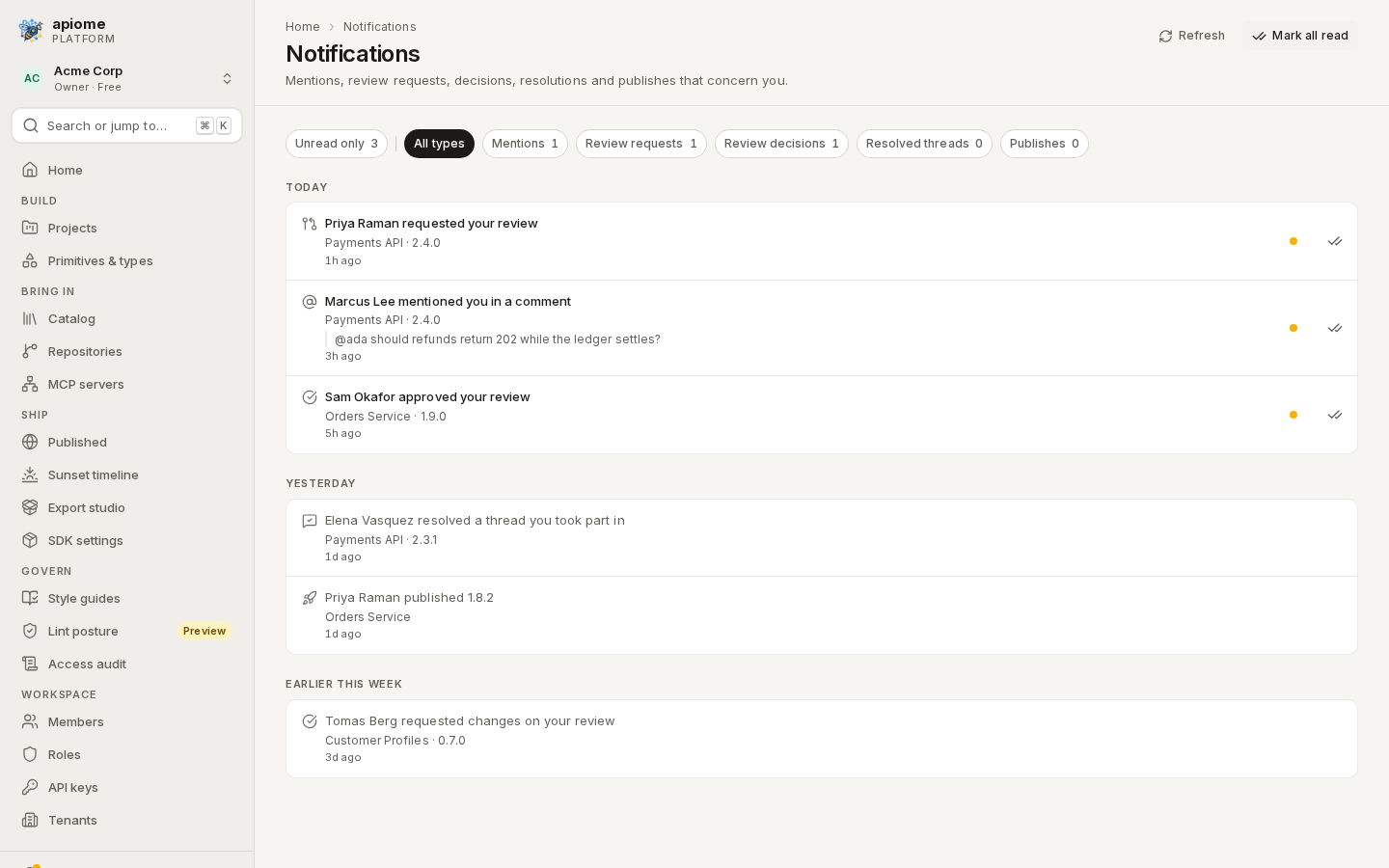
/ade/dashboard/notificationsFollow system — Light or Dark, whichever the operating system asks for.Light
Warm paper, navy ink. The default when the system asks for light.
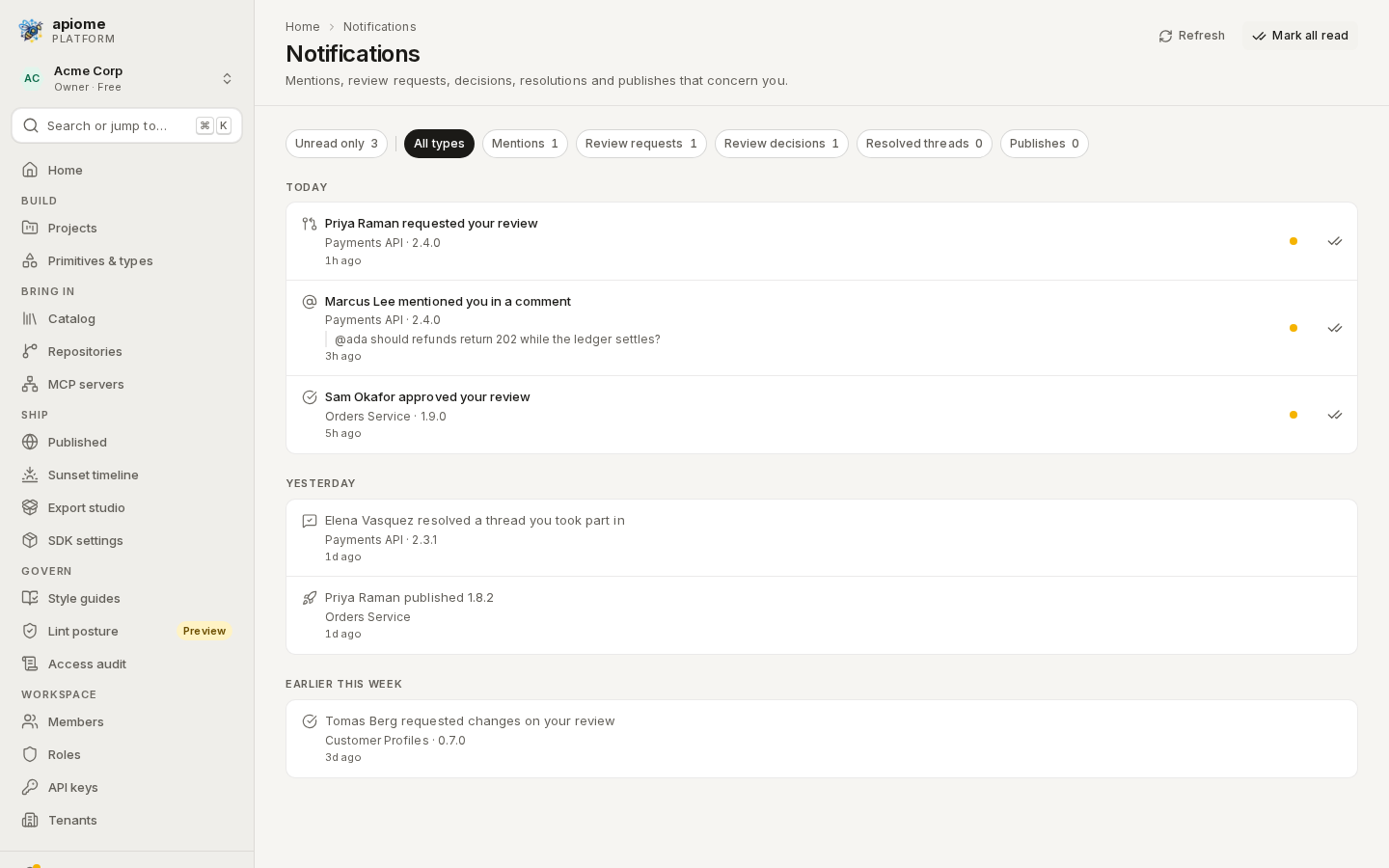
/ade/dashboard/notificationsLight — warm paper, navy ink.Dark
Low-glare, warm blacks. The default when the system asks for dark.
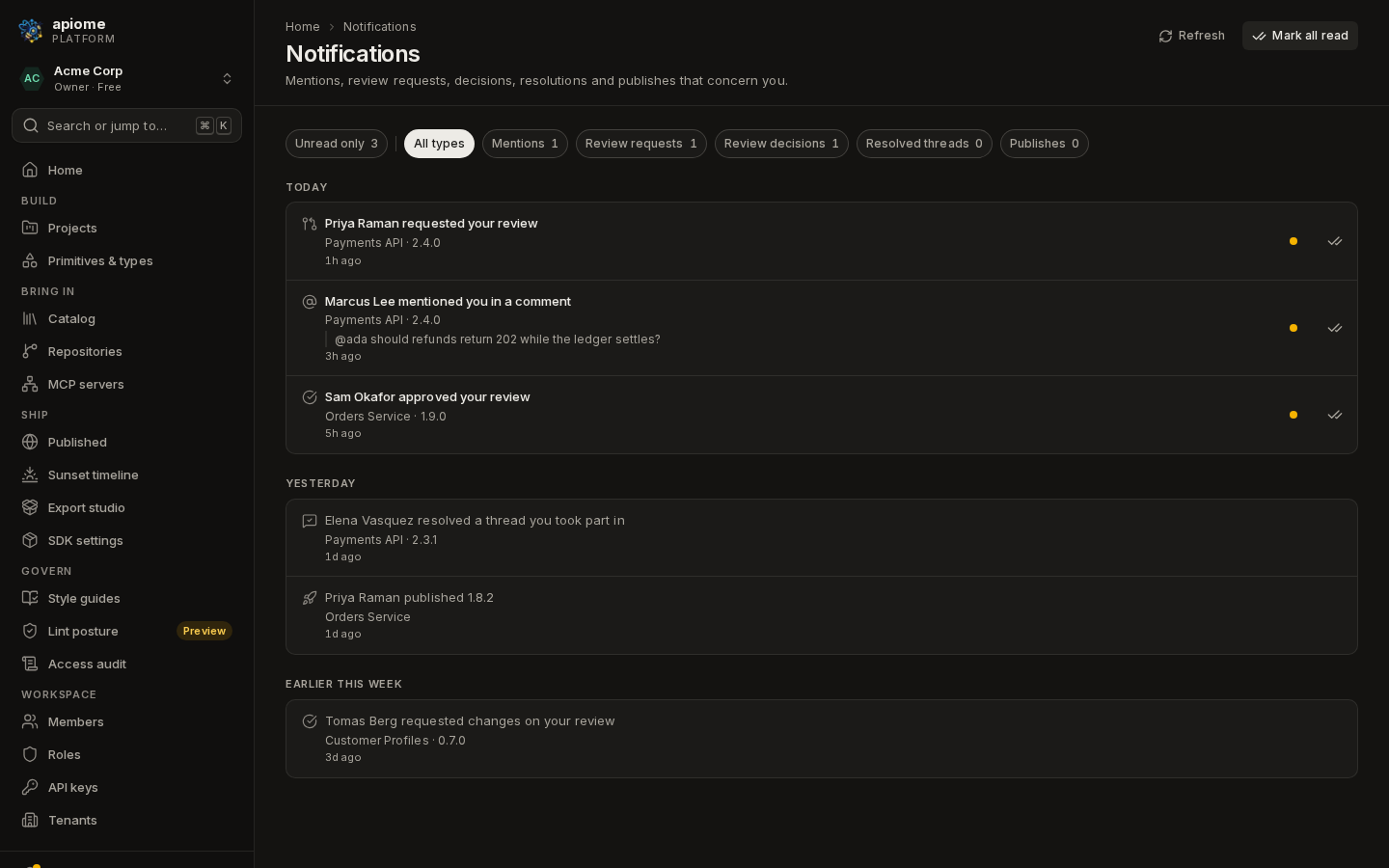
/ade/dashboard/notificationsDark — low-glare, warm blacks.High contrast
Pure black with white lines, meeting WCAG AAA contrast.
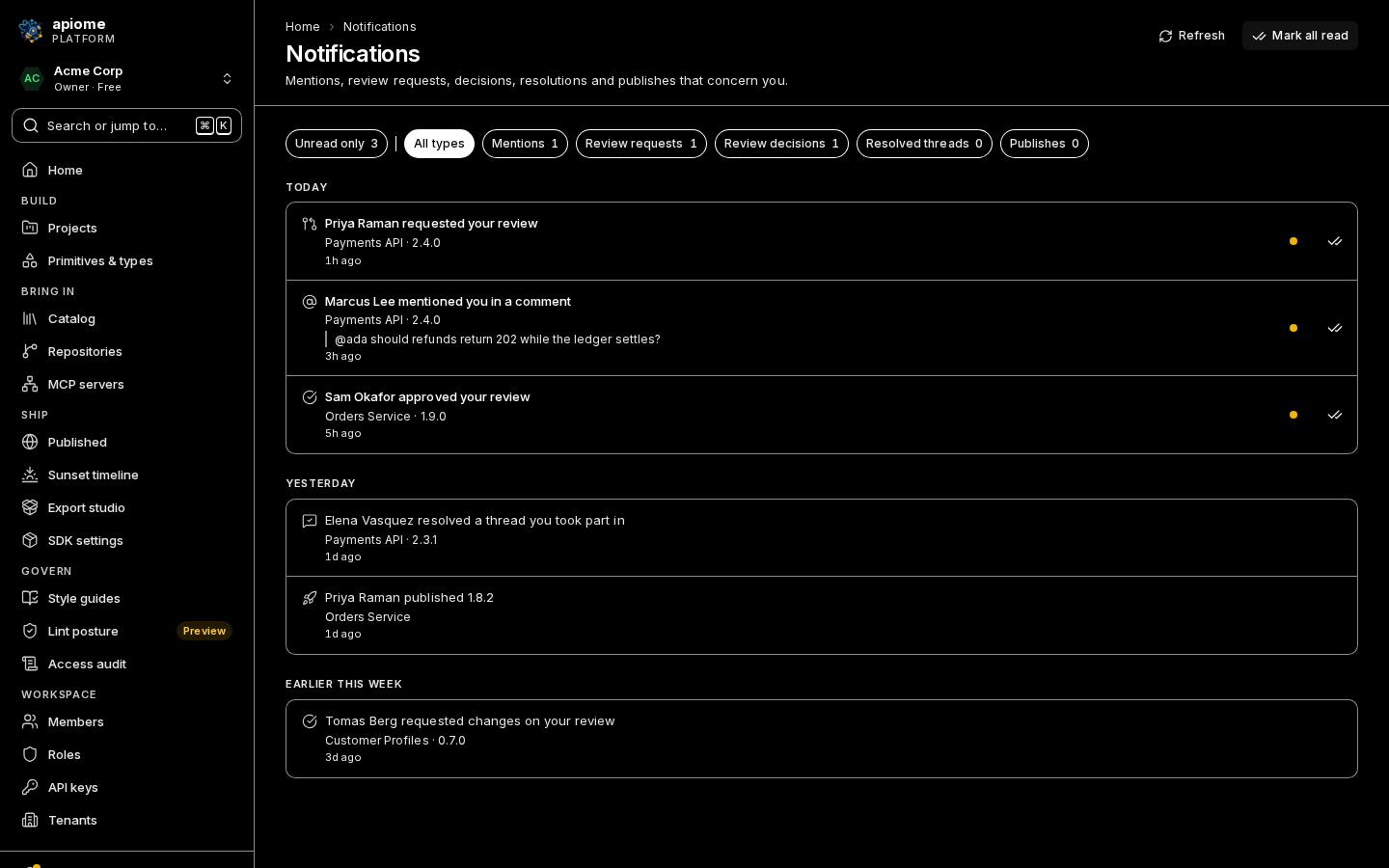
/ade/dashboard/notificationsHigh contrast — pure black, white lines, WCAG AAA.Blueprint
Drafting-table blues.
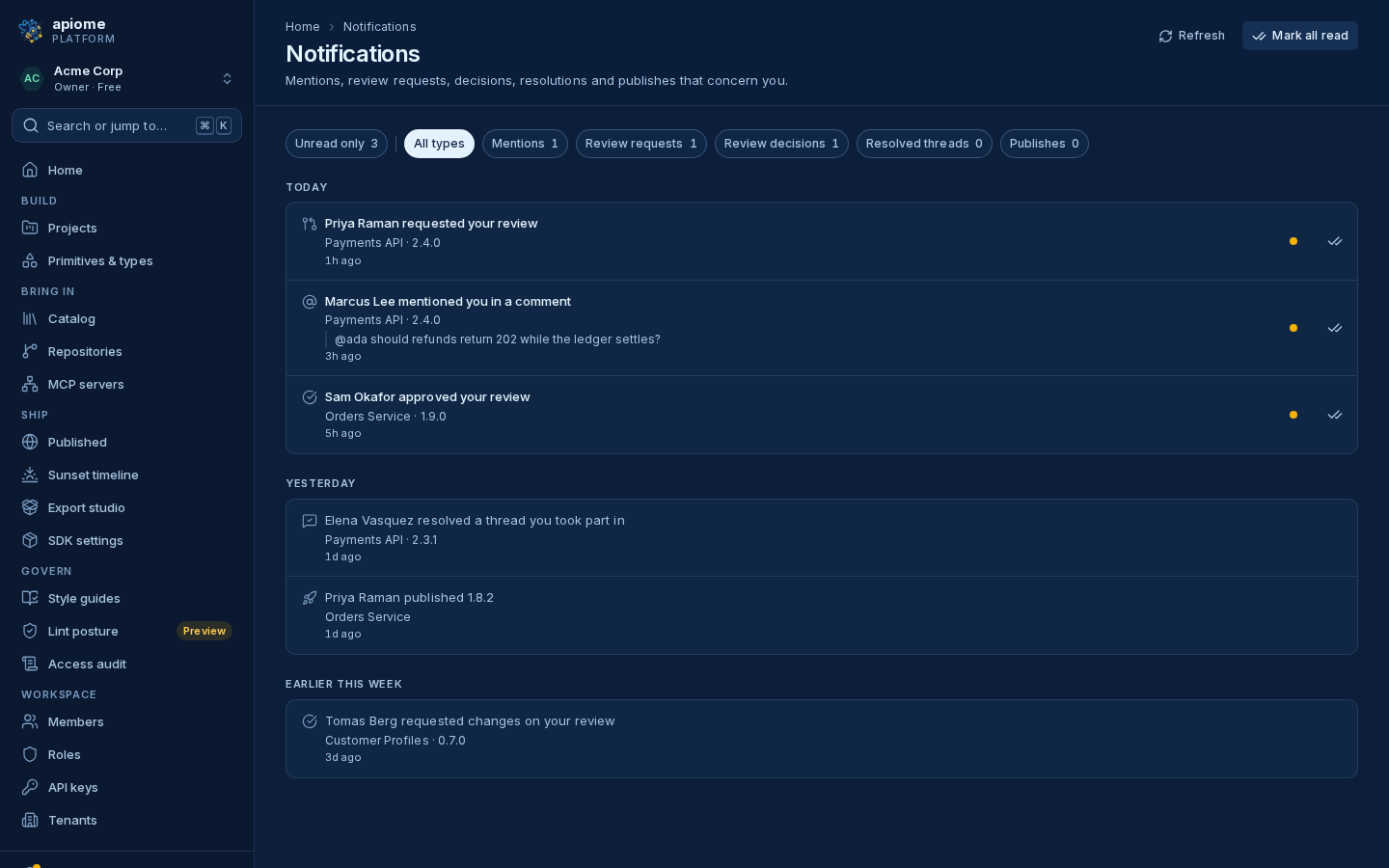
/ade/dashboard/notificationsBlueprint — drafting-table blues.Whiteboard
Neutral, cool light.
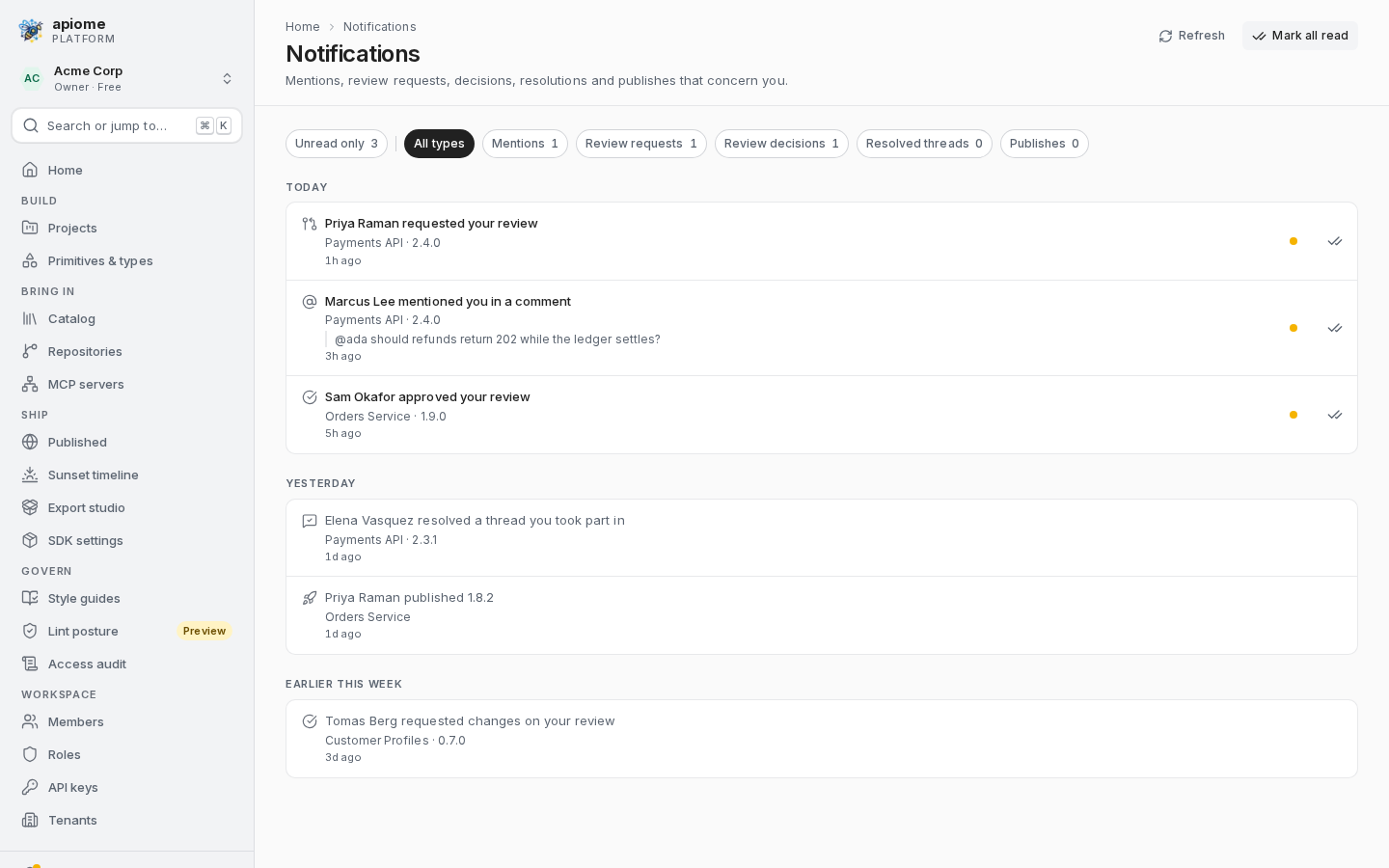
/ade/dashboard/notificationsWhiteboard — neutral, cool light.Solarized
Ethan Schoonover's palette.
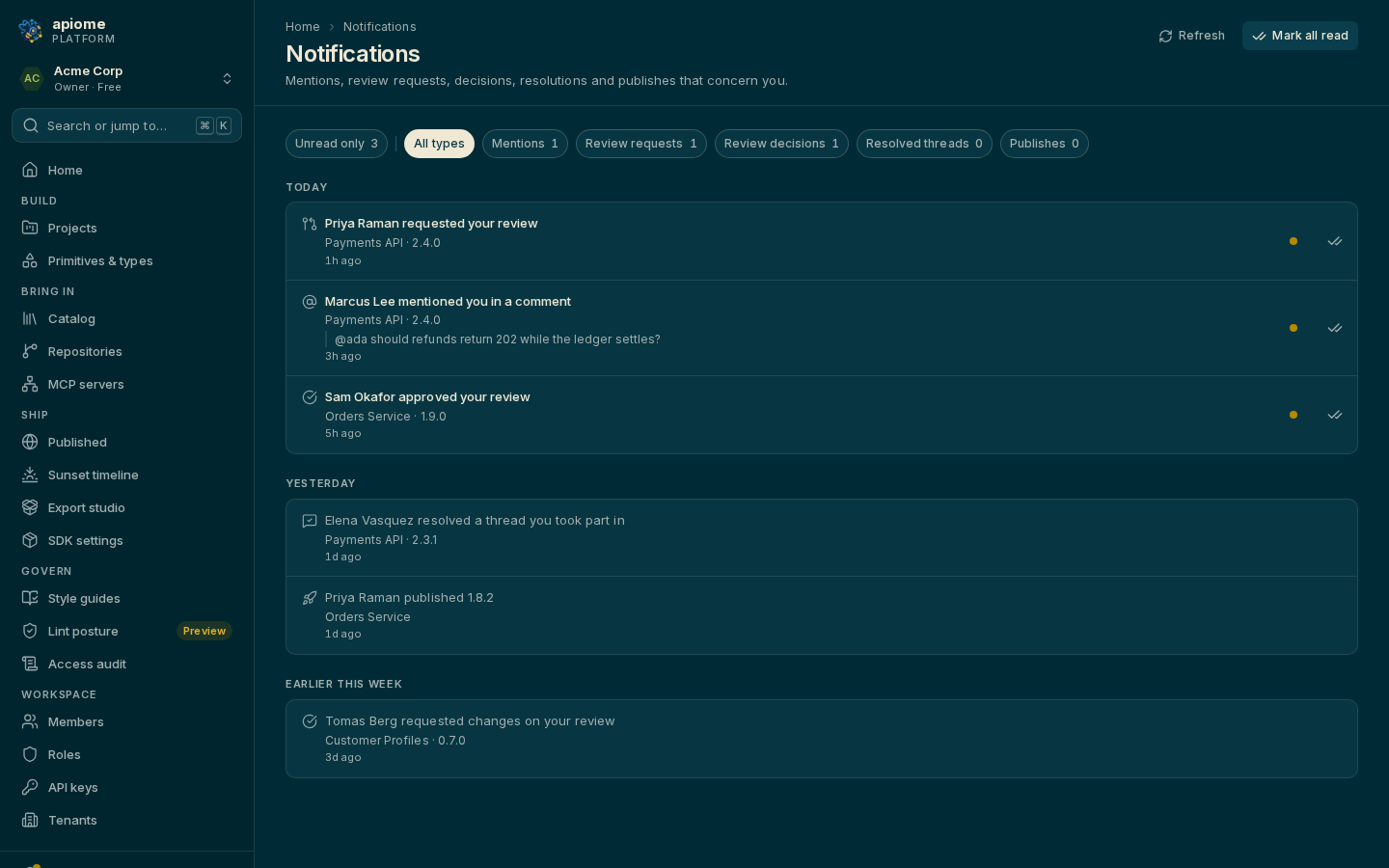
/ade/dashboard/notificationsSolarized — Ethan Schoonover’s palette.Nord
Arctic, bluish tones.
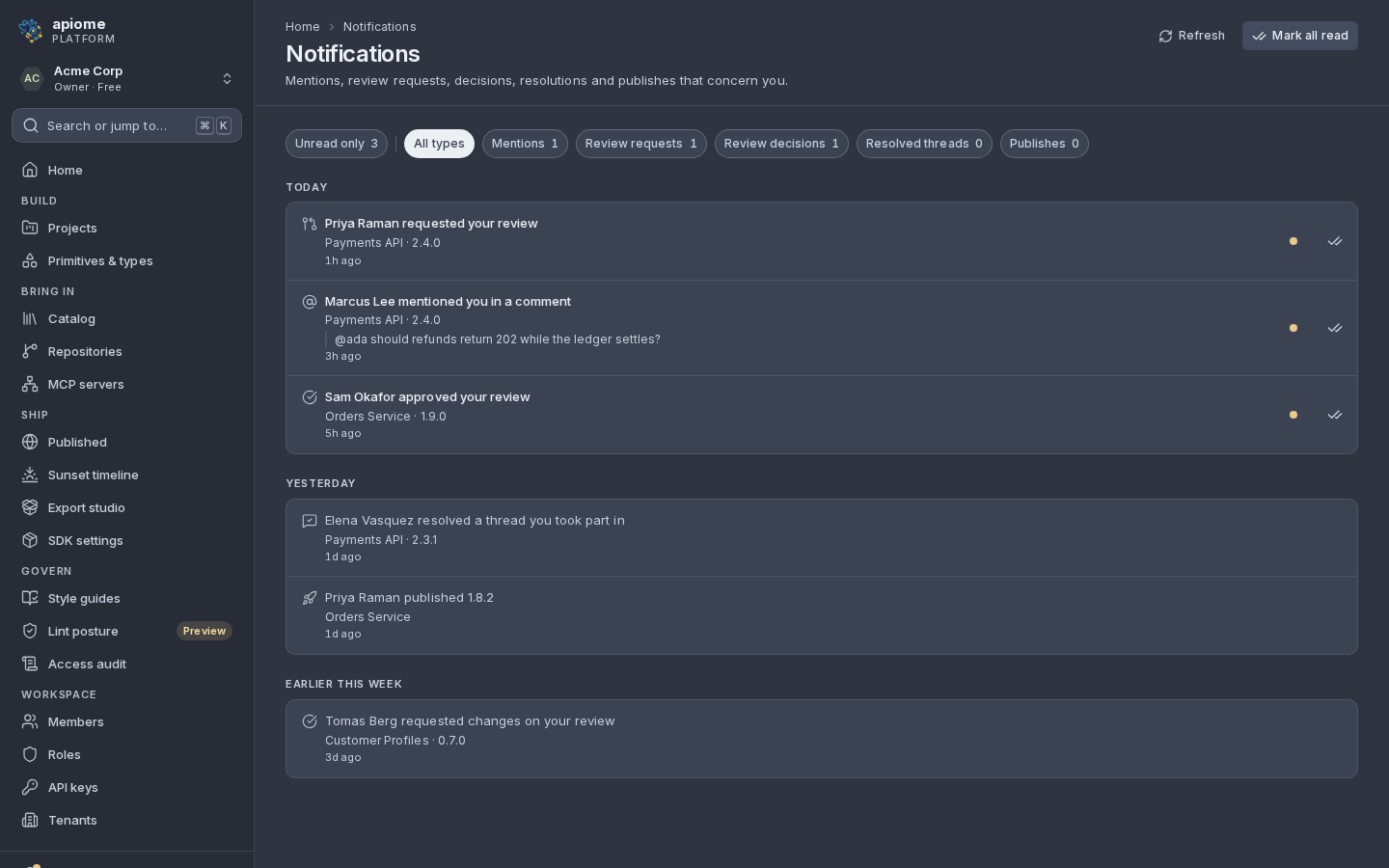
/ade/dashboard/notificationsNord — arctic, bluish tones.Darcula
IDE-familiar darkness.
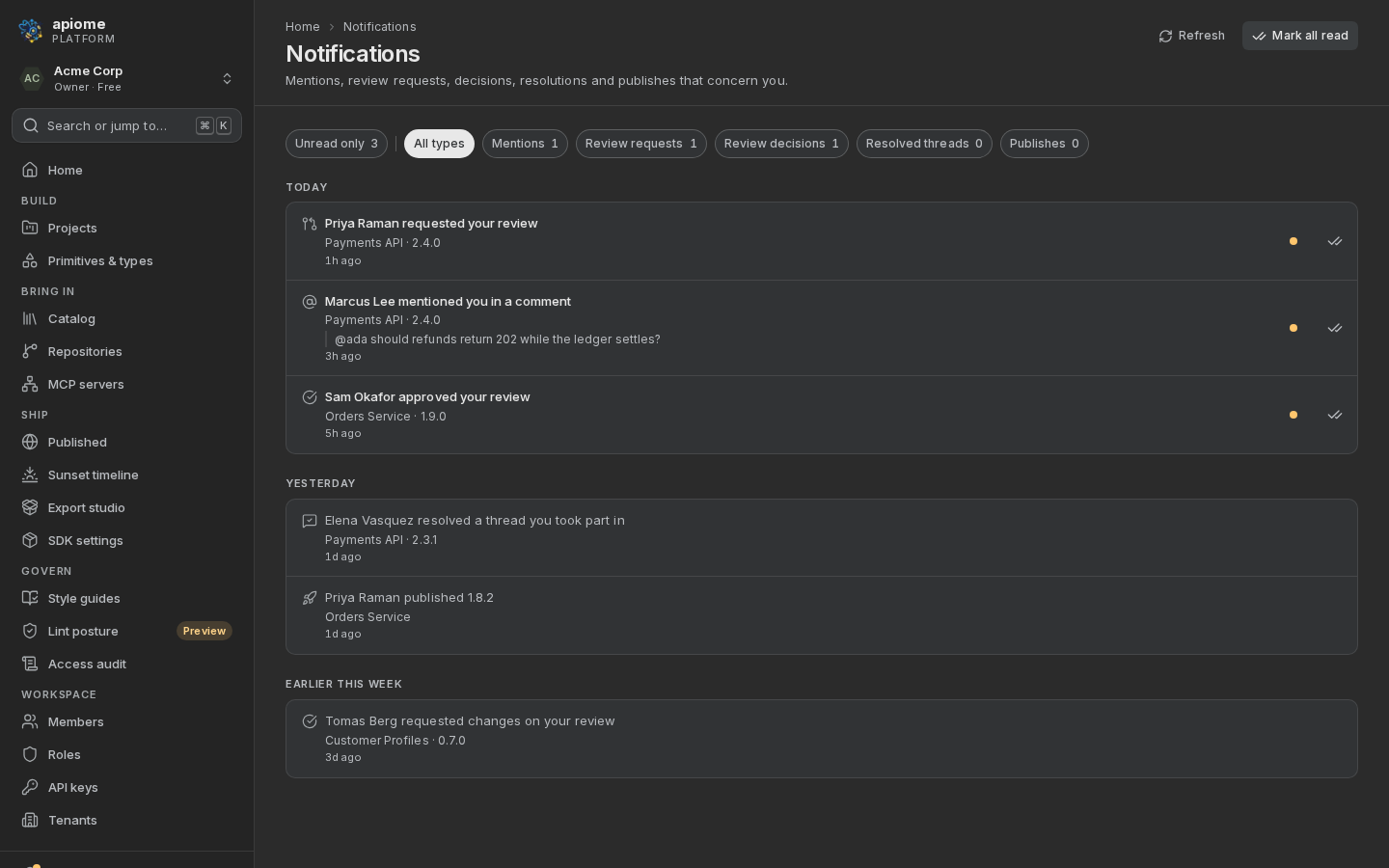
/ade/dashboard/notificationsDarcula — IDE-familiar darkness.Where preferences are kept
Preferences are saved in this browser's local storage (hive.theme, hive.fontScale,
hive.density, hive.motion, hive.rail, hive.monoIds, hive.kbdHints and the
hive.notify.* switches), so another browser or device starts from the defaults. Clearing site
data resets them. There is no API for them.
Accessibility covers what each theme and setting does for screen readers, low vision and motion sensitivity.