Members & seats
/ade/dashboard/members
Members lists everyone who can sign in to the workspace — and the invitations that have not been accepted yet — with their role, status and when they were last active. It is also where you see how many of the plan's member seats are taken. Go to Workspace → Members, or choose Invite a teammate on Home.
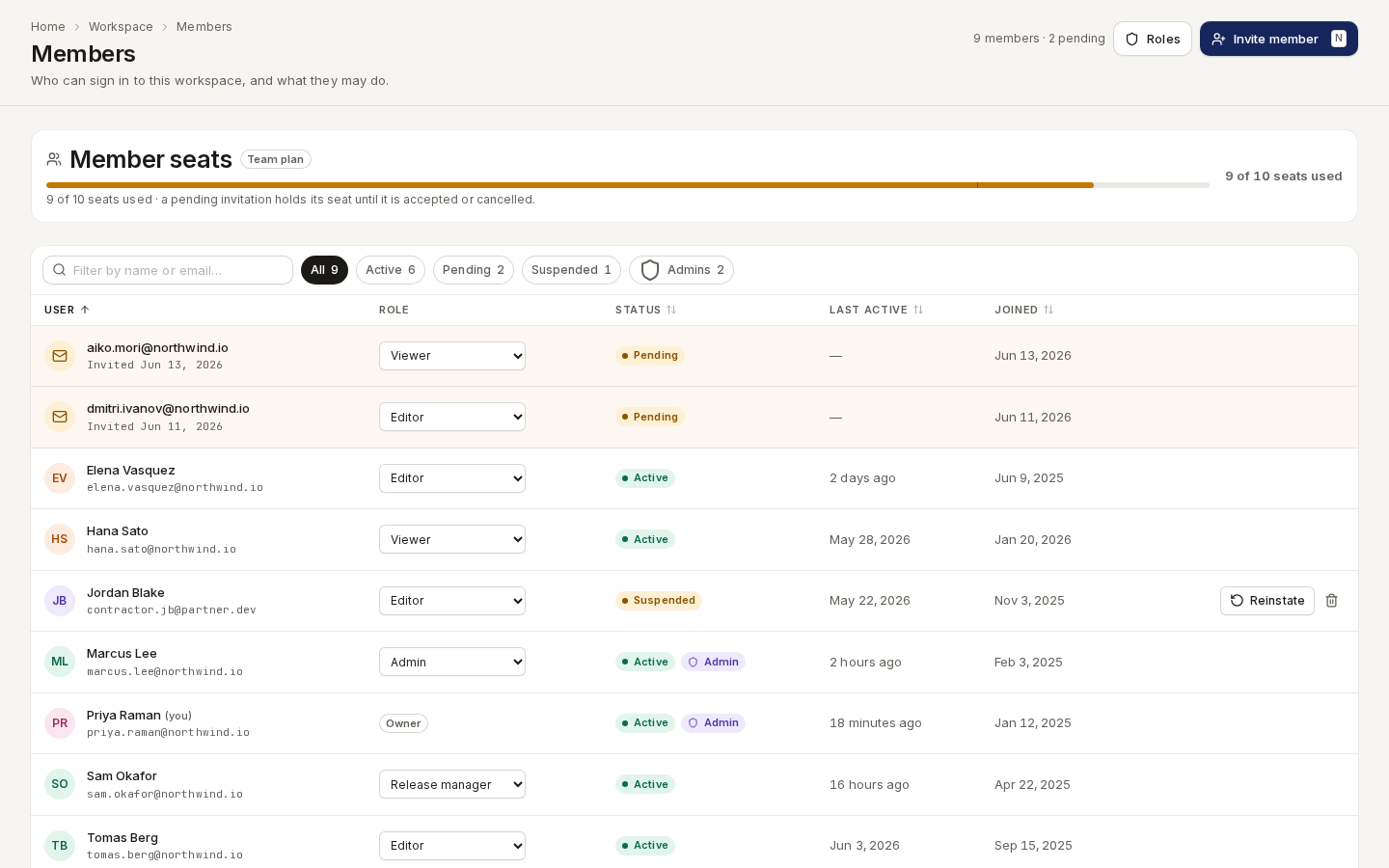
/ade/dashboard/membersEvery member can read the page. Inviting needs members:create, changing a role or suspending
needs members:edit, and offboarding needs members:delete — workspace administrators hold all
three. Without them the page is the same, with fewer controls: roles show as plain badges and the
row buttons are gone. What each role grants is set on Roles & permissions.
Member seats
The Member seats card shows the plan (for example Team plan) and a meter of seats used against the licence — 9 of 10 seats used. A pending invitation holds its seat until it is accepted or cancelled, and a suspended member keeps theirs. On a plan with unlimited seats the card says so and draws no meter.
When every seat is taken the card warns All member seats are in use, and Invite member is turned off with the reason on hover: All member seats are in use — upgrade the plan to add more. Free a seat by cancelling an invitation or offboarding someone, or change the plan (see Tenants).
Find people
- Filter by name or email… narrows the roster as you type.
- The chips — All, Active, Pending, Suspended and Admins — each show their count.
- User, Status, Last active and Joined sort; click the header again to reverse.
The header reads 9 members · 2 pending, and the table foot counts every state — 9 people · 6 active · 2 pending · 1 suspended. Your own row is marked (you), and none of its controls work: you cannot change your own role, suspend or offboard yourself.
Invite a member
- Click “Invite member” (or press N on the page).
- Type their Email address. They must already have an Apiome account — invitations are not emailed.
- Pick a Role, or leave Default role for the workspace's default.
- Check Seats after this invite, then click “Send invite”.
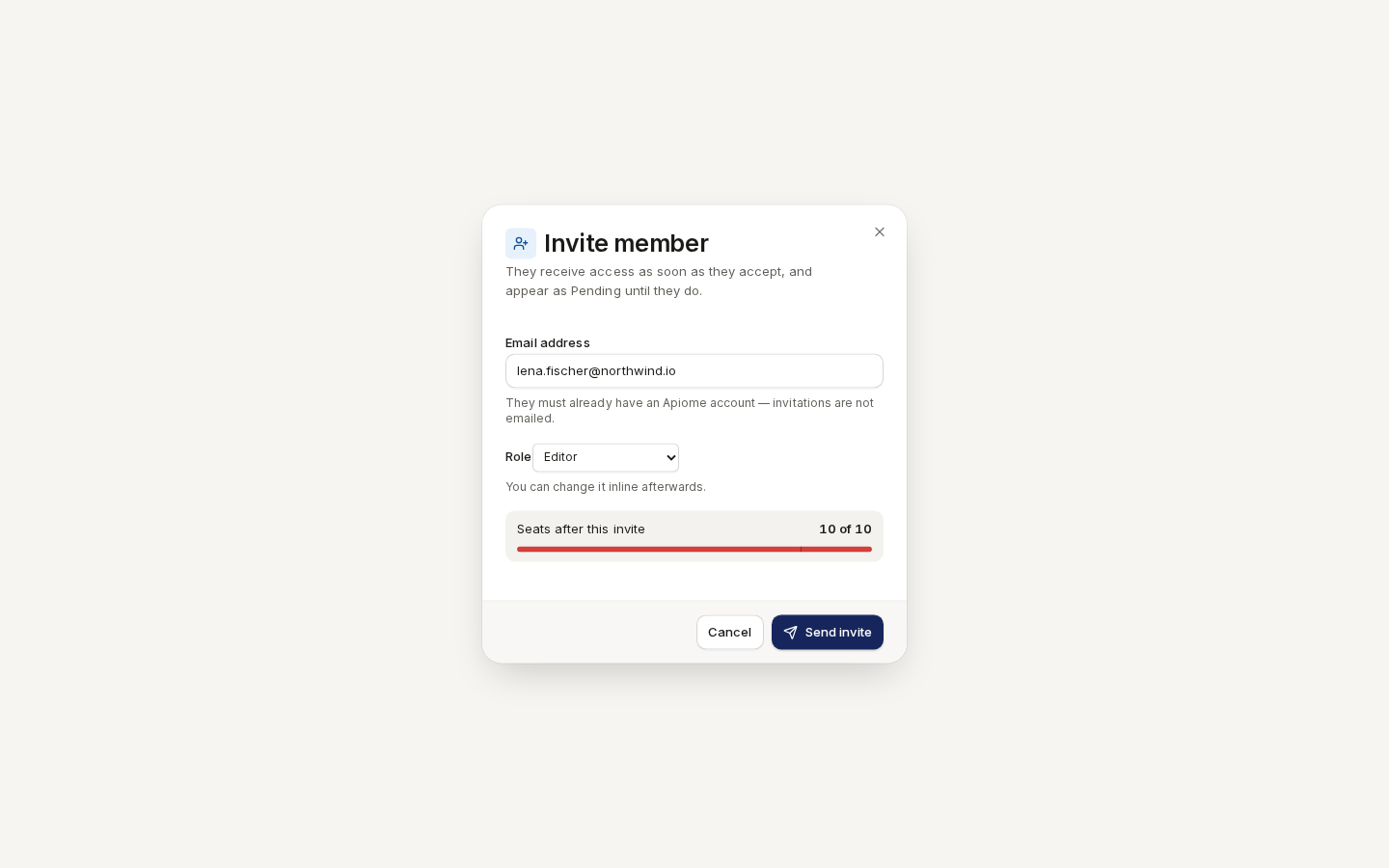
/ade/dashboard/membersThe person appears as a tinted Pending row with an envelope and Invited Jun 13, 2026. Their membership becomes active the next time they sign in. To nudge someone, click “Resend” on their row — Apiome renews the invitation and records it in the access ledger; it still sends no email. To withdraw it, click the bin and “Cancel invite” (or “Keep invitation” to back out); the seat is returned to the licence.
Change a role
Choose a role from the row's Role menu. The change is saved at once and recorded in the Access audit. If it fails, a banner above the roster says why.
Read a member
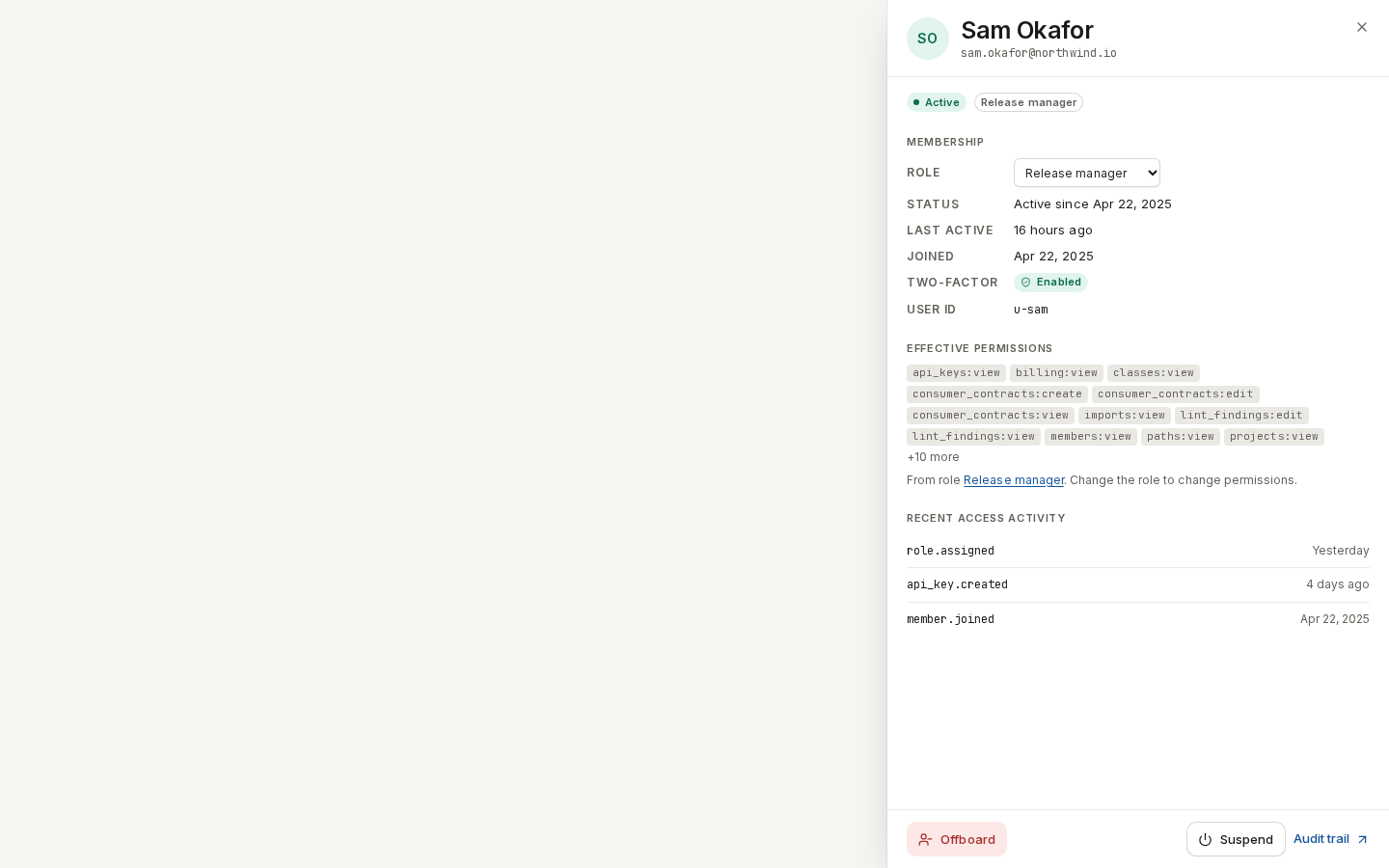
Click a row to open the member's drawer:
- status, role and an Admin badge for workspace administrators;
- Membership — role (changeable here too), status and since when, last active, joined, Two-factor (Enabled or Not enabled) and the user id;
- Effective permissions — the
resource:actiongrants their role gives, with a link to that role; - Recent access activity — the latest access-ledger entries by or about them.
The footer has Offboard (or Cancel invite), Resend for an invitation, Suspend or Reinstate, and Audit trail, which opens the full ledger.
/ade/dashboard/membersSuspend and reinstate
Suspending stops someone signing in without removing them — for leave, or while an incident is looked into.
- Click the power button on their row (or “Suspend” in the drawer).
- Read the confirmation — They keep their seat but cannot sign in to this workspace until reinstated. — and click “Suspend”.
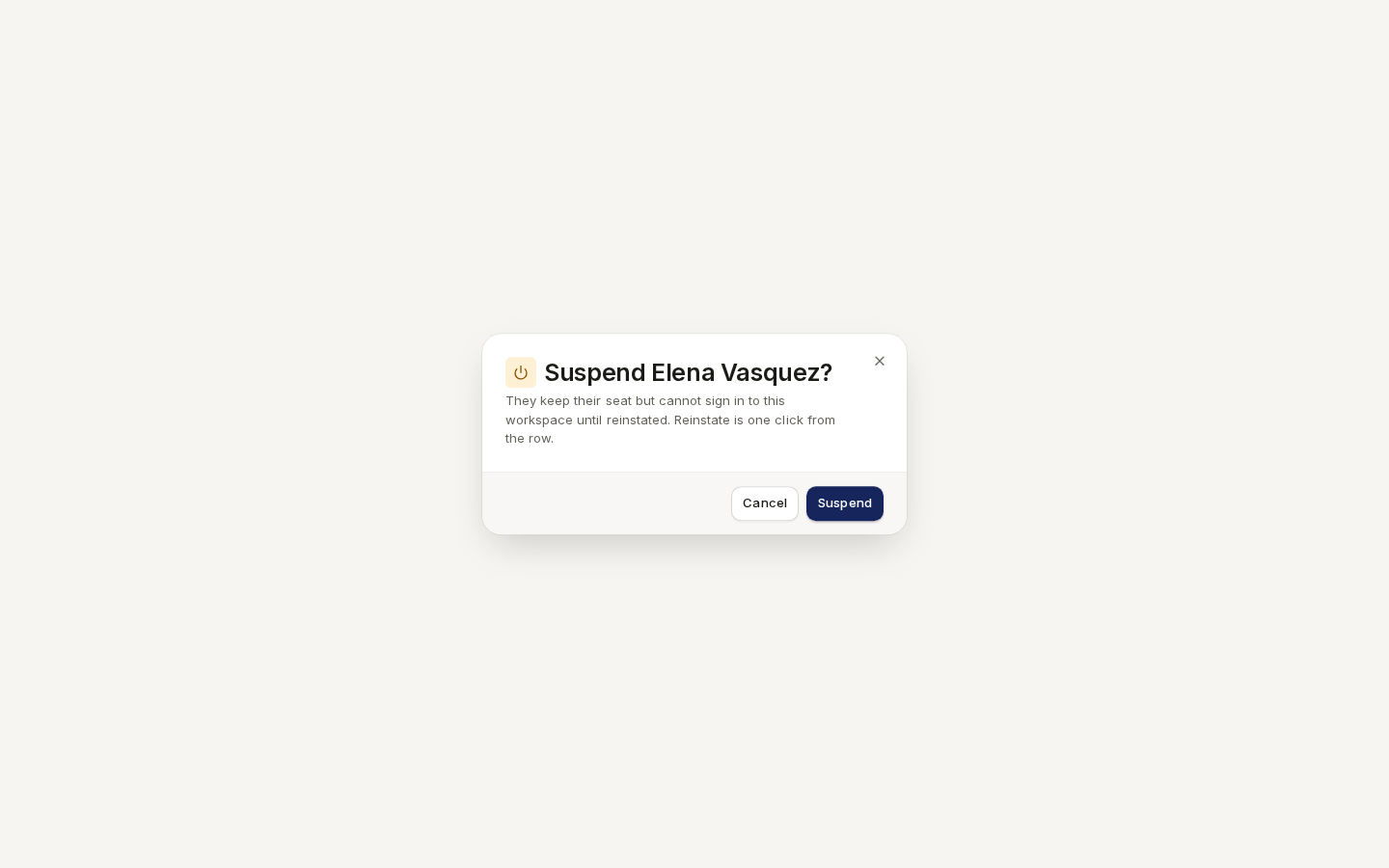
/ade/dashboard/membersA suspended row is dimmed and offers Reinstate; confirming lets them sign in again. If the licence has no seat left, the dialog stays open and says so.
Offboard a member
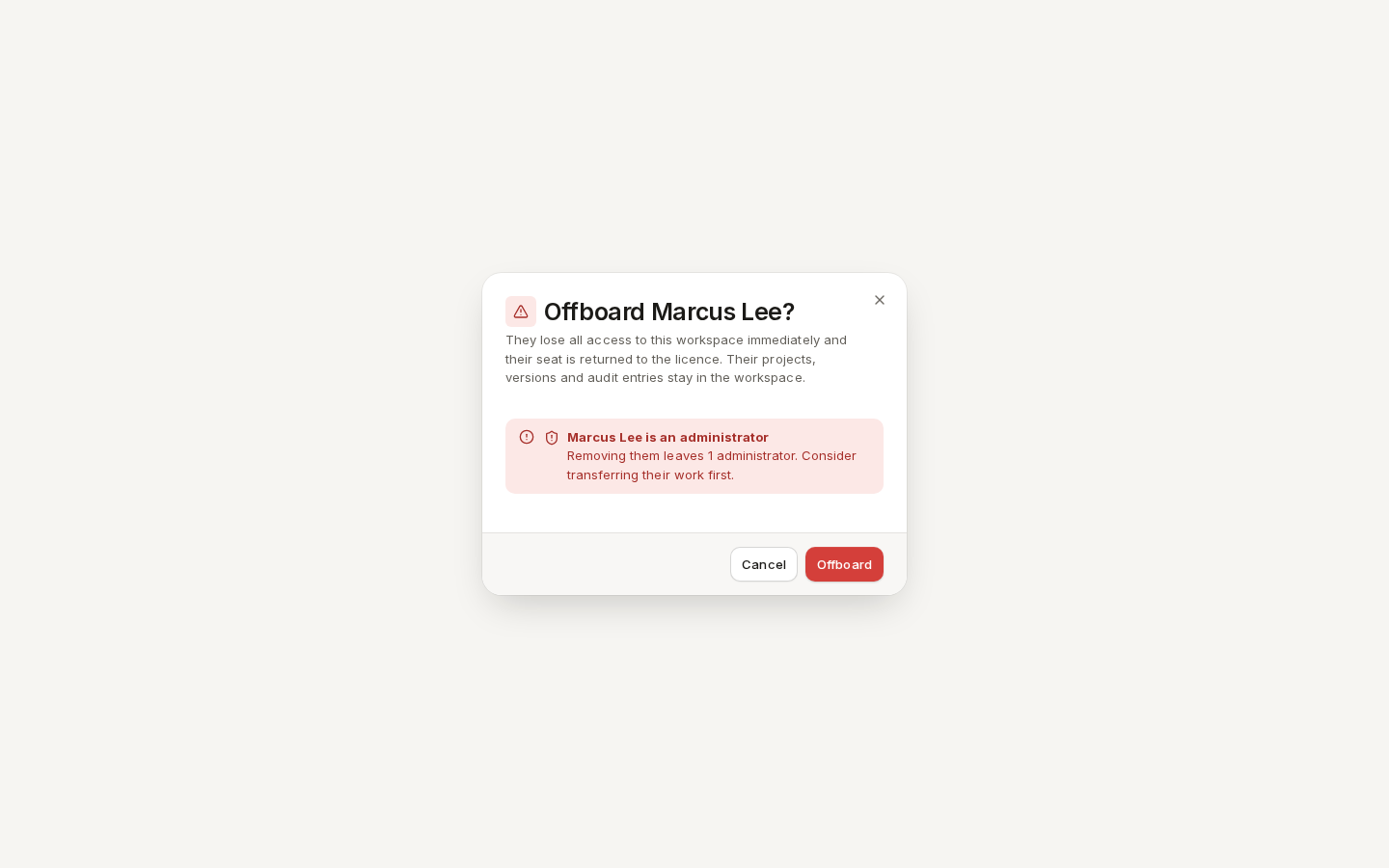
Offboarding removes someone's membership, role and any administrator rights at once.
- Click the bin on their row (or “Offboard” in the drawer).
- Click “Offboard” to confirm.
They lose all access immediately and their seat is returned to the licence. Their projects, versions and audit entries stay in the workspace. Offboarding an administrator adds a warning that counts the administrators who would remain — and if none would, it tells you to promote someone else first.
/ade/dashboard/membersIdentity provider
Single Sign-On (OIDC/SAML) and SCIM 2.0 provisioning are listed at the foot of the page as Coming soon; their buttons are not yet active. Members sign in with their own accounts — see Linked accounts.
With the API
The page calls the access API, scoped to the workspace — see the API reference:
| Call | Does |
|---|---|
GET /v1/access/{tenant}/members | The roster |
POST /v1/access/{tenant}/members | Invite (email, optional role_id) |
PATCH /v1/access/{tenant}/members/{user_id} | Change role_id or status (active, suspended) |
POST /v1/access/{tenant}/members/{user_id}/resend-invite | Renew a pending invitation |
DELETE /v1/access/{tenant}/members/{user_id} | Offboard, or cancel an invitation |
GET /v1/tenants/{tenant}/license | Plan and seat usage |
There is no CLI command for members.