Linked accounts
/ade/dashboard/linked-accounts
Linked accounts connects your Apiome account to identity providers such as GitHub, GitLab, Microsoft or Google. A linked provider is a way to sign in, and for GitHub and GitLab it is also how Apiome reaches your repositories. Open the user menu at the foot of the rail and choose Linked accounts, or click “Manage linked accounts” on your Profile.
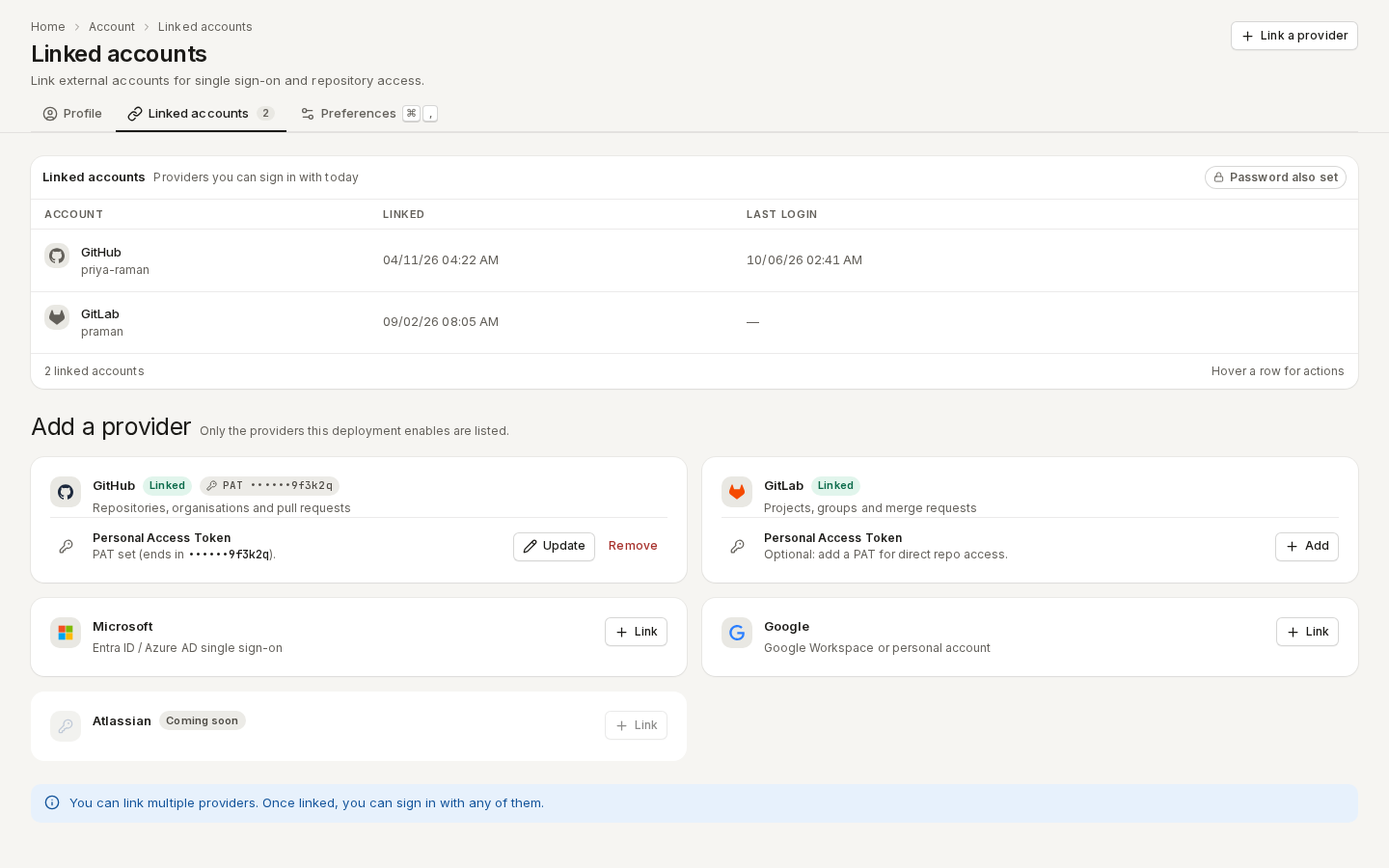
/ade/dashboard/linked-accountsThe page has two parts:
- Linked accounts — the providers you can sign in with today: the account name at the provider, when you linked it, and when you last signed in with it. Password also set shows when you can also sign in with a password.
- Add a provider — a card for each provider your deployment enables. Providers marked Coming soon are not available yet. Which providers appear is set by your administrator.
Link a provider
- Click “Link a provider” at the top of the page, or scroll to Add a provider.
- Click “Link” on the provider's card.
- Sign in at the provider and approve access. You come back to this page with Account linked successfully!
Once linked you can sign in with any of your providers. A provider account can be linked to only one Apiome account; if it is already linked elsewhere, the page says so and nothing changes.
Unlink a provider
- Hover the provider's row and click “Unlink”.
- Read the confirmation — it names the other ways you can still sign in, and says when a stored token is removed too — and click “Unlink”.
You cannot remove your only way to sign in. When a provider is your only sign-in method and you have no password, its Unlink is disabled and the row says Only sign-in method — set a password or link another provider to remove it.

/ade/dashboard/linked-accountsRepository access tokens
Imports from a GitHub or GitLab repository use the access the provider granted when you linked it. For direct repository access — private repositories in an organisation, for example — you can store a Personal Access Token (PAT) on a linked GitHub or GitLab account.
-
On the provider's card, click “Add” next to Personal Access Token.
-
Create a token at the provider with the scopes the dialog lists under Required scopes:
Provider Scopes GitHub repo(orpublic_repo),read:org,read:user,user:emailGitLab read_api,read_repository,read_user -
Paste it into Token and click “Add token”.
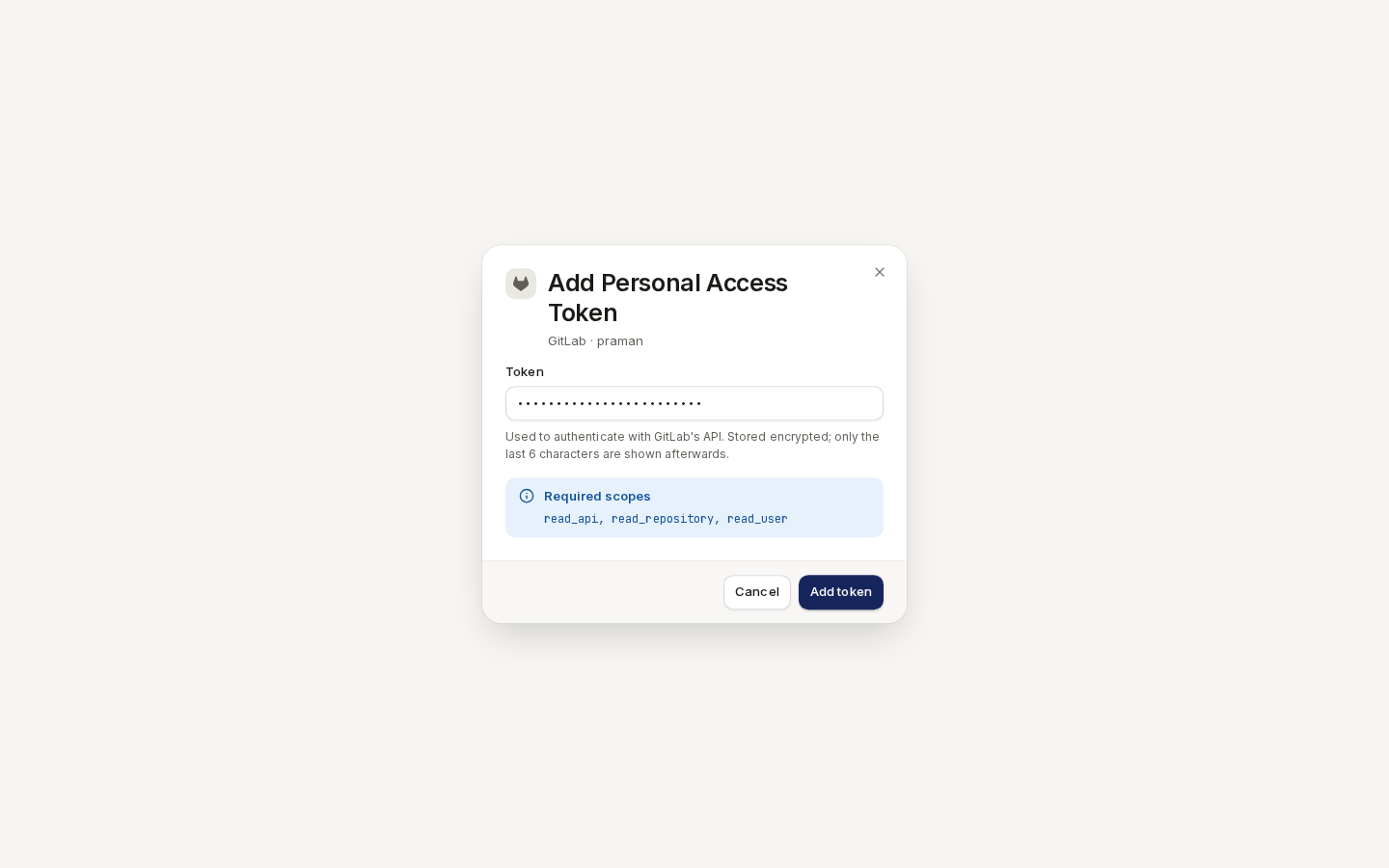
/ade/dashboard/linked-accountsThe card then shows PAT •••••• and the token's last six characters; the token itself is never shown again. Click “Update” to replace it, or “Remove” to delete it — imports that relied on it fall back to the provider's own grant. Unlinking the provider removes its token too.
With the API
Linking and tokens are only in the app; there is no REST endpoint or CLI command for them. To call Apiome from scripts, create an API key.