API keys & agent keys
/ade/dashboard/api-keys
An API key lets a pipeline, script or integration call the Apiome REST API as your workspace without a person signing in. Keys belong to the workspace, not to you: every call runs as that tenant. Go to Workspace → API keys (the command palette's Create API key… opens the create dialog directly).
/ade/dashboard/api-keysReading keys needs the api_keys:view permission and changing them needs api_keys:create,
api_keys:edit or api_keys:delete — see Roles.
The keys table
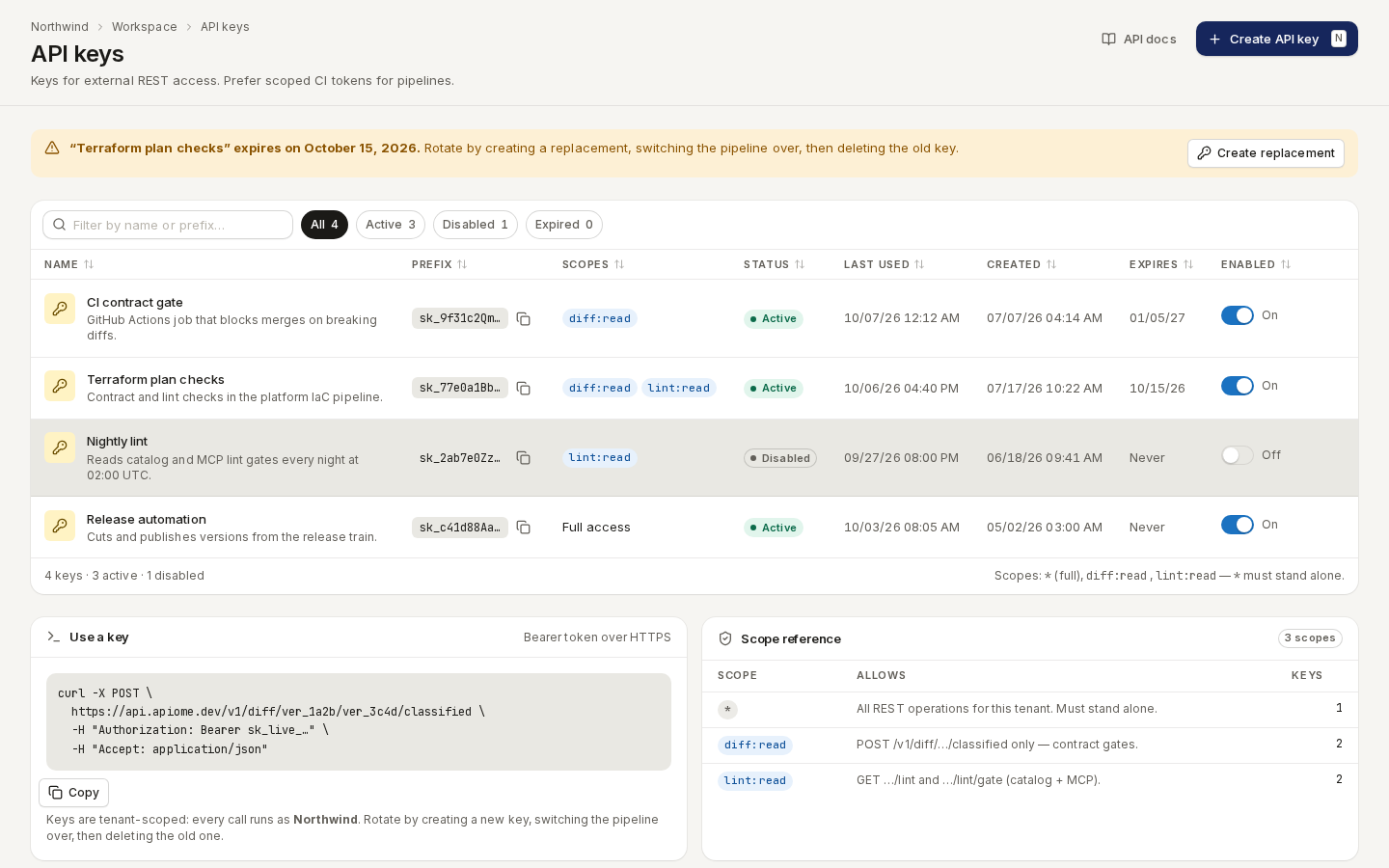
Each row shows the key's Name and description, its Prefix (the first characters, in monospace, with a copy button — use it to match a key to a log line), Scopes, Status (Active, Disabled or Expired), Last used, Created, Expires (or Never) and an Enabled switch. Every column sorts.
- Filter by name or prefix… narrows the rows; the chips All, Active, Disabled and Expired carry their counts.
- The foot counts the keys by status and repeats the scope rule:
*must stand alone. - Under the table, Use a key has an example
curlrequest with Copy, and Scope reference lists what each scope allows and how many of this workspace's keys hold it.
Scopes
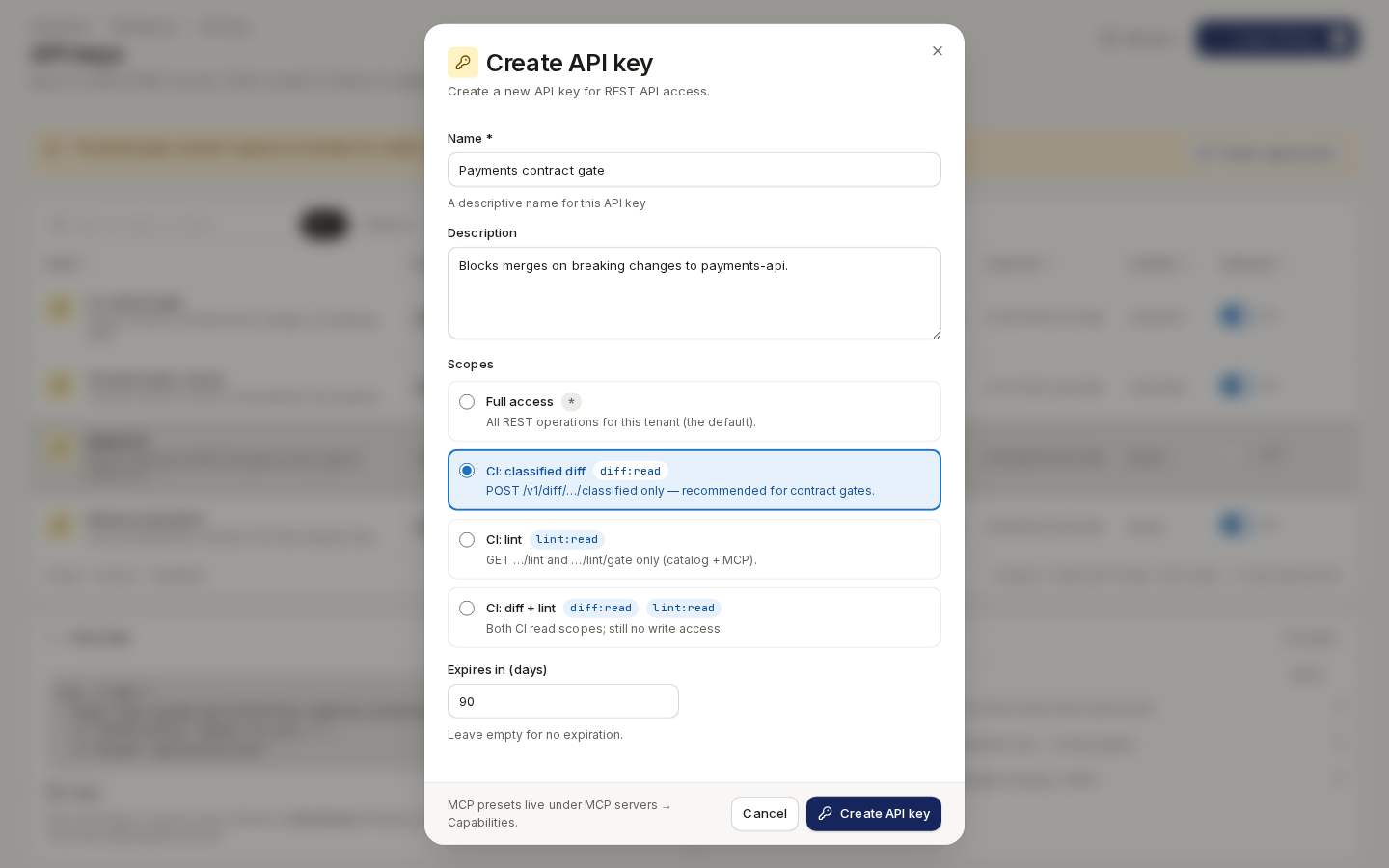
A key carries one of four presets, chosen when it is created:
| Preset | Scopes | Allows |
|---|---|---|
| Full access (the default) | * | All REST operations for this tenant |
| CI: classified diff | diff:read | POST /v1/diff/…/classified only — recommended for contract gates |
| CI: lint | lint:read | GET …/lint and …/lint/gate only (catalog and MCP) |
| CI: diff + lint | diff:read lint:read | Both CI read scopes; still no write access |
Give pipelines the narrowest preset that works: a contract gate needs only diff:read. A key's
scopes cannot be changed after it is created — create a new key instead. See CI diff
gate for the gate that uses diff:read.
Create a key
- Click “Create API key” (or press N).
- Enter a Name — required, for example
Payments contract gate— and, optionally, a Description of what uses it. - Under Scopes, choose a preset card.
- In Expires in (days), enter a whole number of days, or leave it empty for a key that never expires.
- Click “Create API key”.
/ade/dashboard/api-keysCopy the key — once
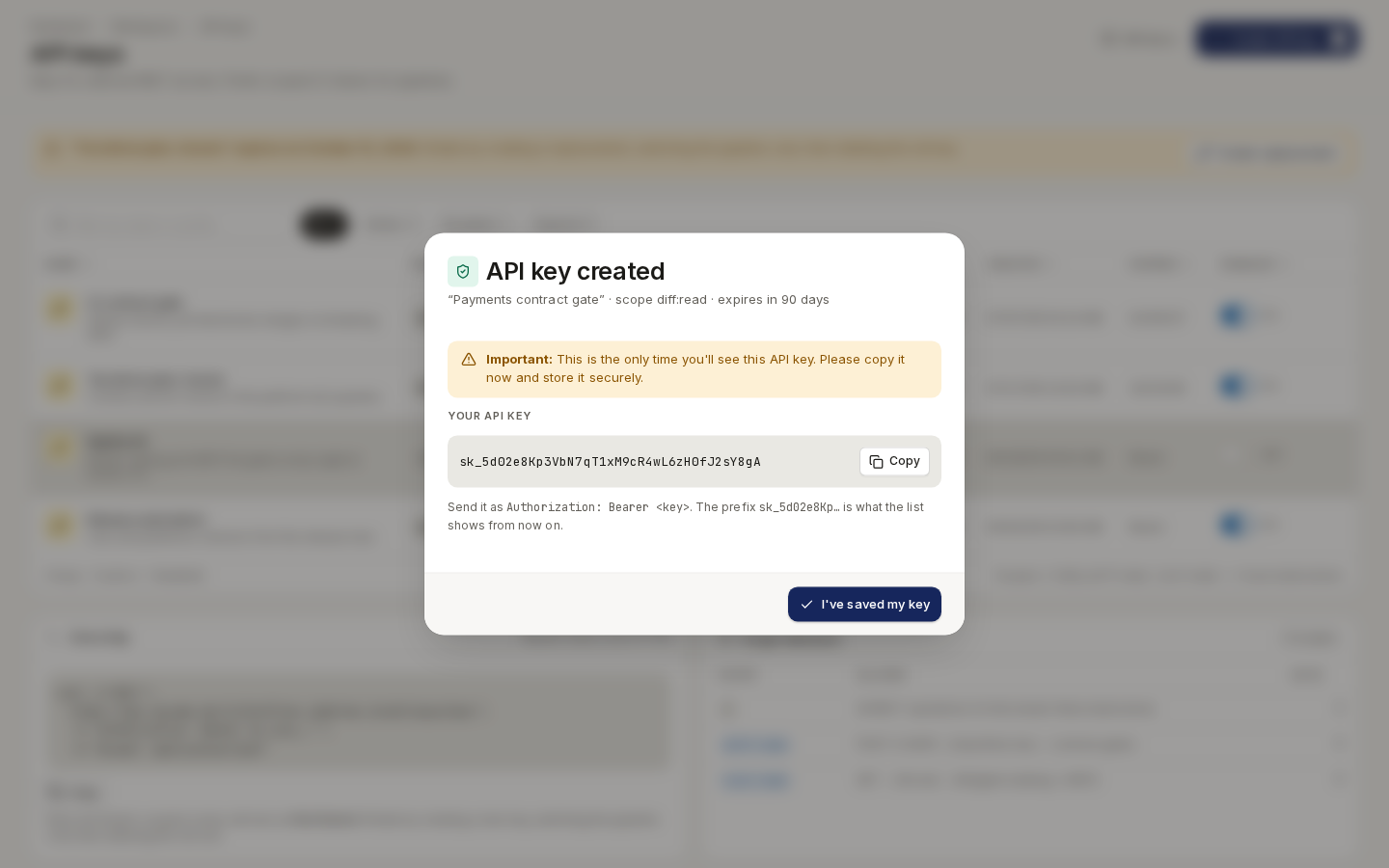
API key created shows the whole key, with the name, scope and expiry above it. This is the only time it is shown: Apiome stores only a hash, there is no way to reveal it again, and the dialog cannot be dismissed with Esc or a click outside.
- Click “Copy” (or select the key) and store it in your secret manager.
- Click “I've saved my key”.
From now on the list shows only its prefix.
/ade/dashboard/api-keysSend the key as Authorization: Bearer <key>, or in the X-API-Key header — which is what the
CLI does with --api-key or APIOME_API_KEY:
curl -X POST \
  https://api.apiome.dev/v1/diff/ver_1a2b/ver_3c4d/classified \
  -H "Authorization: Bearer sk_live_…" \
  -H "Accept: application/json"
Rotate a key before it expires
When a key expires within 14 days, a banner names it — “Terraform plan checks” expires on October 15, 2026. — and once a key has expired, requests with it are refused and the banner says so. An expired key cannot be re-enabled. To rotate:
- Click “Create replacement” in the banner (or Create API key) and create a key with the same scopes.
- Switch the pipeline over to the new key.
- Delete the old key.
Disable, enable and delete
- Turn a key's Enabled switch off to pause it. Disable API key asks first, because every request using the key is blocked at once; click “Disable”. Turning the switch back on takes effect immediately, with no confirm.
- Click the bin icon on a row to delete a key. Delete API key warns that every caller still using it starts getting 401s; click “Delete”. Deleting cannot be undone — rotate first if something in production depends on the key.
Agent keys
API keys are for REST. Keys for AI agents calling Apiome's MCP server are separate:
- Agent keys are issued per toolset under MCP servers → Agent access, limited to the tools you tick, with their own expiry, revocation and usage charts — see Agent access.
- MCP API keys and what each may call are managed per workspace in the tenant's manage drawer — see Per-key capabilities. The create dialog's footer points there too: MCP presets live under MCP servers → Capabilities.
With the API
API keys are created and managed in the app; there is no REST endpoint or CLI command for them.
Agent keys have REST endpoints (GET / POST /v1/tenants/{tenant}/agent-keys, GET / DELETE …/agent-keys/{key}) — see the API reference.
Where next
- Roles — who may create and delete keys
- Tenants — MCP policy and per-key capabilities
- Agent access
- CLI quick-start