Sunset timeline
/ade/dashboard/versions/sunset-timeline
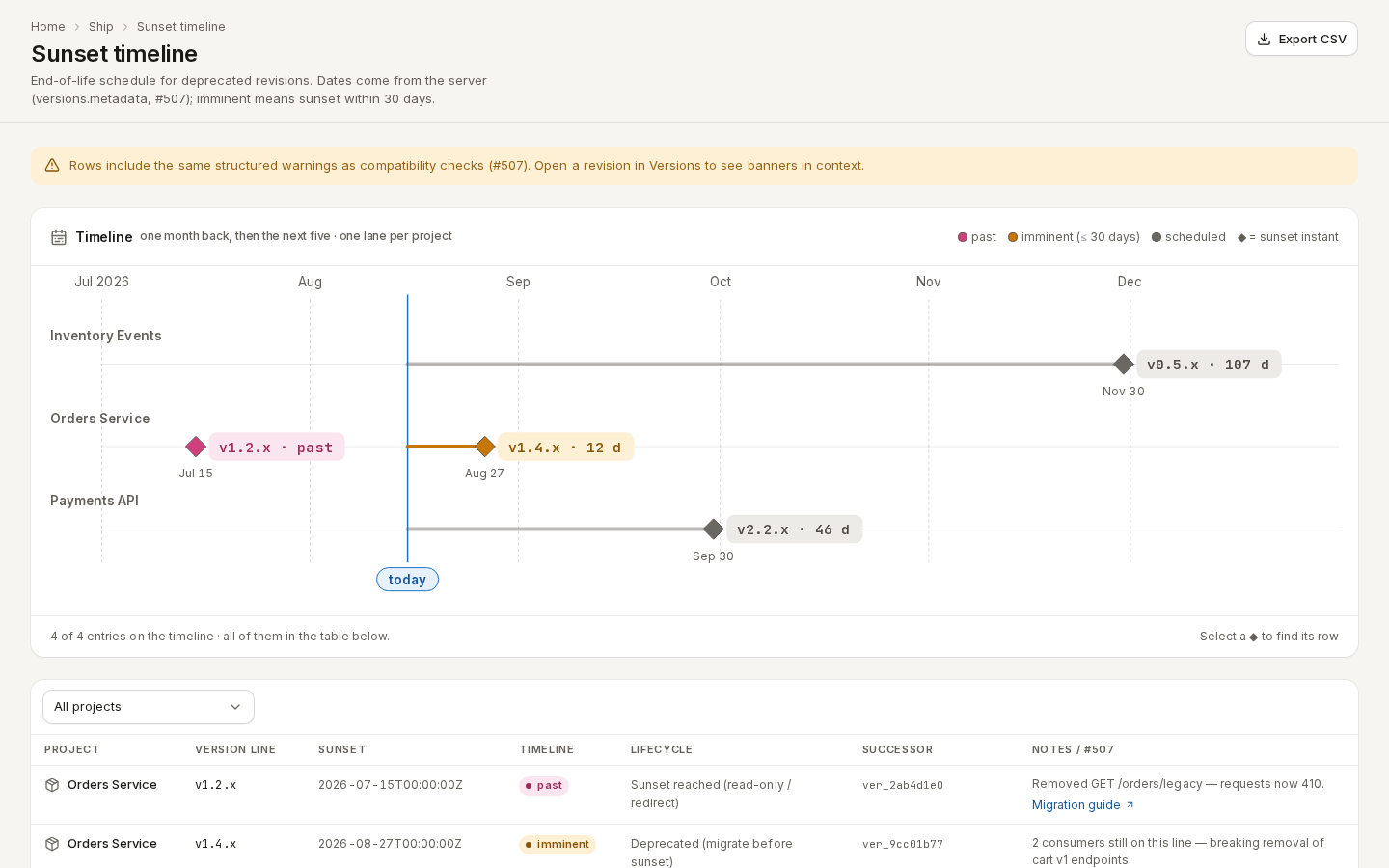
The Sunset timeline is the end-of-life schedule for deprecated versions: which ones sunset when, what replaces them, and which sunsets are close. Go to Ship → Sunset timeline. A sunset is imminent when it falls within 30 days.
/ade/dashboard/versions/sunset-timelineSchedule a sunset
Sunsets are set on Versions, not here:
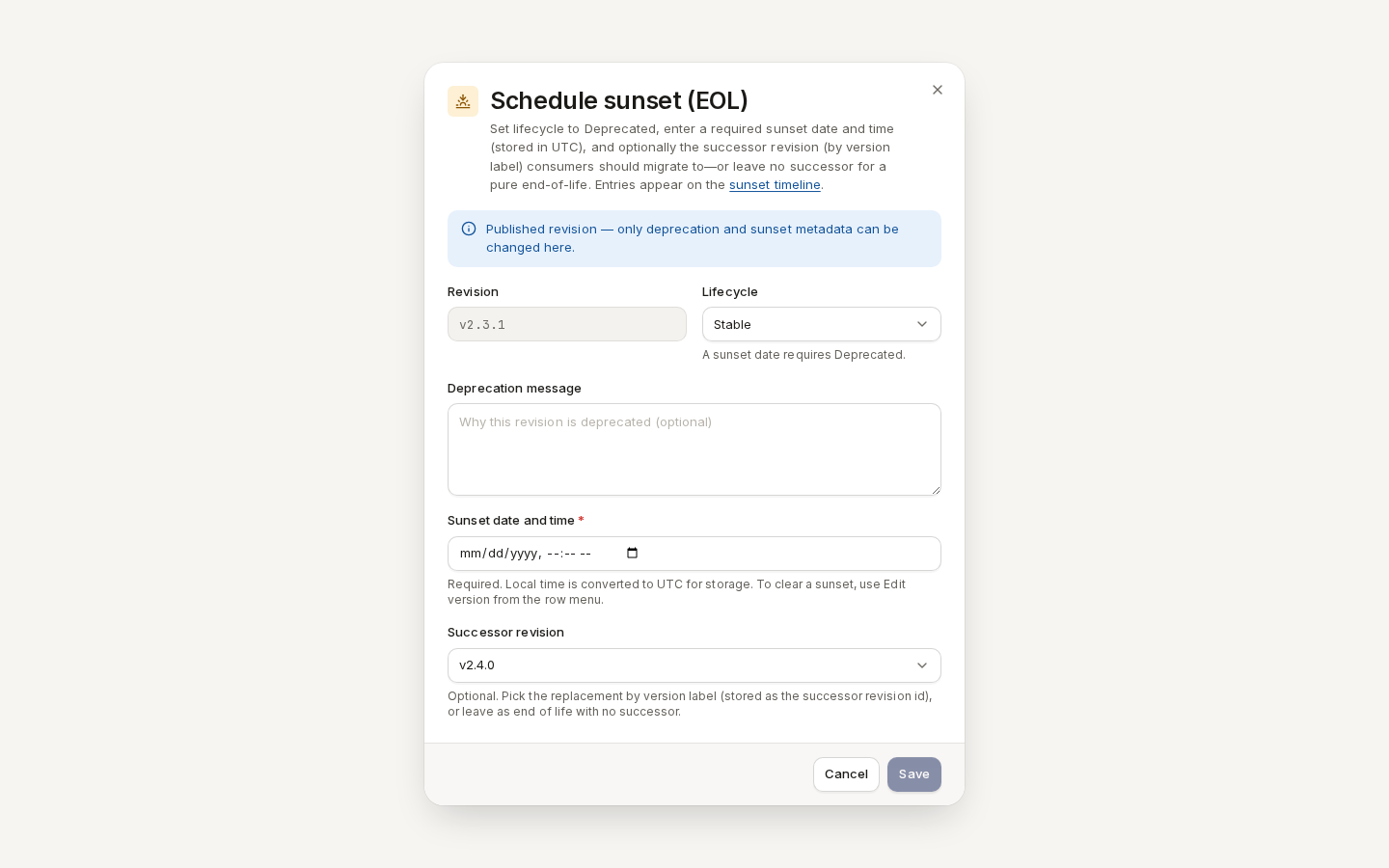
- On Versions, open a version's row menu and choose “Schedule sunset (EOL)…” (or the Schedule sunset (EOL) quick action on a deprecated row).
- Set Lifecycle to Deprecated — a sunset date requires it — and add a Deprecation message, for example Use v2 — v1 stops answering on 30 September.
- Enter the Sunset date and time. It is entered in your local time and stored in UTC.
- Optionally choose a Successor revision for consumers to migrate to, or leave No successor (end of life).
- Click “Save”. A toast confirms Sunset schedule saved.
On a published version only a workspace administrator can change the sunset. To clear a sunset, use Edit version from the row menu. The dialog is described in Version dialogs.
/ade/dashboard/versionsRead the timeline
The Timeline card covers one month back and the next five, with one lane per project and a today line.
- Each ◆ is a sunset, labelled with its version line and how far away it is (
v1 · 12 d, today or past), and its date in UTC. - Colour and the legend say whether it is past, imminent (≤ 30 days) or scheduled.
- Select a ◆ to highlight and scroll to its row in the table.
The foot counts what is on the timeline, what falls outside the six months and what has no sunset date — every entry is in the table either way. The card is hidden when no sunset falls in the window.
The table
Filter by project (press /) narrows both the timeline and the table to one project.
| Column | What it shows |
|---|---|
| Project | The project. |
| Version line | The deprecated version. |
| Sunset | The sunset instant, or — when none is set. |
| Timeline | past, imminent or scheduled. |
| Lifecycle | Deprecated (migrate before sunset) or Sunset reached (read-only / redirect). |
| Successor | The replacement version, or —. |
| Notes / #507 | The deprecation message or warning, and a Migration guide link. |
A banner appears when rows carry the same structured warnings as compatibility checks; open the version on Versions to see them in context.
Export CSV
Click “Export CSV” to download sunset-timeline.csv for the rows on screen, with the columns
project, versionLine, sunsetDate, timelineStatus, lifecyclePhase, successorRevisionId and
deprecationMessage. The button is disabled when there are no rows.
When it is empty
No deprecation or sunset entries means no version is deprecated or has a sunset date; “Go to Versions” takes you there. If the schedule cannot be read, the table says Could not load the sunset schedule with the reason and “Try again”.
With the API
GET /v1/versions/{tenant}/sunset-timeline (optionally ?projectId=) returns the same entries;
the sunset itself is version metadata, set with PUT /v1/versions/{tenant}/{project_id}/{version_record_id}.
See the API reference.