Published
/ade/dashboard/published
Published lists every locked, published version in the workspace and the three things a publication has that a draft does not: a visibility, an access URL and a hosted mock. Go to Ship → Published. The header counts them — for example 4 published versions · 2 public · 1 with a hosted mock — and “API keys” opens the workspace's API keys, which private versions need.
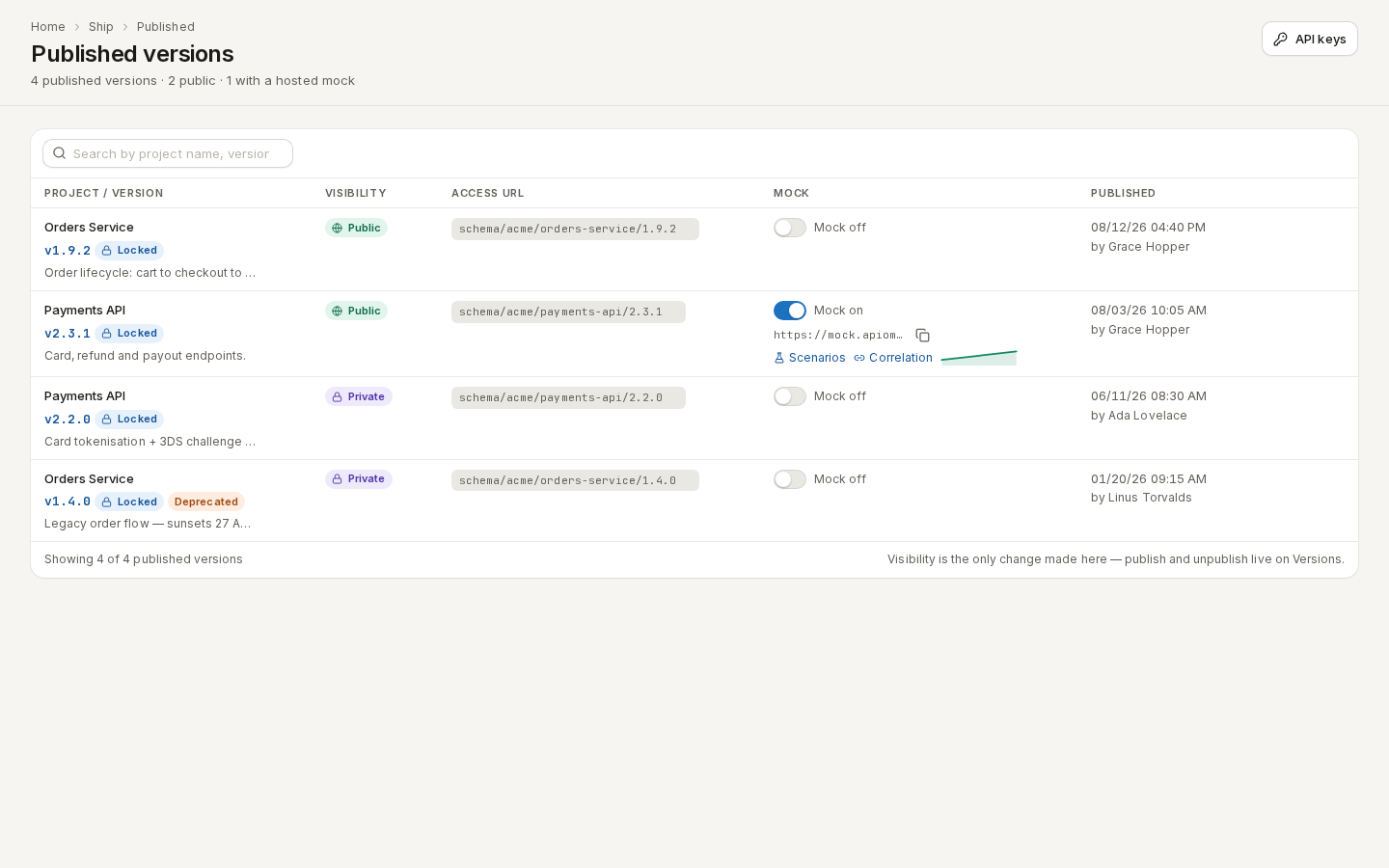
/ade/dashboard/publishedNothing is authored here. Visibility is the only change the page makes — to publish, unpublish or retire a version, use Versions; see Publish a version.
The table
| Column | What it shows |
|---|---|
| Project / Version | The project, the version (v2.3.1), a Locked badge, a lifecycle pill when the version is Deprecated or later, and the revision note. Hover the pill for the sunset date. |
| Visibility | Public or Private. Click it to change it (below). |
| Access URL | The path the spec is served at, such as schema/acme/payments-api/2.3.1. Click it to copy the full URL. |
| Mock | The hosted mock switch, its URL, Scenarios, Correlation and a 30-day request sparkline (below). |
| Published | When, and by whom. |
| Actions | The row menu, and a key button on private rows. |
Search (press /) matches the project name, version, description and workspace. The foot reads Showing 3 of 4 published versions and says (filtered) while a search is on.
Change visibility
- Click the row's Public or Private badge (or choose Make Private / Make Public in the row menu).
- Apiome asks Change Visibility to PRIVATE (or PUBLIC) and says what changes: a public spec needs no API key; a private one does.
- Click “Change Visibility”. A toast confirms Visibility changed to private. If the change fails, a red banner names the reason — for example Failed to update visibility: 503 Service Unavailable — and the row keeps its old value.
Open a published spec
The row menu (⋯) has:
- View → OpenAPI, Arazzo or JSON Schema — the reconstructed document in a new tab.
- Swagger UI — the interactive viewer; see Browse published specs.
- Copy URL — the access URL.
- Make Private / Make Public.
A private version needs an API key. With no live key in the workspace, the View entries are inert and say Create an API key to access private versions. With one, Apiome asks for it:
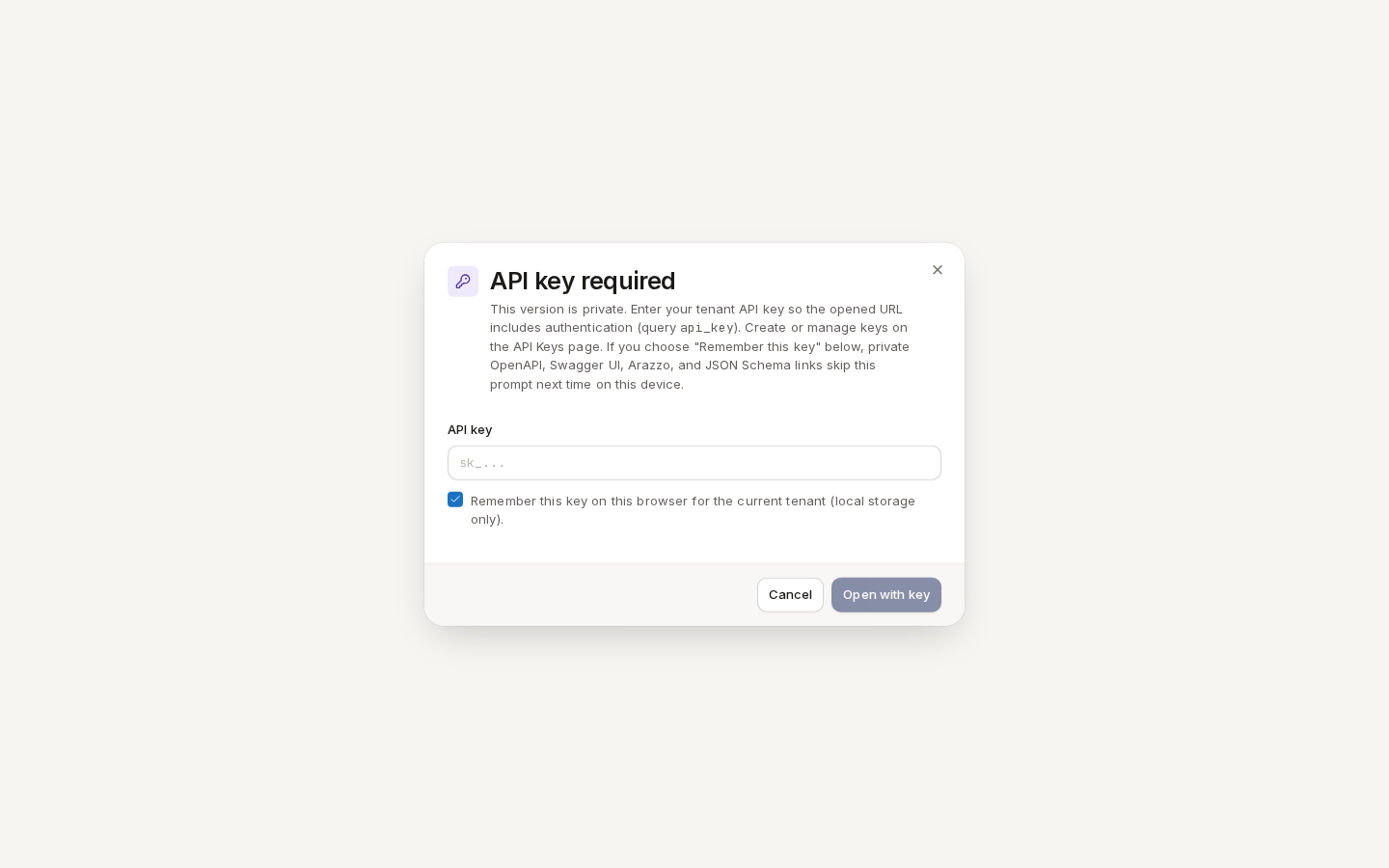
/ade/dashboard/published- Paste the key (it starts
sk_) into API key. - Leave Remember this key on this browser for the current tenant ticked to skip the prompt next time on this device, or untick it.
- Click “Open with key”. The URL opens with the key as the
api_keyquery parameter.
The key button beside a private row's menu always asks, which is how you replace a remembered key; Clear saved key from this browser forgets it.
The hosted mock
The Mock cell serves the version as a mock API — the same cell is on Versions.
-
Turn on the switch. The label changes from Mock off to Mock on and a toast says Mock enabled for v2.3.1 — the mock URL is ready to share.
-
Click the copy button beside the mock URL (for example
https://mock.apiome.dev/acme/payments-api/2.3.1) and call it:curl https://mock.apiome.dev/acme/payments-api/2.3.1/payments -
The sparkline counts the mock's requests over the last 30 days; it reads No requests yet until the first one.
Turning the switch off stops serving the mock. On an unpublished draft (on Versions) the switch reads Draft mock off and turns on a Private mock that needs an API key at runtime.
Scenarios
Click “Scenarios” to open Mock scenarios for v… — named situations a consumer picks per
request with the X-Mock-Scenario header. Requests without the header get the default response.
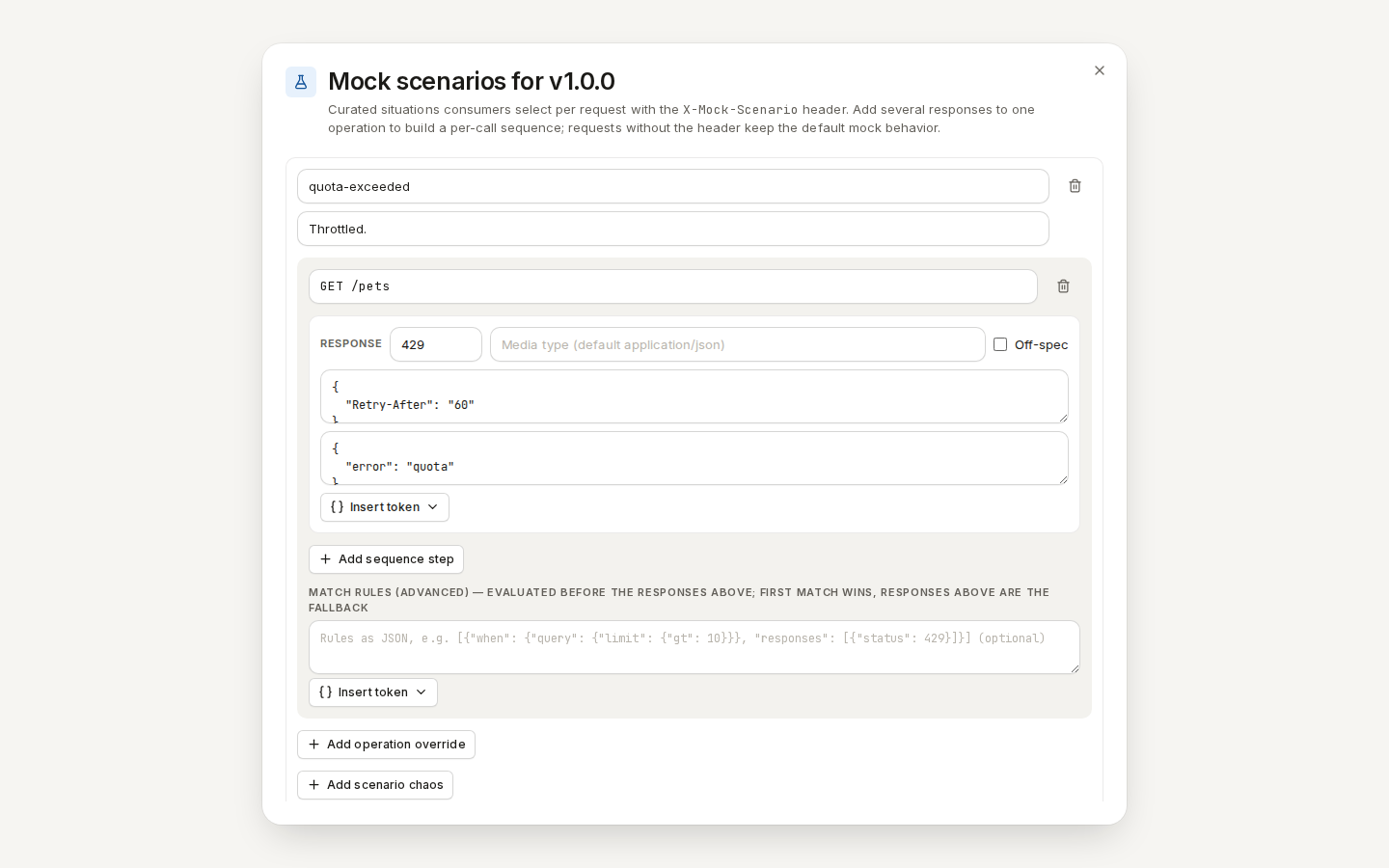
/ade/dashboard/published- Click “Add scenario” and name it, for example
quota-exceeded, with an optional description. - Click “Add operation override”, enter the operation —
GET /pets— and its response: Status429, headers{"Retry-After": "60"}and body{"error": "quota"}. Add sequence step adds another response, so successive calls get each in turn. - Optionally set Latency & chaos — a delay (± jitter, capped at 30 s) and an error rate — for the whole version or one route, or Add scenario chaos for this scenario only.
- Under Try it, choose the operation and click “Render” to see what the mock would answer and which layer answered — nothing is saved or sent.
- Click “Save scenarios”. Validation errors are listed under Please fix the following before saving:.
Then call it: curl -H 'X-Mock-Scenario: quota-exceeded' <mock URL>/pets. The format, match rules
and templates are in the Mock runtime guides.
Correlation
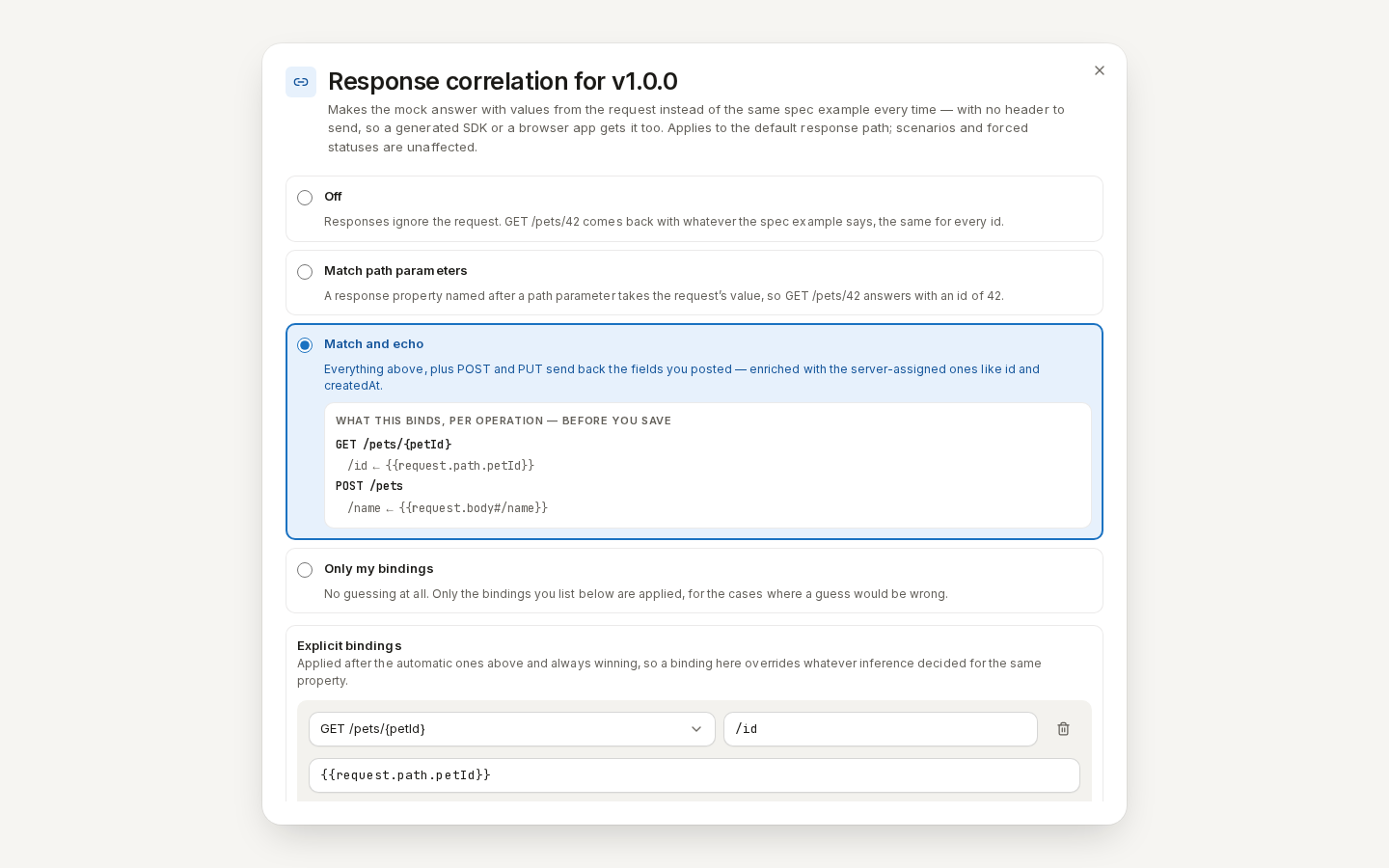
Click “Correlation” to make the default response answer with the request's own values —
GET /pets/42 returns "id": 42. The editor and its modes are documented in
Request-correlated responses.
/ade/dashboard/publishedTo try a mock without turning one on, see Mock try-out.
With the CLI or the API
- REST:
GET /v1/browse/tenants/{tenant}/projects/{project}/versionslists published versions;PUT /v1/versions/{tenant}/{project_id}/{version_record_id}/mockturns the mock on or off;GET/PUT …/mock/scenariosand…/mock/correlationread and save scenarios and correlation — see the API reference. - CLI:
apiome spec exportdownloads a published version andapiome mock previewdry-runs a request — see the CLI quick-start.