Export studio
/ade/dashboard/export/studio
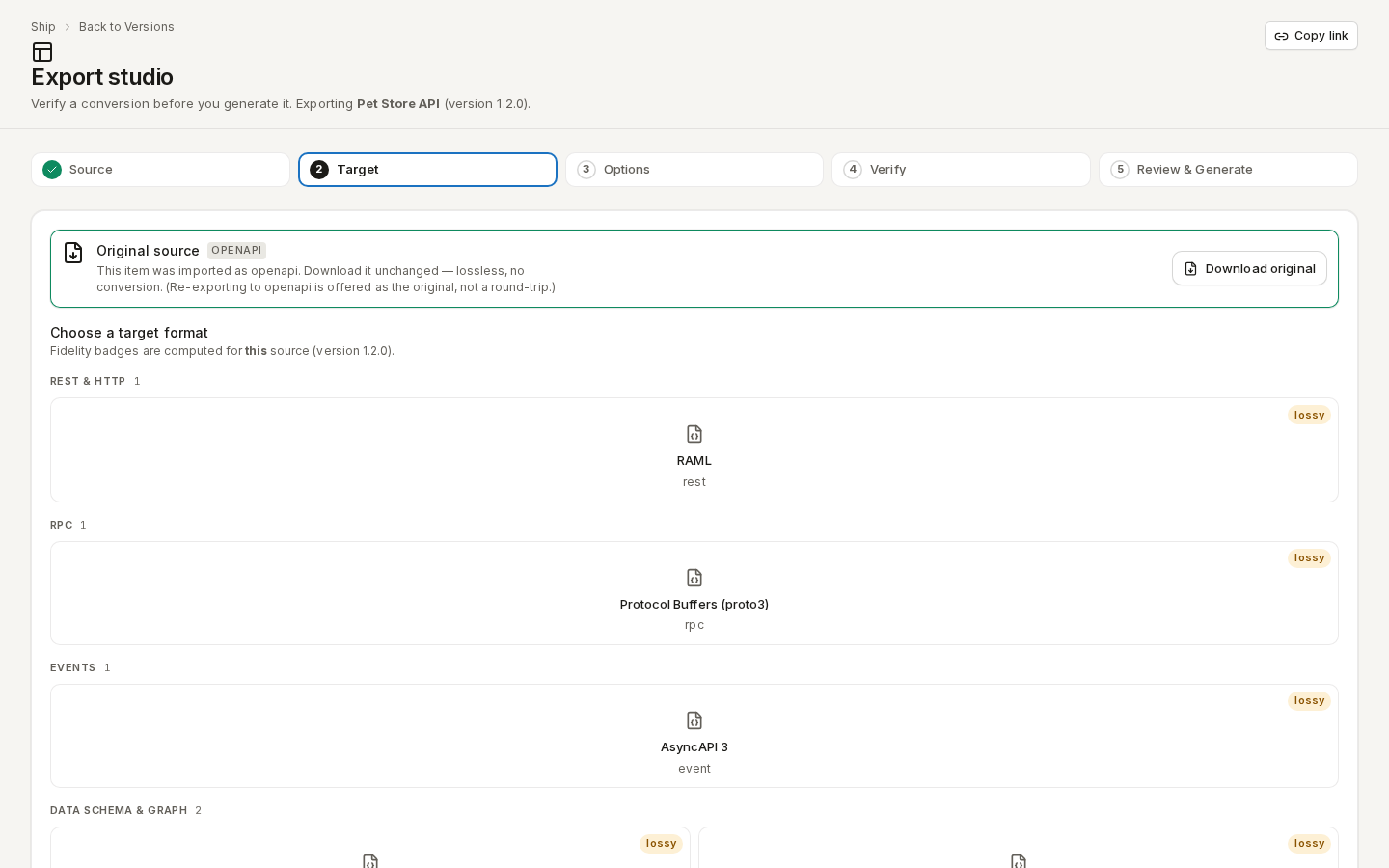
The Export studio converts one version — or one catalog item — into another format, and shows you what the conversion keeps and loses before you generate it. Five steps run across the top: Source, Target, Options, Verify and Review & Generate. Back and the step's main button at the foot move between them.
/ade/dashboard/export/studioOpen the studio
The studio always exports a specific source, so open it from one:
- A version — in a version's Export panel (Convert to any format), click “Export this version”, a target chip, or Re-run in Studio on a recent export. In the Export dialog, “Open in Export Studio” carries your target and options across.
- A catalog item — click “Export” on the item, or Export to another format… in its menu on the Catalog. Exporting a catalog item produces a file; it never turns the item into a project.
Opened without a source, the page says Open the Export Studio from a source with “Go to Versions”.
“Copy link” in the header copies a link that reopens the same source, target, options and step. Credentials are never included in it; a link with a value that cannot be used opens with a yellow notice saying what was ignored.
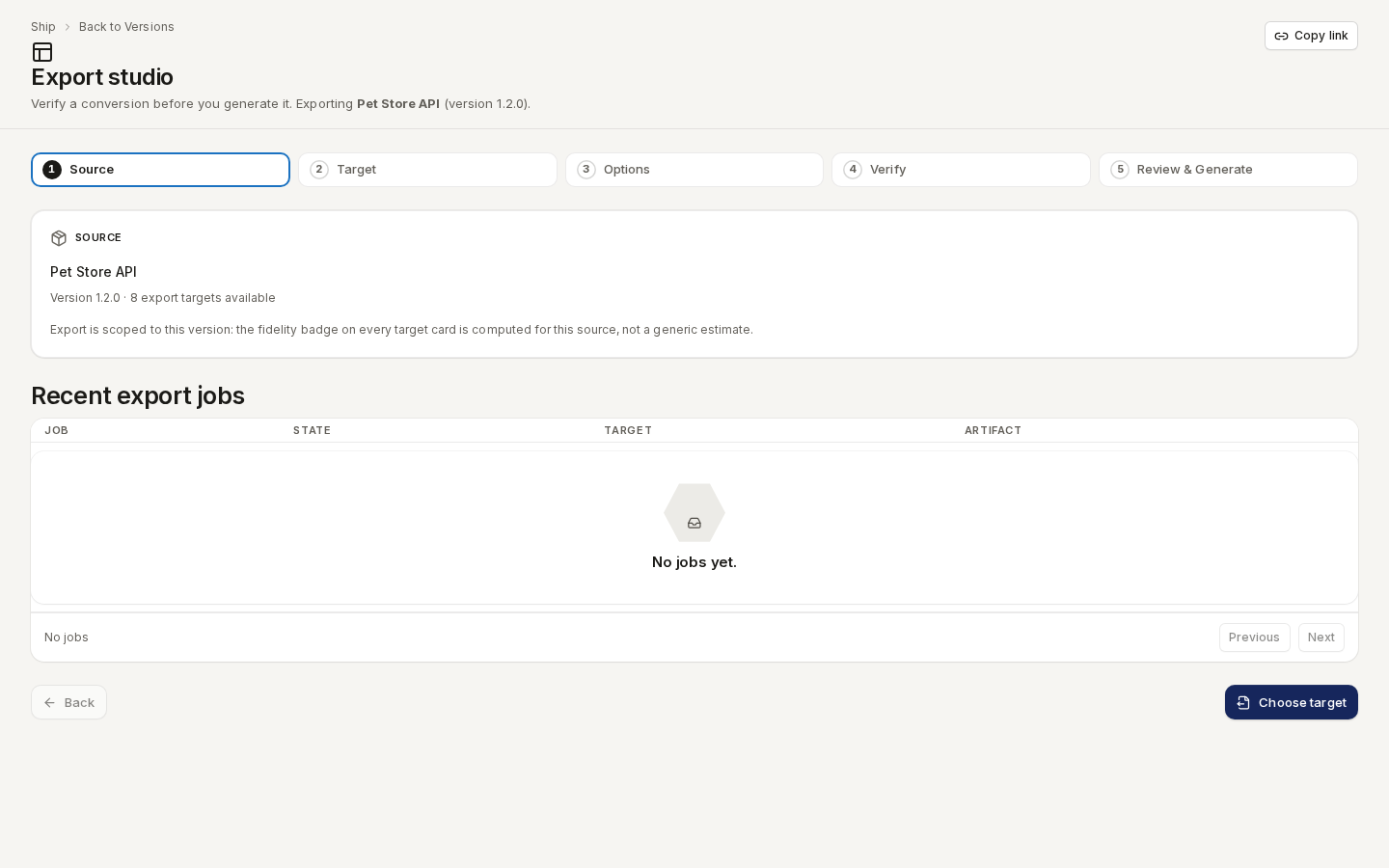
1. Source
The source's name, its version and how many export targets are available. A catalog item also shows its format and counts of services, operations, types and channels. Click “Choose target”.
/ade/dashboard/export/studio2. Target
Choose a target format. Cards are grouped — REST & HTTP, RPC, Events, Data schema & graph, Agents & tools, Other targets — and each carries a fidelity tier computed for this source:
| Tier | Means |
|---|---|
lossless | Carries the source cleanly. |
lossy | Drops or approximates some constructs. |
types-only | Only the schemas survive; operations and channels are dropped. |
A readiness badge (ready, check first, blocked, unavailable) appears when the pre-flight check has run; blocked and unavailable cards cannot be chosen and say why. Toggle Sorted by readiness / Sorted by name above the grid. How tiers and readiness are worked out is in Understand export fidelity.
When the source was imported in another format, the studio hides the same-format target and offers Original source instead: “Download original” gives you the file unchanged.
Select a card — the foot reads Exporting to gRPC / Protobuf with its tier and % preserved — and click “Continue”.
3. Options
The target's options: checkboxes, a row of choices, or text fields. Errors appear under the field, for example … is required. A target with no options says so. Click “Continue”.
4. Verify
Click “Run verification” (or turn on Verify automatically). Fidelity, validation and lint run in one pass; nothing is generated or stored yet.
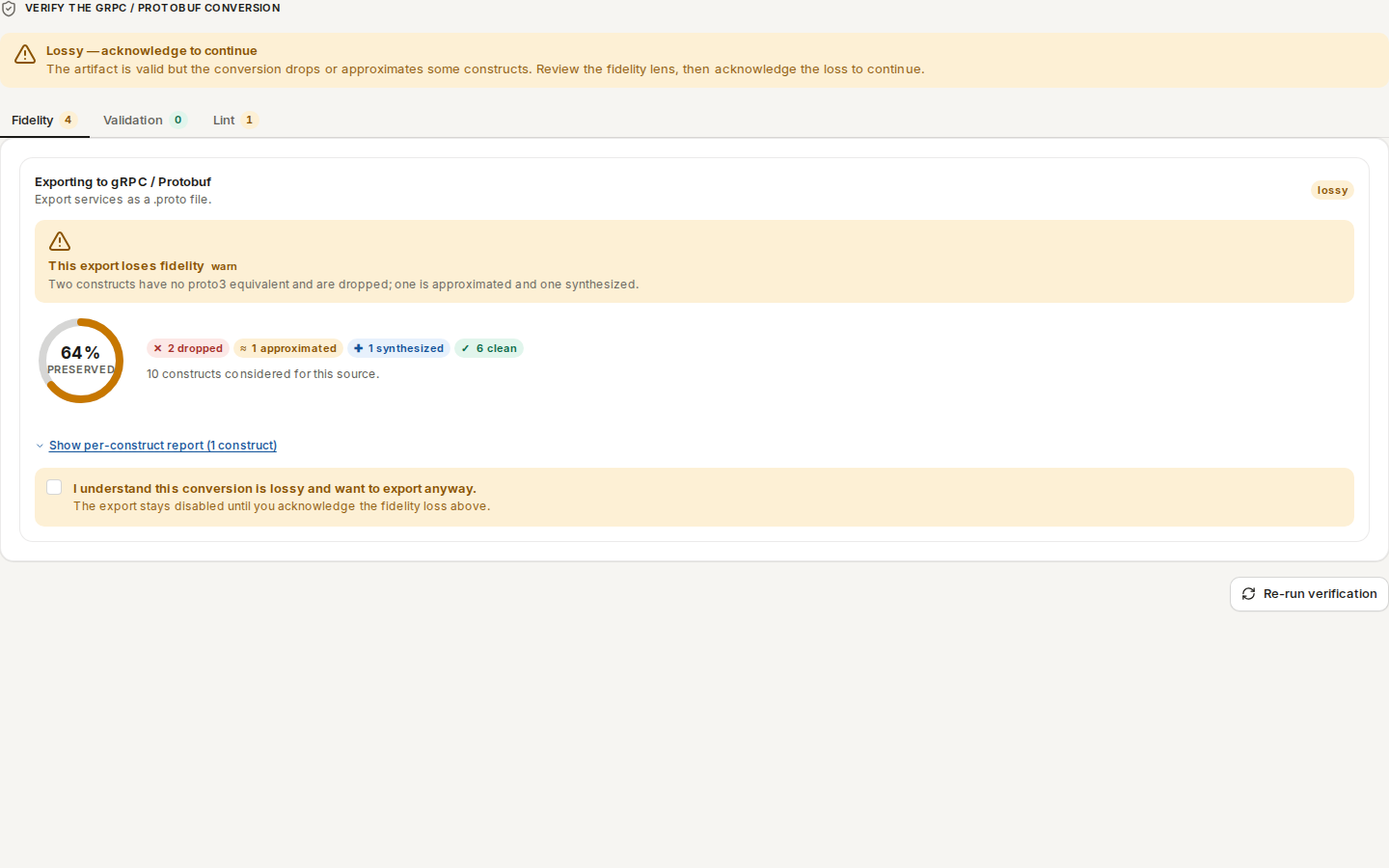
/ade/dashboard/export/studioThe banner gives the verdict:
| Verdict | To continue |
|---|---|
| Clean | Nothing — “Continue to review” is enabled. |
| Lossy — acknowledge to continue | Tick I understand this conversion is lossy and want to export anyway. |
| Severe — acknowledge to continue | Type export produces a types-only artifact in the box. |
| Invalid — export blocked | Fix the source or choose another target; this export cannot be generated. |
The Fidelity, Validation and Lint tabs carry counts. Fidelity shows the % preserved and what was dropped, approximated or synthesized; Show per-construct report opens the projection map, where each construct links to its reason. Lint lints the emitted file, not the source. Changing the target or an option clears the verdict and the acknowledgement — run it again.
5. Review & Generate
The summary lists the Source, the Target (tier and % preserved) and the Options you changed. Click “Generate”.
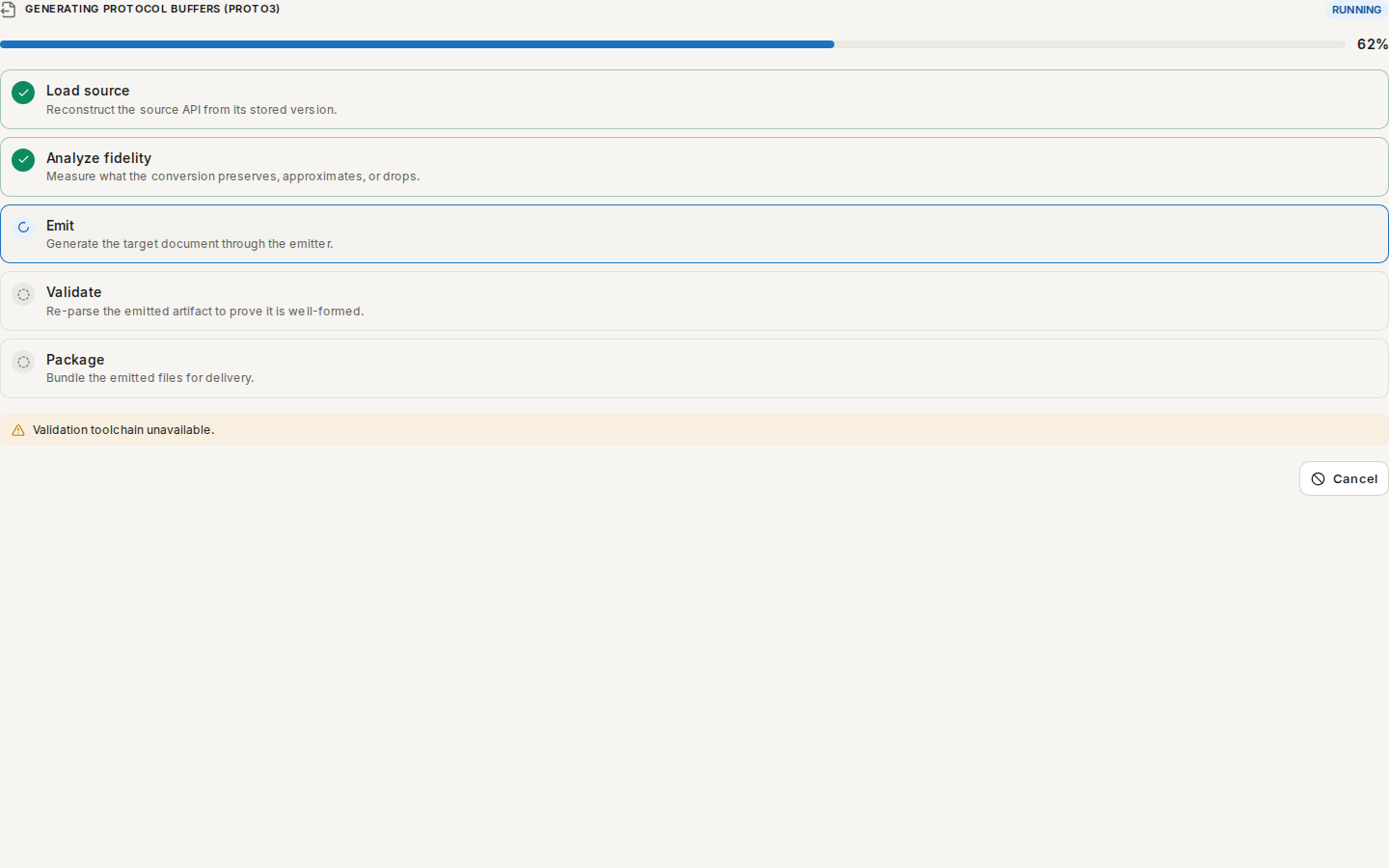
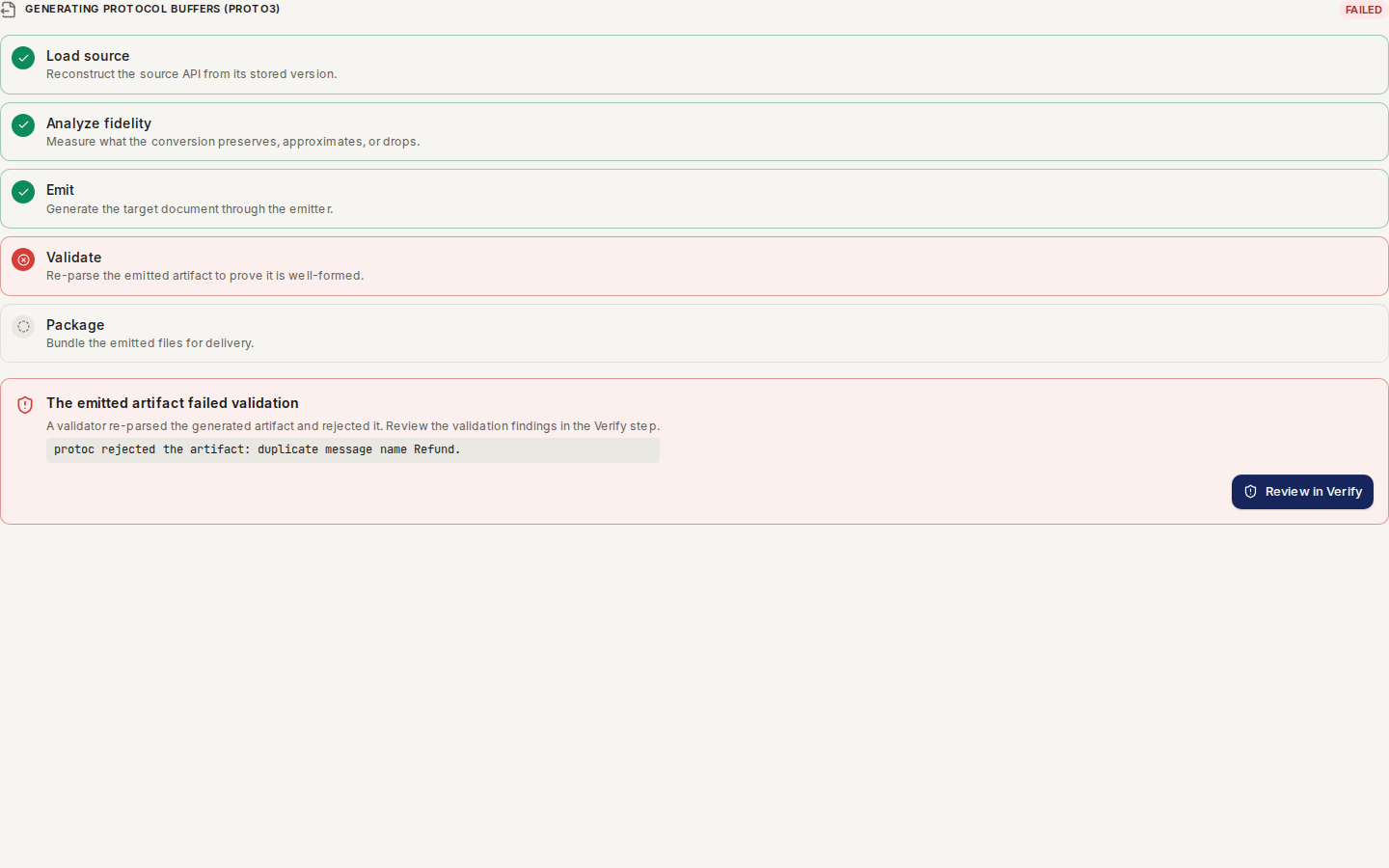
/ade/dashboard/export/studioThe job moves through Load source, Analyze fidelity, Emit, Validate and Package, and is QUEUED, RUNNING, COMPLETED, FAILED or CANCELED. “Cancel” stops it while it runs; “Generate again” restarts a canceled one.
When it completes:
- One file — read it in the viewer, then “Download file-name” or “Download .zip”.
- A bundle — browse the files in the tree, then “Download .zip”.
- Artifact entities, Problems, the mapping graph and What … loses, worst first explain the result; “Run round-trip check” reads the file back and compares it with the source.
- For an OpenAPI target, Mock server test drive serves the file as a live API — see Mock try-out.
When generation fails
A failure card names the stage and offers the next step — for example The emitted artifact failed validation with “Review in Verify”, or Target not available with “Choose a different target”. “Retry export” is offered whenever the job can be retried.
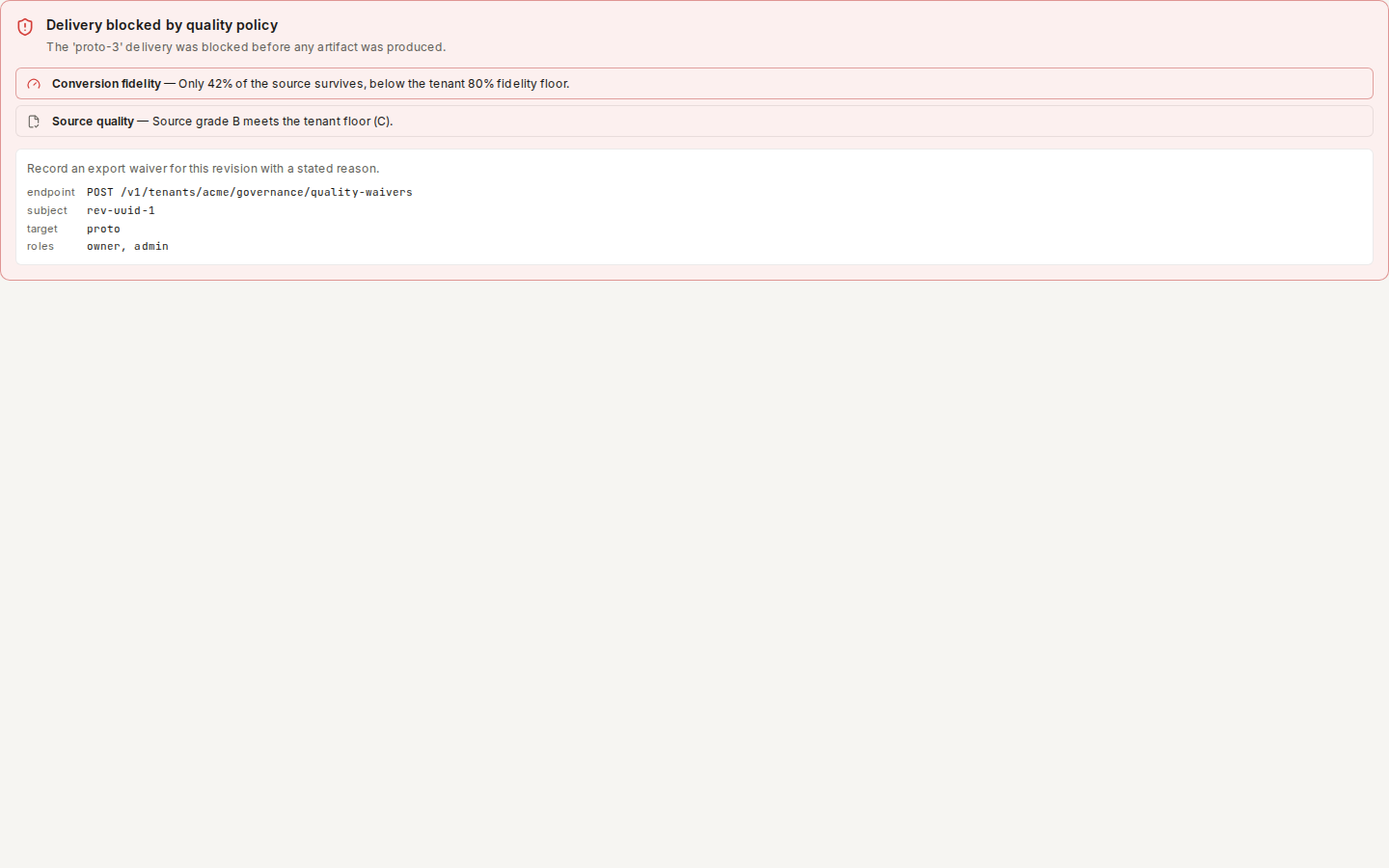
/ade/dashboard/export/studioIf a workspace quality policy blocks delivery, Delivery blocked by quality policy lists the reasons — Artifact validation, Source quality, Conversion fidelity or Tenant policy — and how to request a waiver.
/ade/dashboard/export/studioRecent export jobs, under every step, lists earlier jobs with their state, target and progress.
With the CLI or the API
- CLI:
apiome export targets,apiome export preflight,apiome export evidence --target <format>and the per-format commands (apiome export openapi,asyncapi,grpc,graphql,avro) — see Export a spec and the CLI quick-start. - REST:
GET /v1/export/{tenant}/targets,POST /v1/export/{tenant}/previewandPOST /v1/export/{tenant}/jobs— see Understand export fidelity and the API reference.