Lint posture
/ade/dashboard/lint-workspace
Lint posture is the workspace-wide queue of lint findings — from every catalog revision and MCP server — with ownership, waivers and remediation trends. Go to Govern → Lint posture (or press G then L). It is marked Preview. Three tabs: Queue, Trends and Quality ranks.
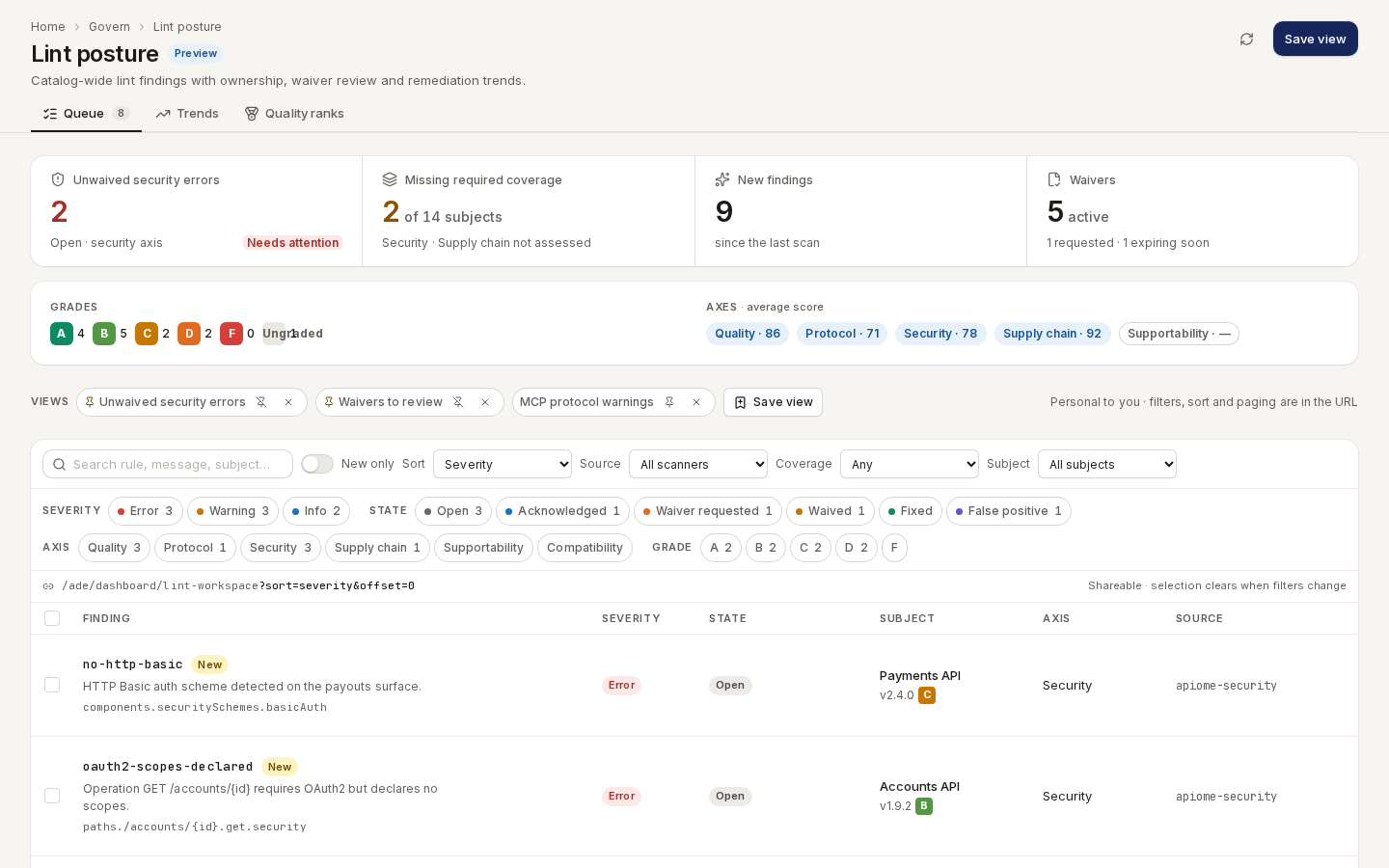
/ade/dashboard/lint-workspaceWhat a finding means — the rule, its severity, how grades and axes are scored — is in Lint and check quality, Built-in lint rules, Custom lint rules and Axis score algorithm. This page is about working through them.
The summary
Four tiles sum up the workspace. Click a tile to replace the filters with the ones it describes:
| Tile | Shows | Click to filter |
|---|---|---|
| Unwaived security errors | Open errors on the security axis | severity error · axis security · state open |
| Missing required coverage | Subjects missing a required axis | coverage missing |
| New findings | Findings since the last scan | new only |
| Waivers | Active waivers, how many are requested, how many expire within 14 days | state waiver requested |
Below them, Grades counts subjects by grade (A–F, Ungraded) and Axes · average score gives each
axis's average — — when nothing assessed it.
Filter the queue
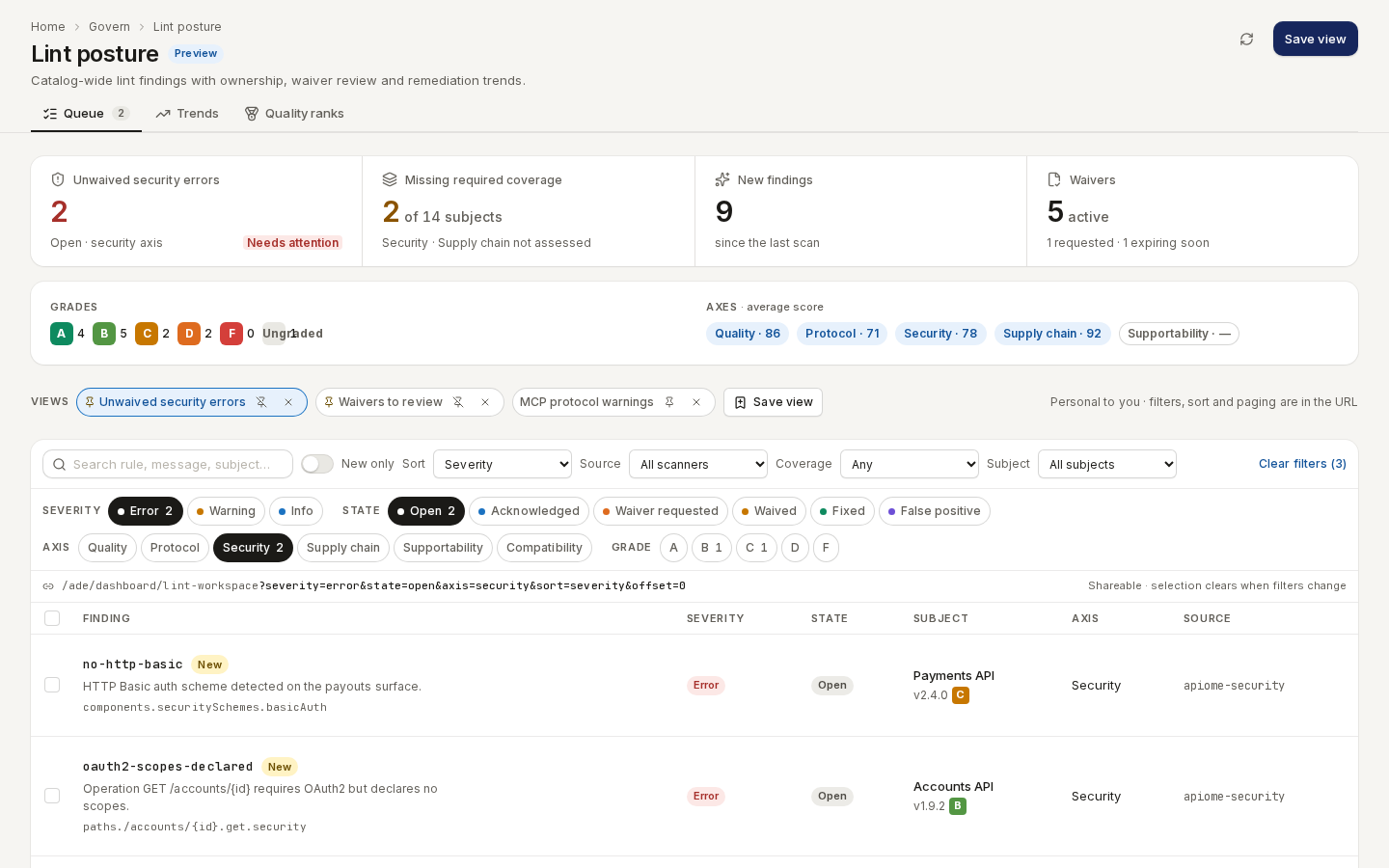
- Chips toggle Severity (Error, Warning, Info), State (Open, Acknowledged, Waiver requested, Waived, Fixed, False positive), Axis and Grade. Each shows its count.
- Search rule, message, subject… searches the text; New only keeps findings from the last scan.
- Sort by Severity, Newest, Rule or Subject; narrow by Source (scanner), Coverage and Subject (catalog revisions or MCP servers).
- Clear filters resets them.
Every filter is in the URL, so copying the address shares exactly this view.
/ade/dashboard/lint-workspaceSave a view
- Set the filters you want.
- Click “Save view”, enter a Name — for example
New security errors— and leave Pin to toolbar ticked. - Click “Save”. The view appears as a chip under Views; click it to apply it again.
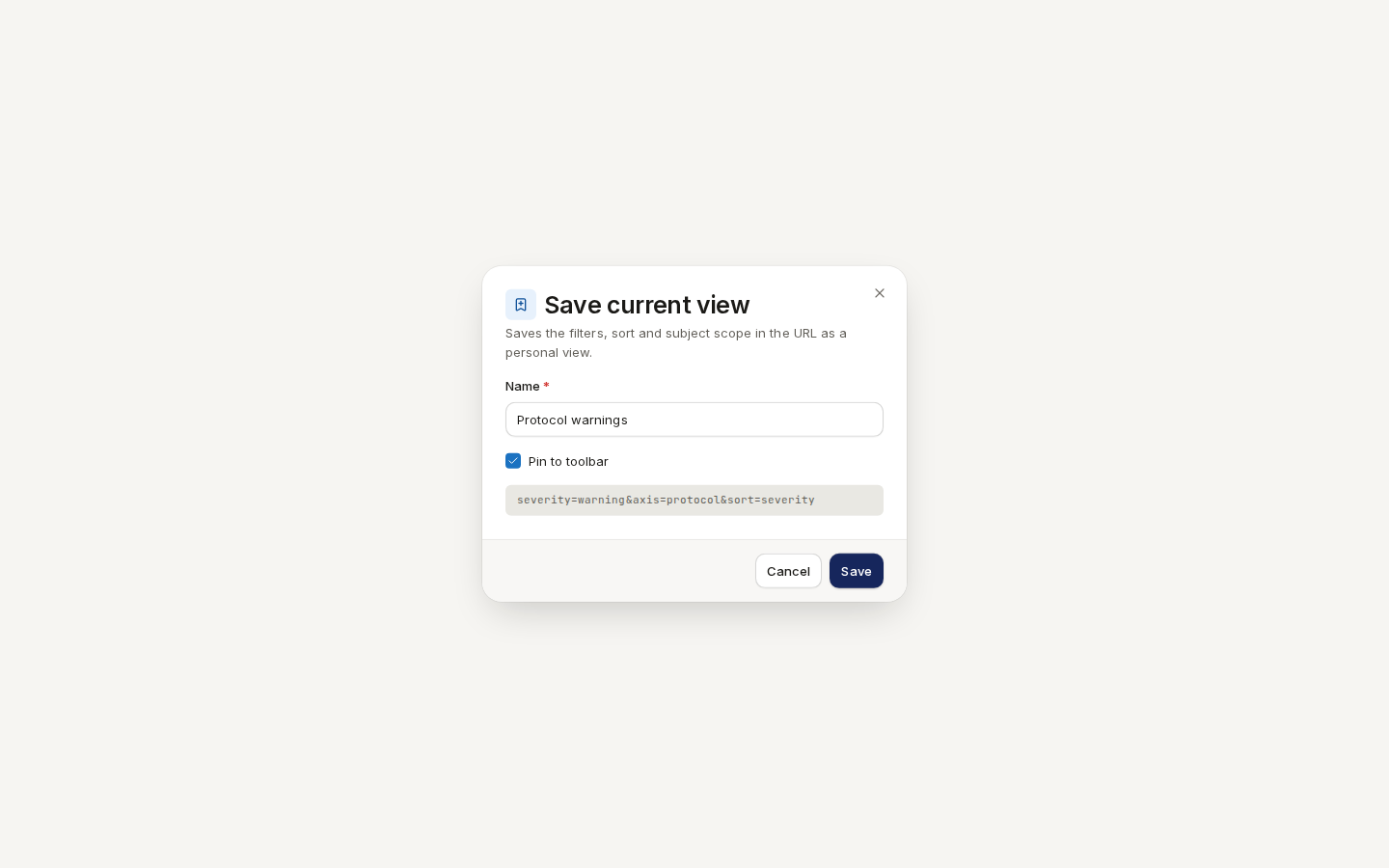
/ade/dashboard/lint-workspaceViews are personal to you. Each chip has Pin view / Unpin view and Delete view; to share a view, share its URL.
Read a finding
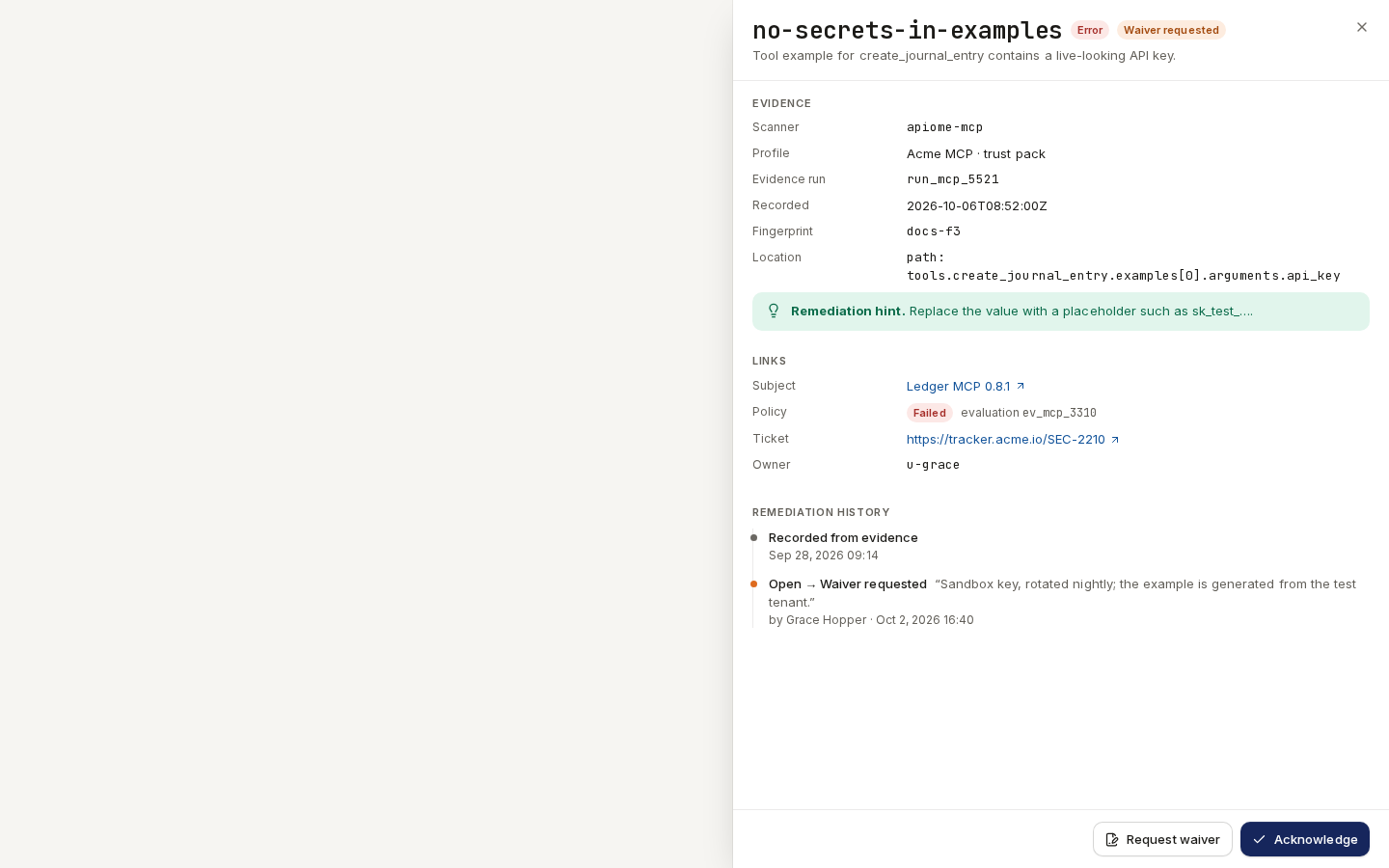
Click a row (or press Enter on it) to open its drawer:
- Evidence — the scanner, profile, run, when it was recorded, its fingerprint and location, and a remediation hint when there is one.
- Links — the subject version, the policy result, the ticket and the owner.
- Remediation history — every state change, with its rationale, who made it and when. Open lint report opens the version's full report.
/ade/dashboard/lint-workspaceAct on findings
Tick the findings to act on (or press x on a row). The bar that appears offers:
| Action | New state | Use it when |
|---|---|---|
| Acknowledge | Acknowledged | You have seen it and own it. |
| Mark fixed | Fixed | The next scan should no longer report it. |
| False positive | False positive | The rule is wrong about this case. |
| Request waiver | Waiver requested | You want to accept the risk for a while (below). |
| Approve waiver | Waived | You can approve waivers (below). |
| Reopen / reject | Open | Undo a decision, or reject a requested waiver. |
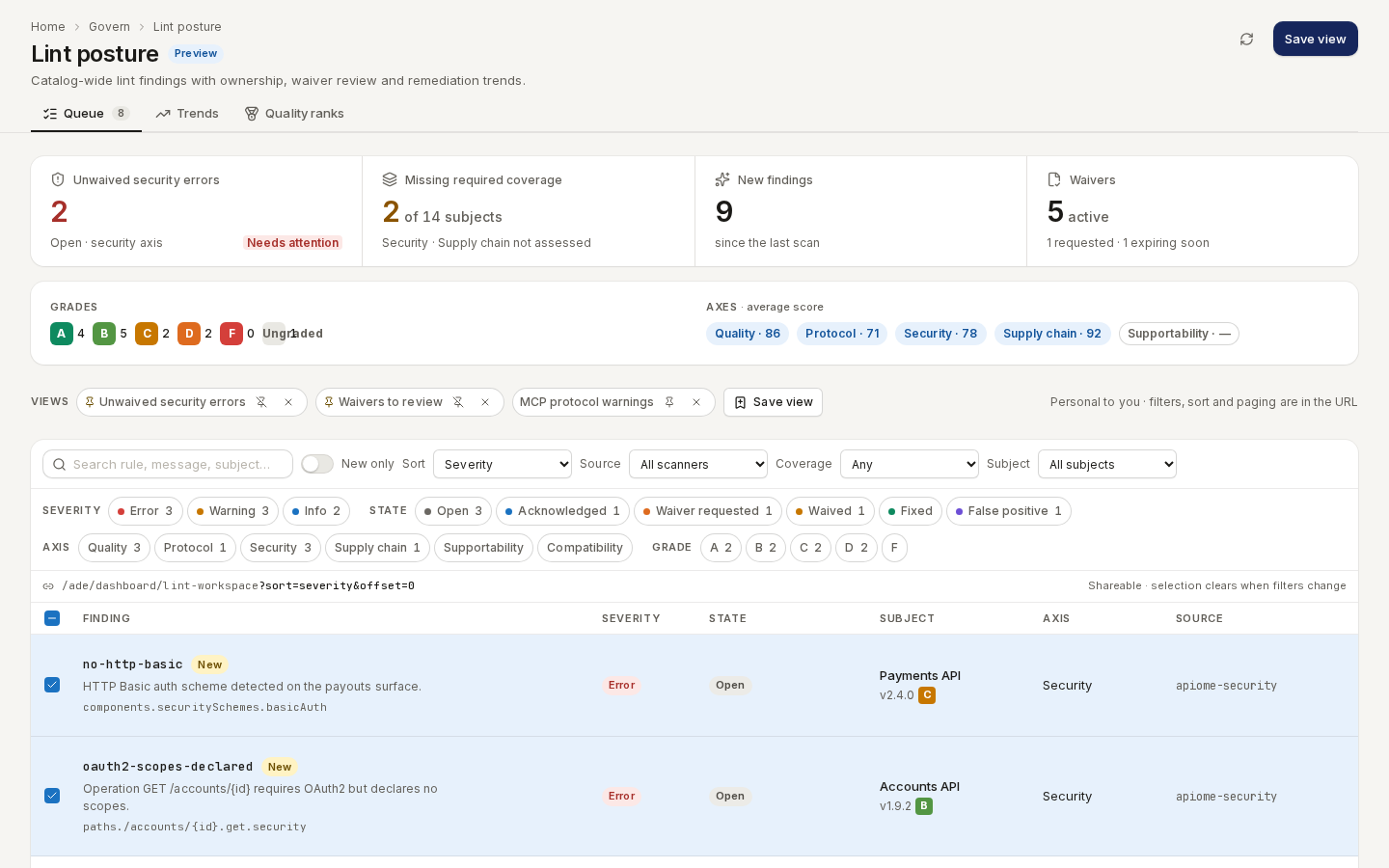
/ade/dashboard/lint-workspaceA toast confirms Applied to 3 findings with Undo. If the server refuses some — for lack of permission, say — it reports Applied to 2 of 3 findings and why; the rest are not rolled back.
Request and approve a waiver
A waiver is accepted risk with a deadline.
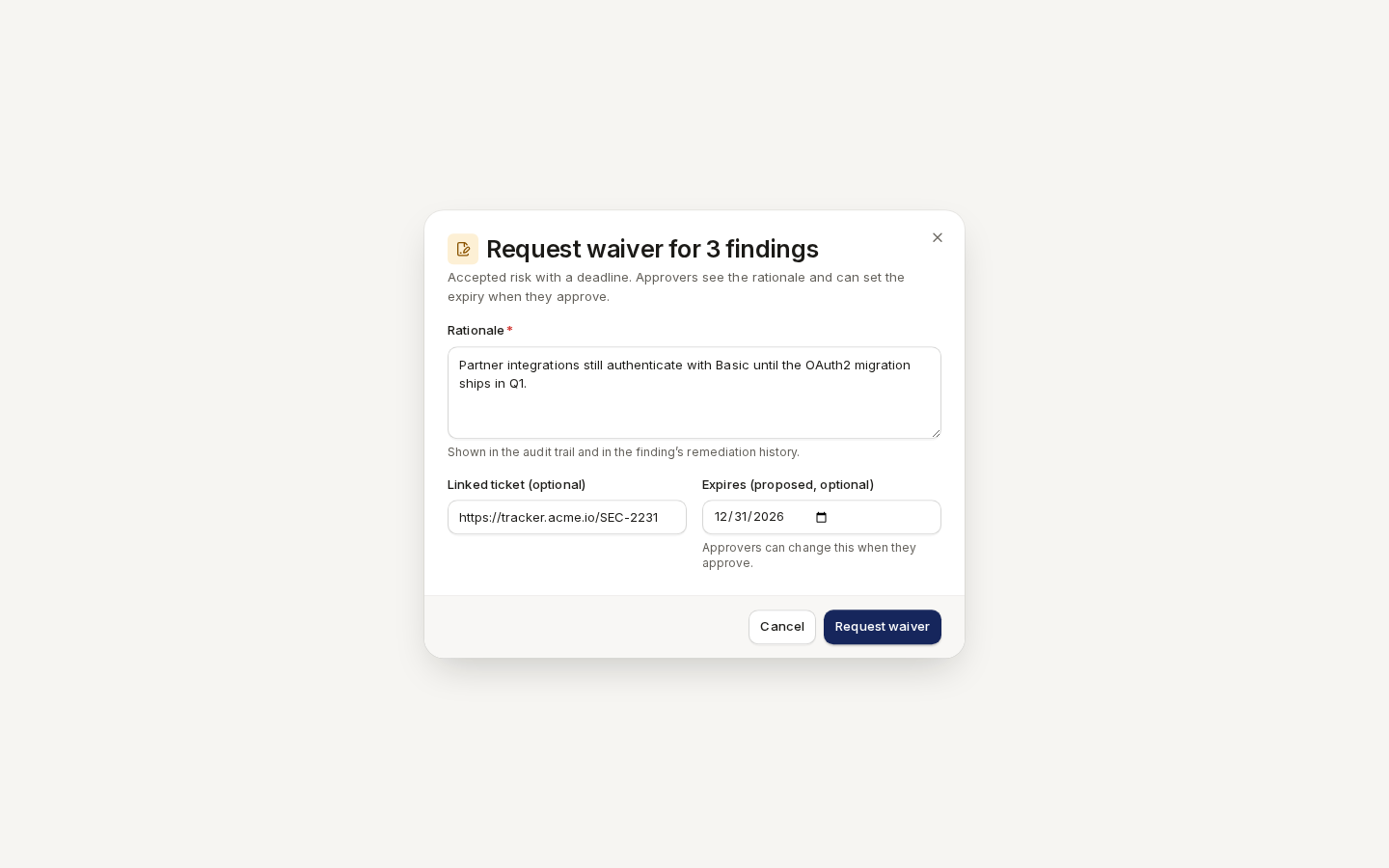
- Select the findings and click “Request waiver” (or “Request waiver” in a finding's drawer).
- Enter the Rationale — for example Partner integrations still authenticate with Basic until
the OAuth2 migration ships in Q1. — and optionally a Linked ticket (
https://tracker/SEC-2231) and a proposed Expires date. - Click “Request waiver”. The findings move to Waiver requested.
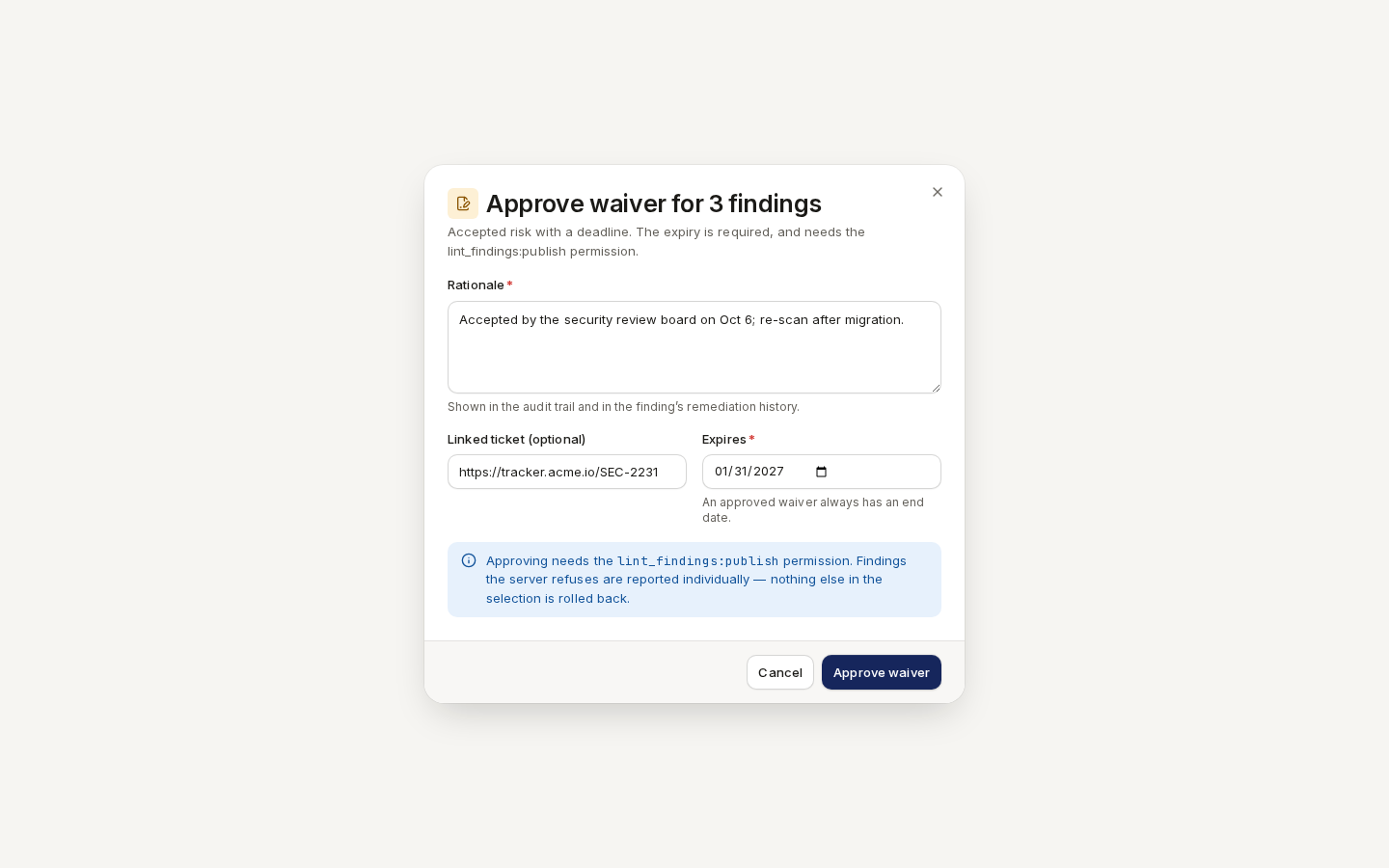
/ade/dashboard/lint-workspaceAn approver — anyone with the lint_findings:publish permission — then:
- Filters on State: Waiver requested (or clicks the Waivers tile), selects the findings and clicks “Approve waiver”.
- Confirms the Rationale and sets Expires, which is required.
- Clicks “Approve waiver”. The findings move to Waived until the expiry date.
/ade/dashboard/lint-workspaceTo reject a request, the approver selects it and clicks “Reopen / reject”. Every step lands in the finding's remediation history.
Waivers that let a blocked import or export through are different — they come from the Import & export policy on Style guides.
Assign an owner
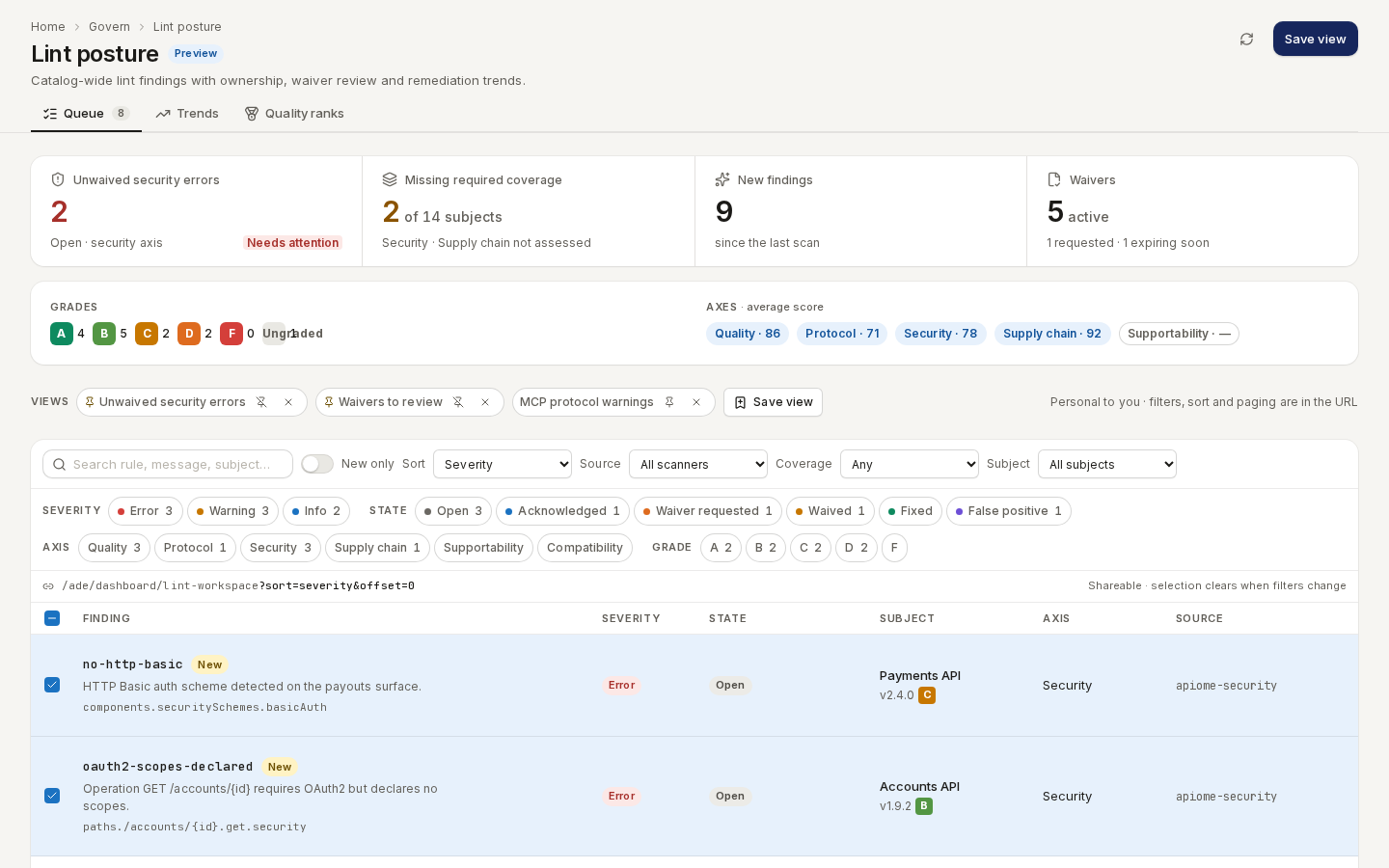
Select the findings, type the owner's user id in Assign owner (user id) and click “Assign”. The state does not change; the owner shows in each finding's drawer.
/ade/dashboard/lint-workspaceTrends and quality ranks
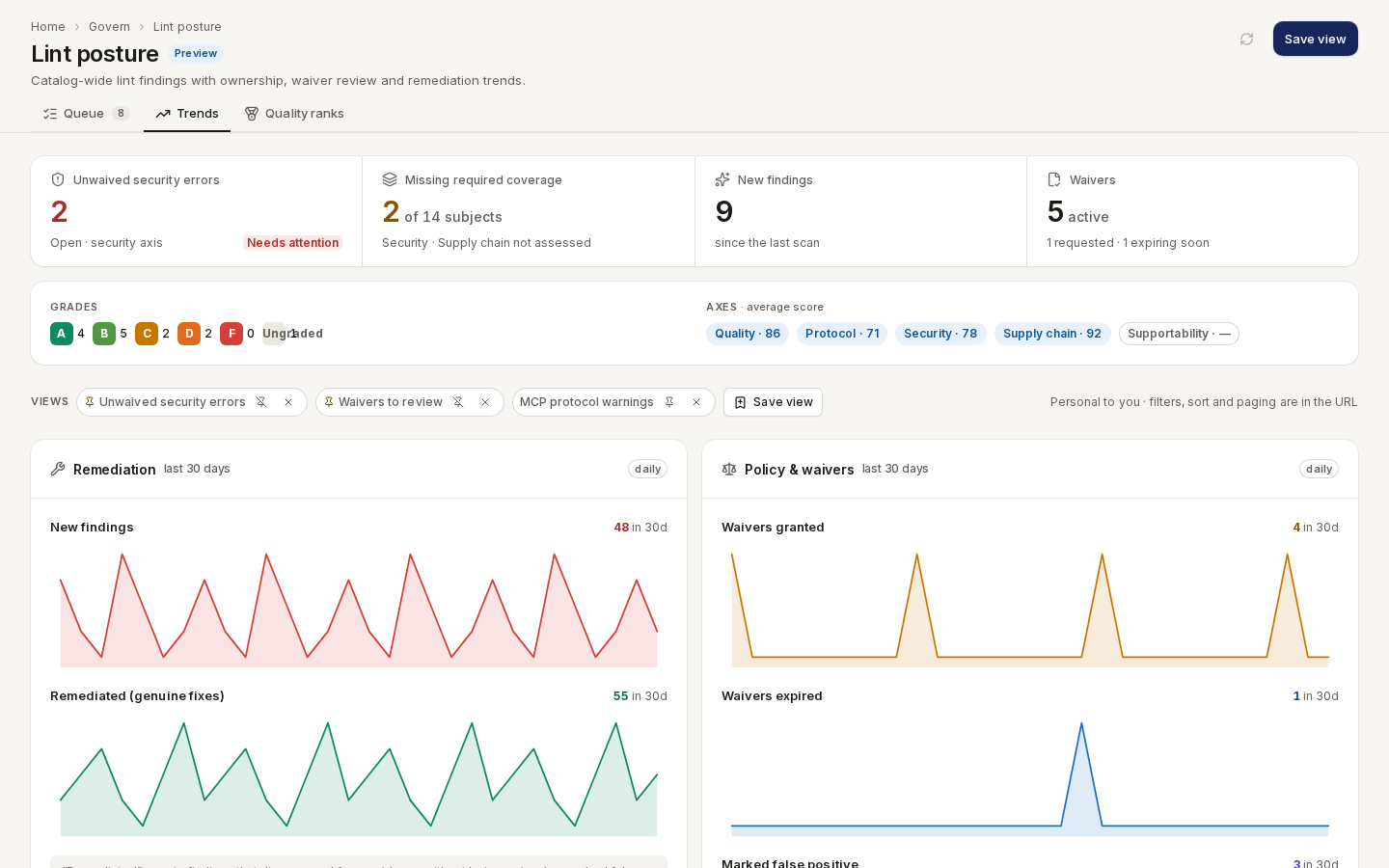
Trends charts the last 30 days: new findings, genuine fixes, waivers granted and expired, false positives and policy publications.
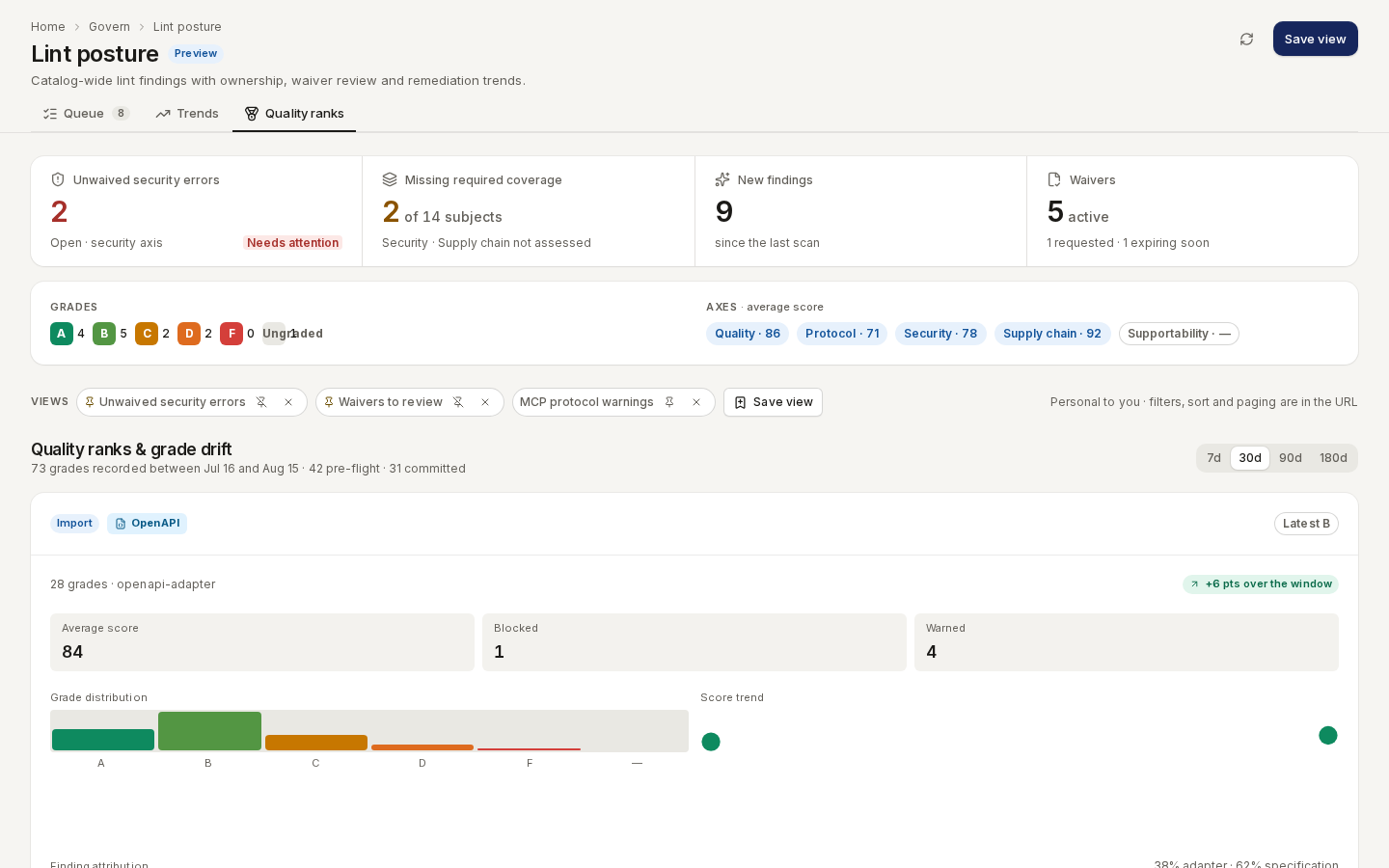
/ade/dashboard/lint-workspaceQuality ranks shows, per format, the average score, readiness, grade distribution and how grades drifted over 7, 30, 90 or 180 days.
/ade/dashboard/lint-workspacePermissions
Acting on findings needs lint_findings:edit. Approving a waiver, revoking one, or resolving a
request also needs lint_findings:publish. Every applied action is recorded and cannot be edited.
With the CLI or the API
- REST:
GET /v1/lint/workspace/findings,…/summary,…/trends,…/quality-ranks;POST /v1/lint/workspace/decisions/bulkfor every action;GET/POST /v1/lint/workspace/views;GET /v1/lint/decisions/{id}/eventsfor a finding's history — see the API reference. - CLI: there are no commands for the queue or waivers.
apiome lintandapiome lint gatelint a version and report against policy — see Lint and check quality.