The launcher and Home
The launcher
Route/ade
After you sign in, Apiome opens the launcher. It greets you, names your workspace and your role in it, and counts its projects and published versions.
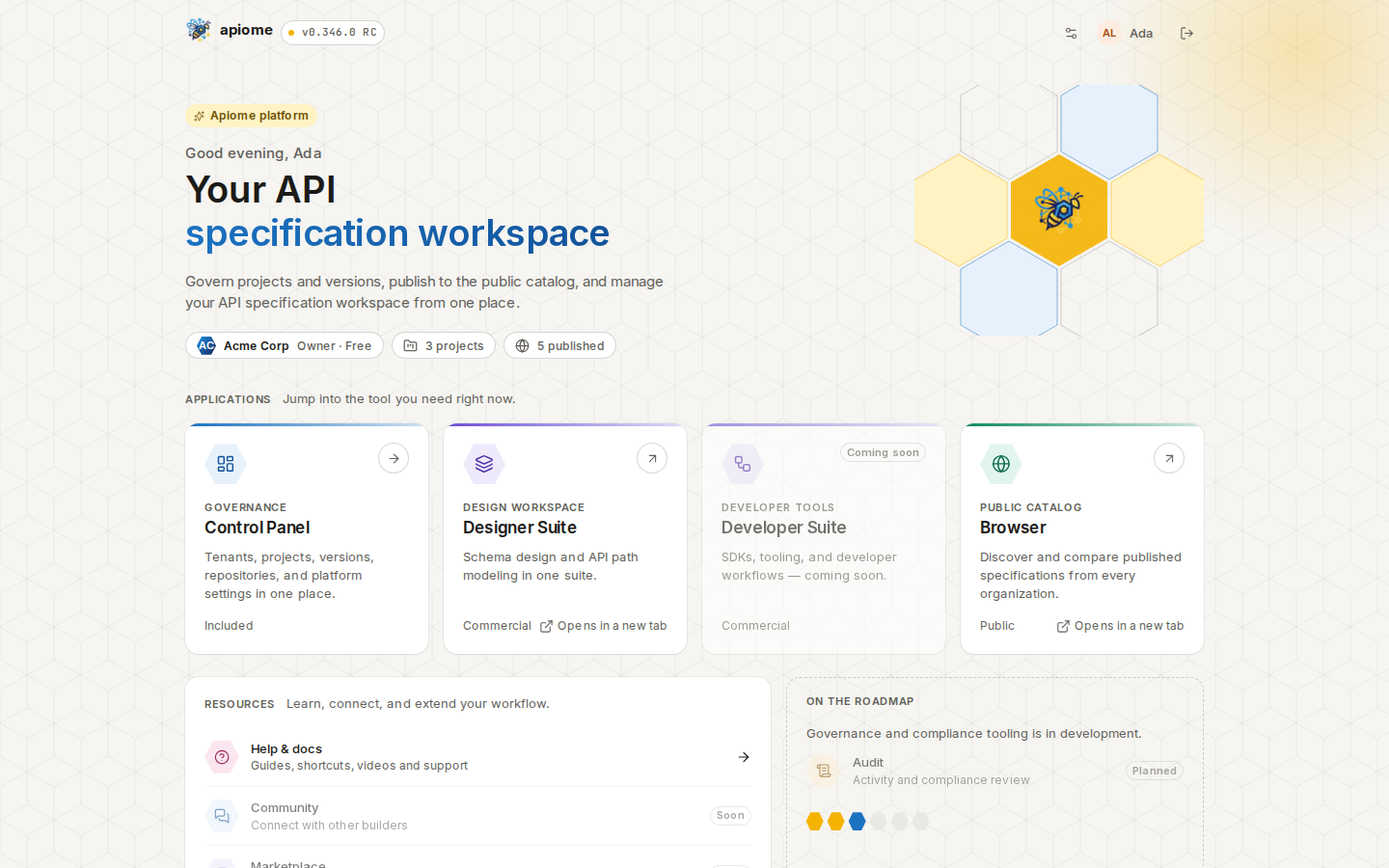
/ade- Applications — Control Panel is where everything in this guide happens. Browser opens the public catalog of published specs in a new tab. Other cards appear when your plan includes them.
- Resources — Help & docs opens the in-app help, with a search over these pages.
- The top bar holds Preferences, your profile and Sign out.
Click “Control Panel” to open Home.
Home
Route/ade/dashboard
Home is the Control Panel's first page: what is moving in your workspace, and what needs you.
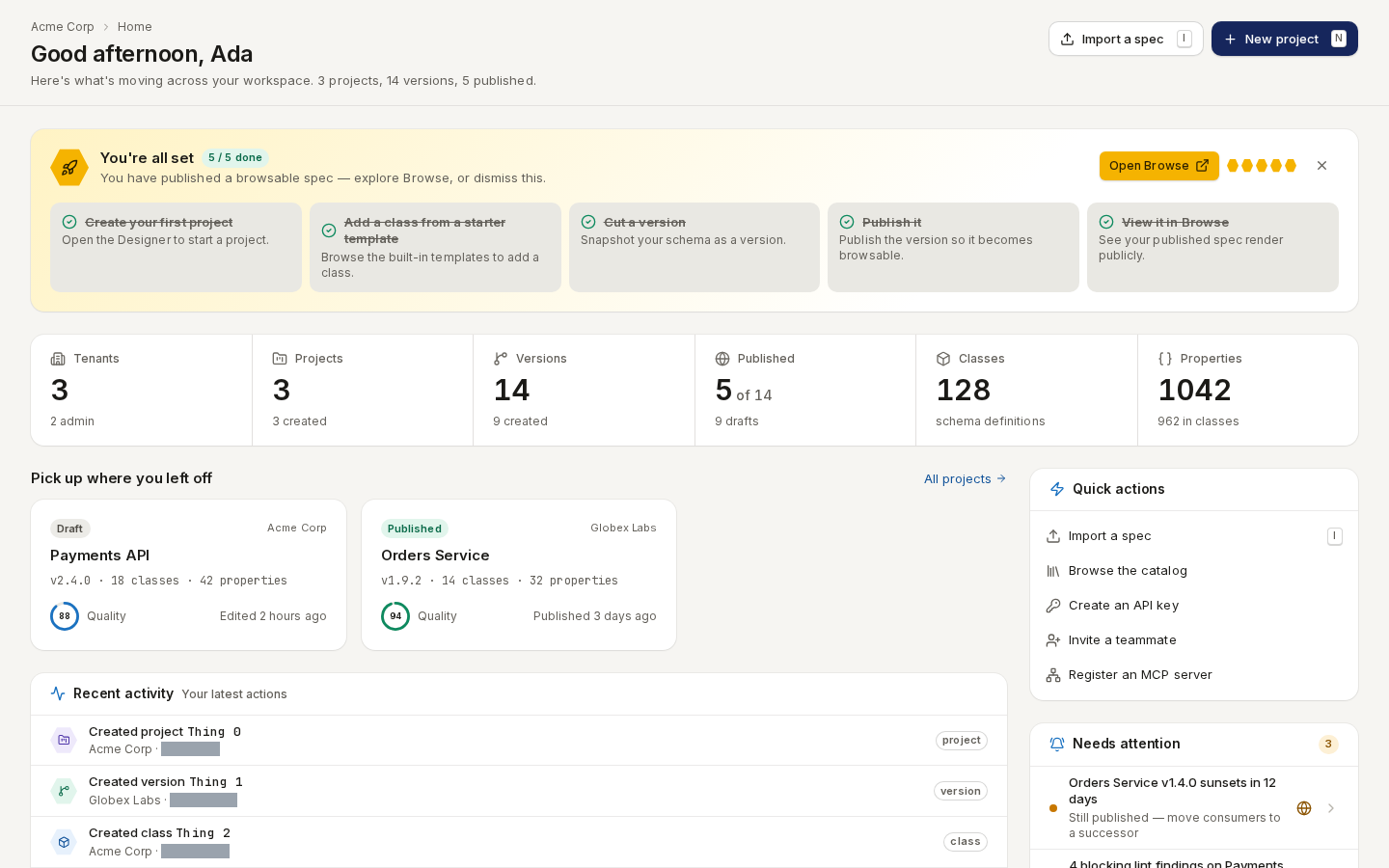
/ade/dashboardFrom top to bottom:
- The header greets you and sums up the workspace. “Import a spec” and “New project” start the two ways to add an API.
- Get to your first published spec — a checklist that follows the rest of this guide: Cut a version, Publish it, View it in Browse (with two Designer steps first when your plan includes the Designer). The button on the next step takes you there. Dismiss it with ×.
- Statistics — tenants, projects, versions, published versions, classes and properties.
- Pick up where you left off — a card per recent project, with its latest version and quality score. Click one to open its versions.
- Recent activity — your latest changes.
- Quick actions — Import a spec, Browse the catalog, Create an API key, Invite a teammate and Register an MCP server.
- Needs attention — blocking lint findings, expiring API keys, versions near their sunset and reviews waiting on you. It is hidden when nothing needs you.
The sidebar groups the rest of the Control Panel by job: Build, Bring in, Ship, Govern, and your workspace settings.