Keyboard and preferences
Preferences
Preferences are personal: they follow you to every workspace on this device.
- Press Ctrl / ⌘+,, or open your user menu and choose “Preferences”.
- On Appearance, pick a Theme — Follow system, Light, Dark, High contrast and five more — a Font size from Small to Largest, and a Density (Comfortable or Compact). Switches below turn on Reduce motion, Collapse sidebar by default, Monospace for identifiers and Show keyboard hints.
- Changes save as you make them. Click “Done” to close.
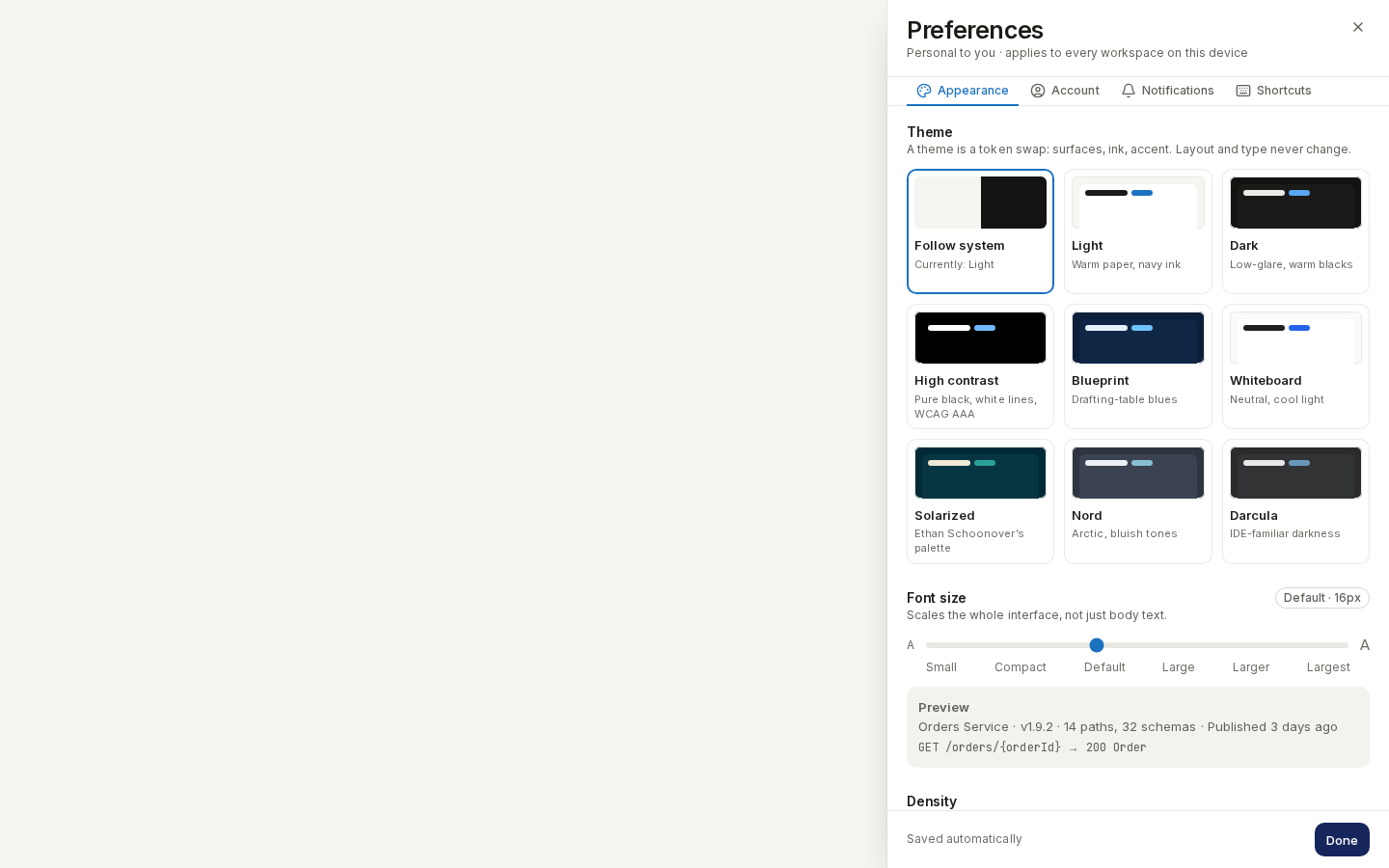
/ade/dashboardAccount links to your profile and linked sign-in accounts; Notifications chooses what Apiome tells you about; Shortcuts lists the keyboard shortcuts.
Keyboard
Every task in this guide can be done from the keyboard.
| Keys | Does |
|---|---|
| Ctrl / ⌘+K | Open the command palette — search or jump to anything, or run a command |
| ? | Show every shortcut (outside a text field) |
| / | Search — opens the command palette's search field (outside a text field) |
| G then H | Go to Home (P Projects, C Catalog) |
| N | New item on the current page |
| I | Import |
| Ctrl / ⌘+\ | Show or hide the sidebar |
| Esc | Close a dialog or menu |
On Windows and Linux, read ⌘ as Ctrl. Keyboard has the keyboard path for every task and the full reference; Accessibility covers screen readers and themes.