Browse and export
Published versions
Route/ade/dashboard/published
Go to Ship → Published. Published versions lists every version you have published, with its Visibility, Access URL and publish date.
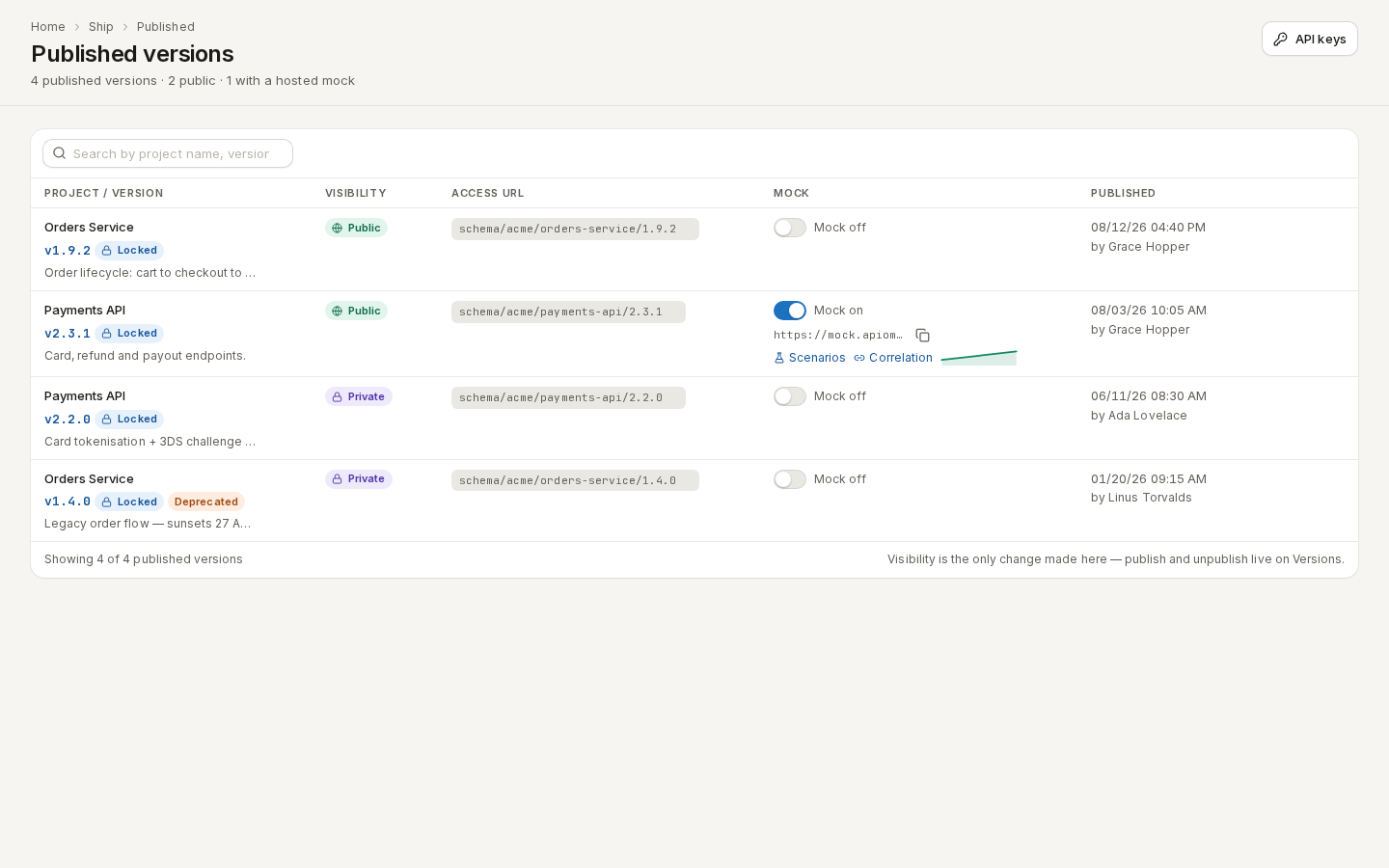
/ade/dashboard/published- Open a row's actions menu and choose View → OpenAPI to read the spec, or Swagger UI to try it out.
- Choose “Copy URL” to share the access URL.
- A private version asks for a key: paste one in API key and click “Open with key”. Create an API key is on Home's Quick actions.
- To switch a version between private and public, choose “Make Public” (or “Make Private”) and confirm with “Change Visibility”. Publishing and unpublishing happen on Versions.
Public versions also appear in Browser, the public catalog on the launcher. See Browse published specs for the REST endpoints.
Export another format
Route/ade/dashboard/export/studio
The Export studio turns a version into another format — AsyncAPI, GraphQL, Protocol Buffers, Avro and more — and tells you what the conversion keeps before it runs.
-
On the project's Versions page, open a version's Actions menu and choose “Export to another format…”, then click “Open in Export Studio”.
-
Source shows the version you are exporting. Click “Choose target”.
-
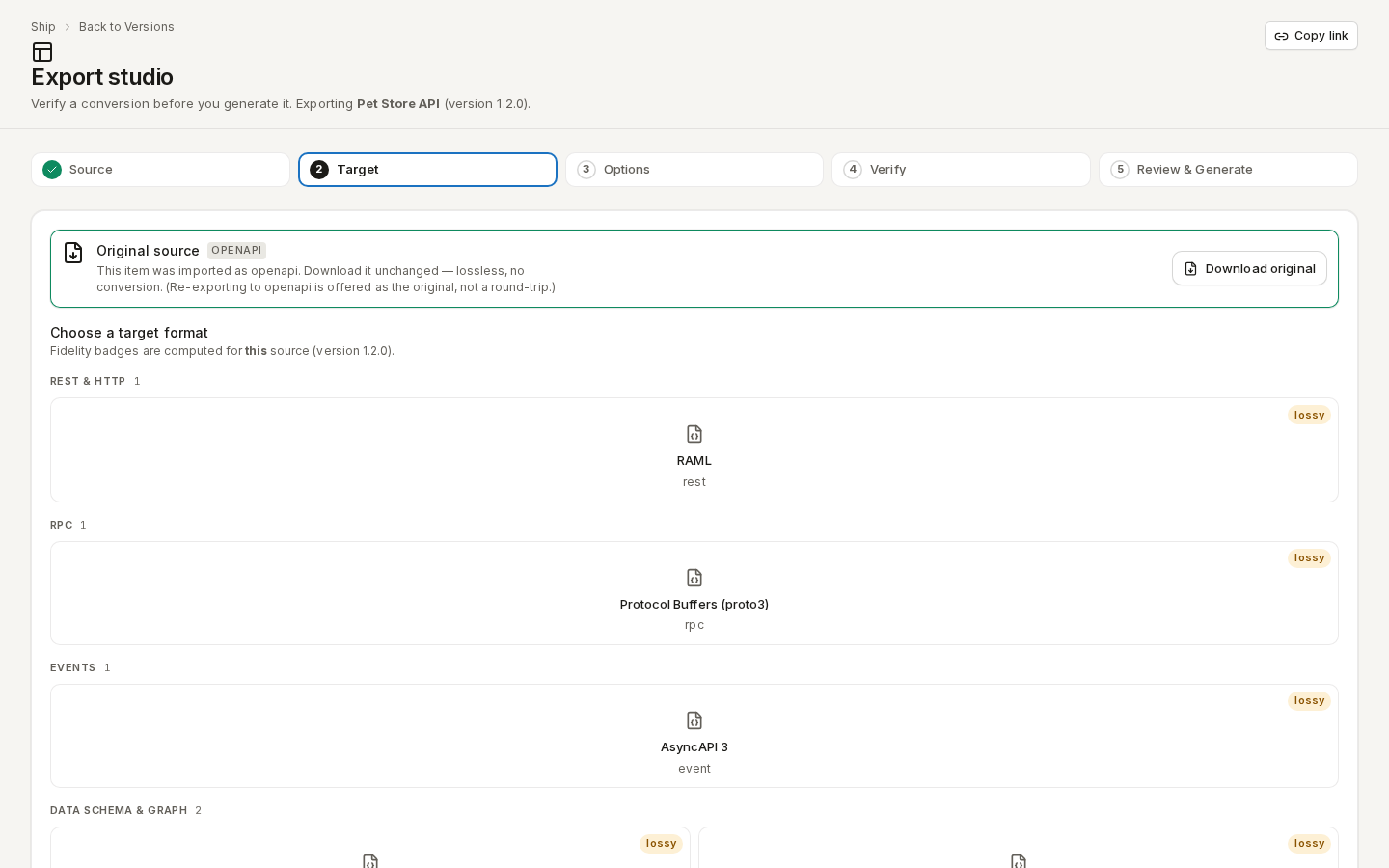
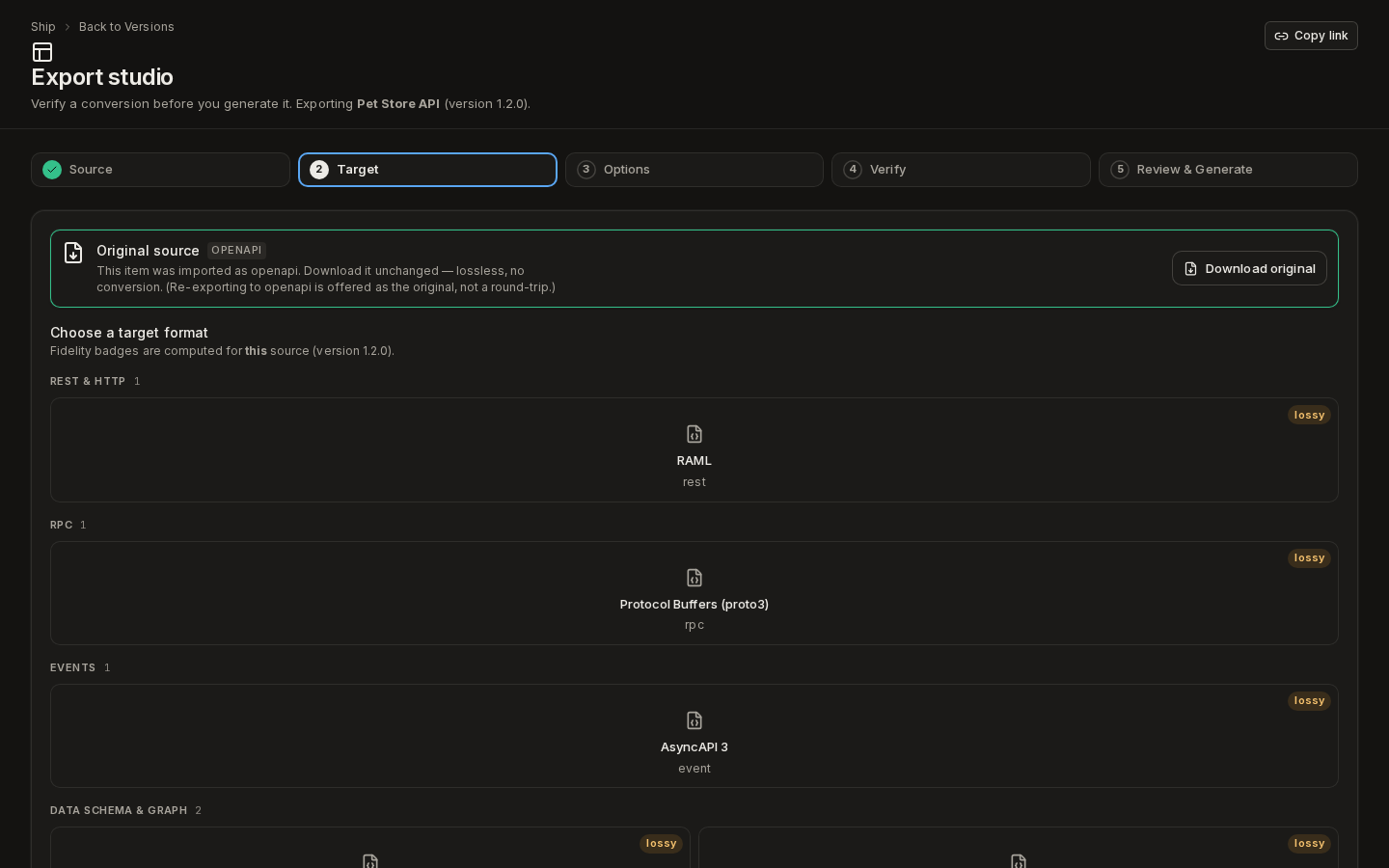
Target — pick a format. Each card has a fidelity badge for this source; Download original gets the file you imported, unchanged.
Route /ade/dashboard/export/studio -
Options, then Verify — read what will be kept, changed or lost. Click “Continue to review”.
-
Review & Generate — click “Generate”, then “Download .zip” (or the single file) when the job finishes. Recent jobs are listed under Recent export jobs.
Understand export fidelity explains the verify step in depth.
With the CLI
apiome spec export --project petstore-sample --version 1.0.0 --yaml -o petstore.yaml
See Export a spec and the CLI quick-start.