Version dialogs
Every change to a version goes through a dialog on Versions. This page covers each one, in the order you are likely to meet them.
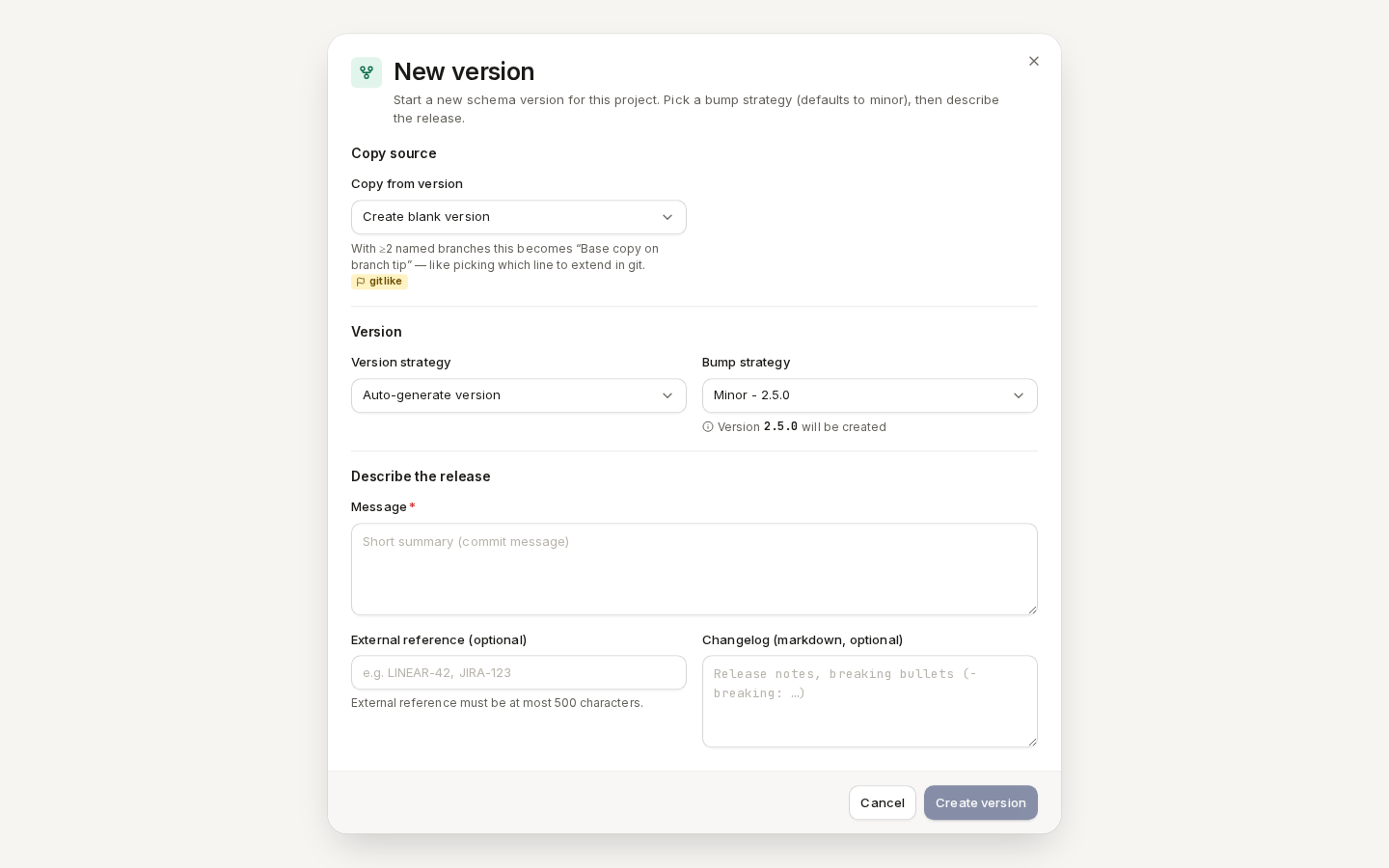
New version
Click “New version” in the page header.
- Copy source — Copy from version starts from an existing version's classes; leave it on Create blank version to start empty.
- Version — keep Auto-generate version and pick a Bump strategy (Minor by default,
or Patch); the dialog shows the number it will create. Or choose Manual entry and type a
Version ID such as
2.5.0. - Describe the release — a Message is required (for example
Add refund webhooks); External reference (a ticket id) and Changelog are optional. - Click “Create version”.
/ade/dashboard/versionsEdit
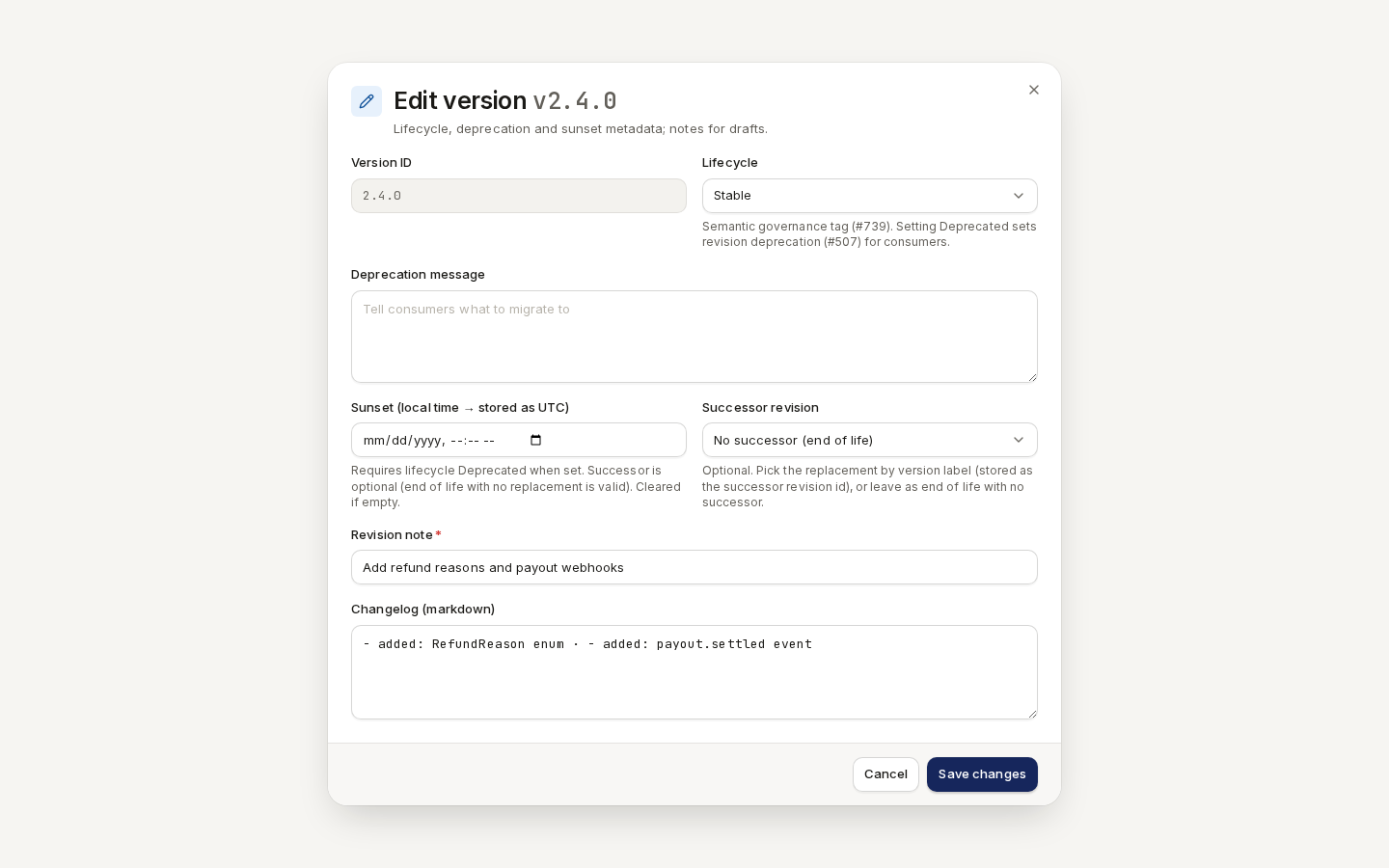
Click “Edit” on a row, or choose Edit from its Actions menu. The Version ID cannot change. You can set the Lifecycle (Stable, Beta, Deprecated, Archived), a Deprecation message, a Sunset date (entered in local time, stored as UTC), a Successor revision, and the Revision note and Changelog. Click “Save changes”.
On a published version the notes are frozen; only the deprecation and sunset metadata can change.
/ade/dashboard/versionsPublish
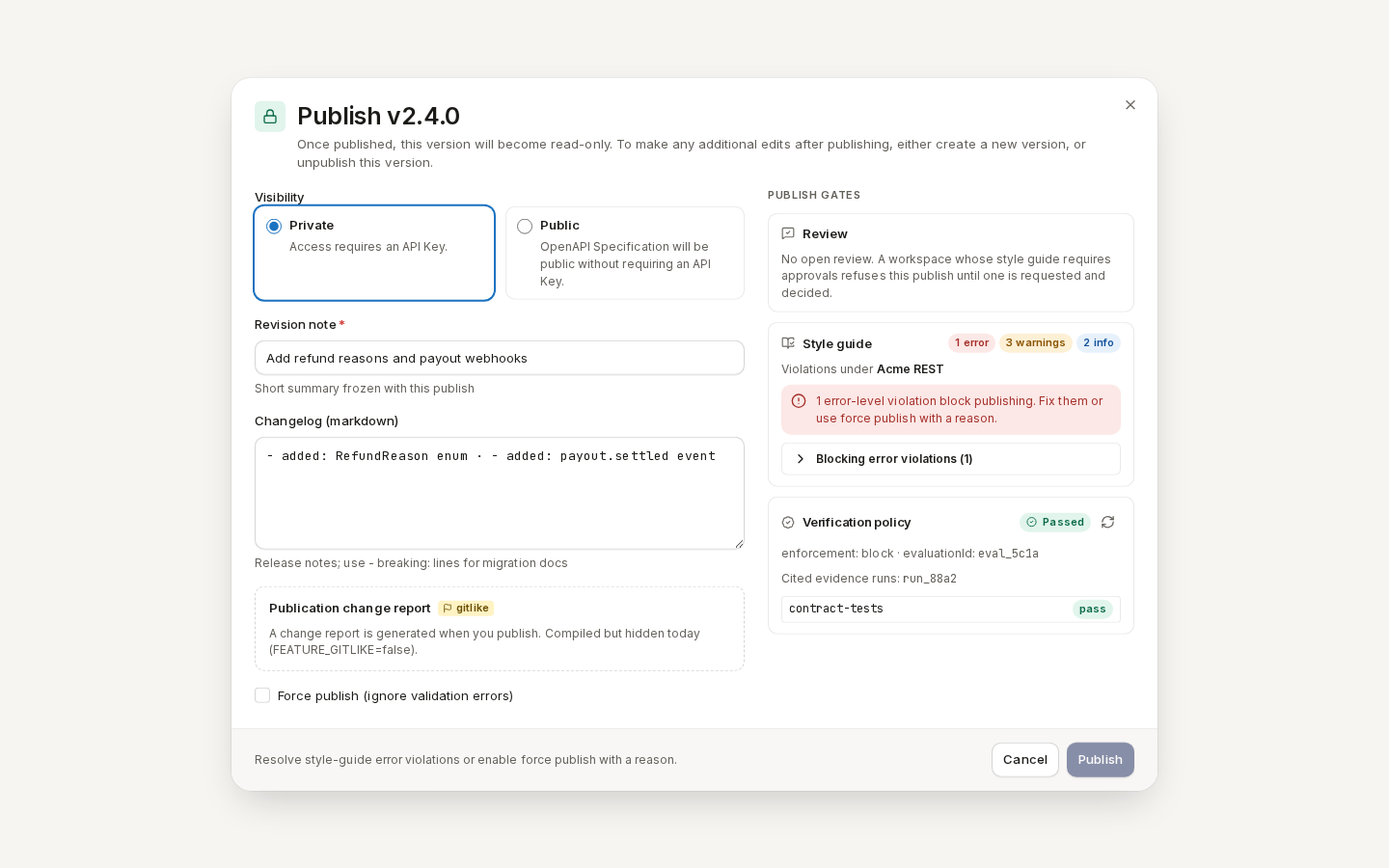
Click “Publish” on a draft's row. Choose Private or Public, write a Revision note, check the Publish gates, and click “Publish”. The full walk-through, including Force publish (ignore validation errors), is in Version and publish.
/ade/dashboard/versionsSchedule sunset
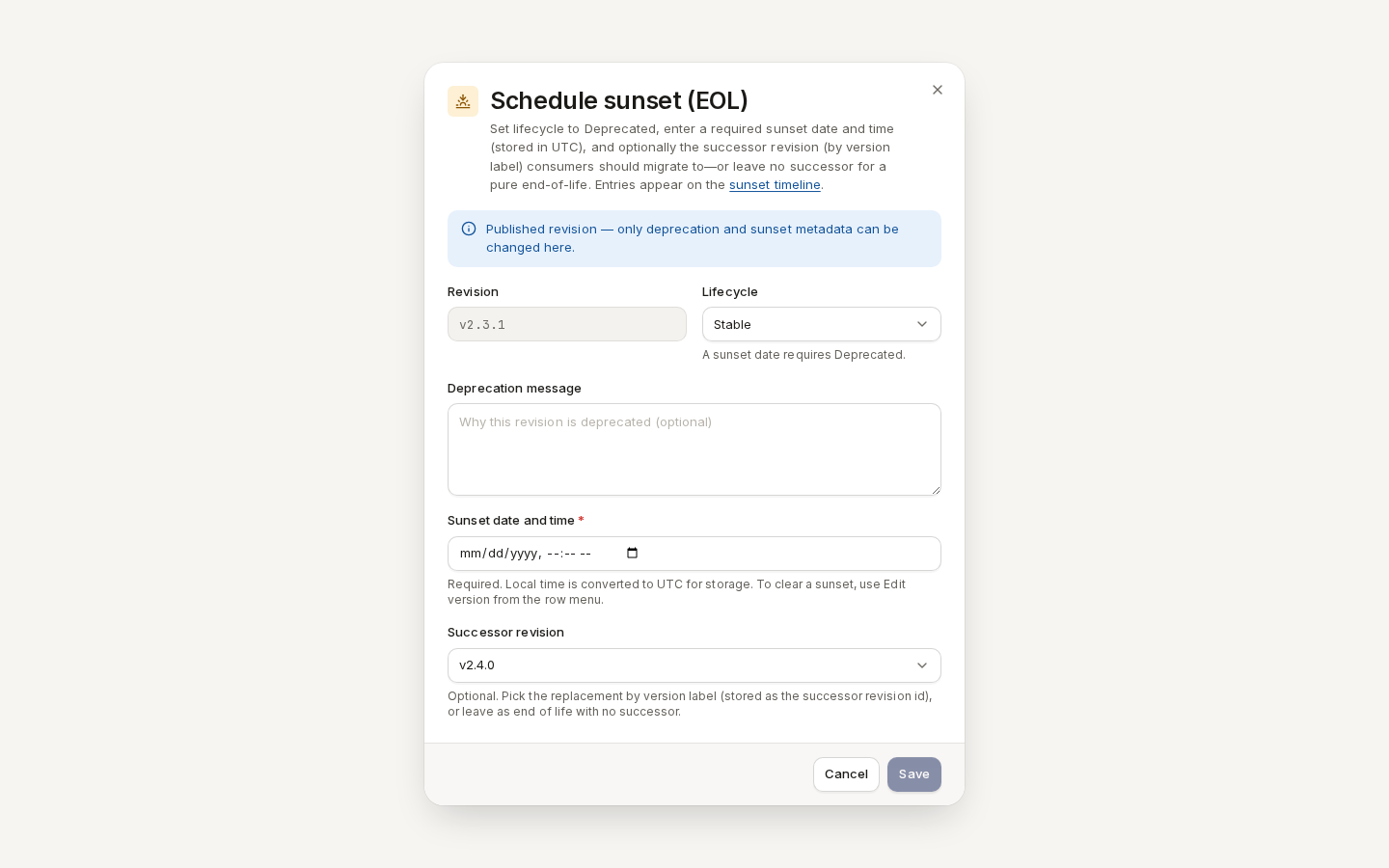
Choose “Schedule sunset (EOL)…” from a published version's Actions menu.
- Set Lifecycle to Deprecated — a sunset needs it.
- Write a Deprecation message telling consumers what to do.
- Pick the Sunset date and time (local time; stored in UTC).
- Pick the Successor revision consumers should move to, if there is one.
- Click “Save”.
The version then appears on the sunset timeline and in the deprecation banner on the timeline.
/ade/dashboard/versionsCompare
Click “Compare” in the page header (it needs at least two versions). Pick Version 1 (base) and Version 2 (compare to), then click “Compare versions”. The result has five tabs:
- Diff View — the two documents side by side;
- Schema Changes — each version's revision note and changelog, with breaking hints;
- Breaking doc — the compatibility report: whether the change is breaking, the rules that fired and where;
- Migration guide — what consumers need to change;
- Canvas — the two schema layouts, with added, removed and moved elements coloured.

/ade/dashboard/versions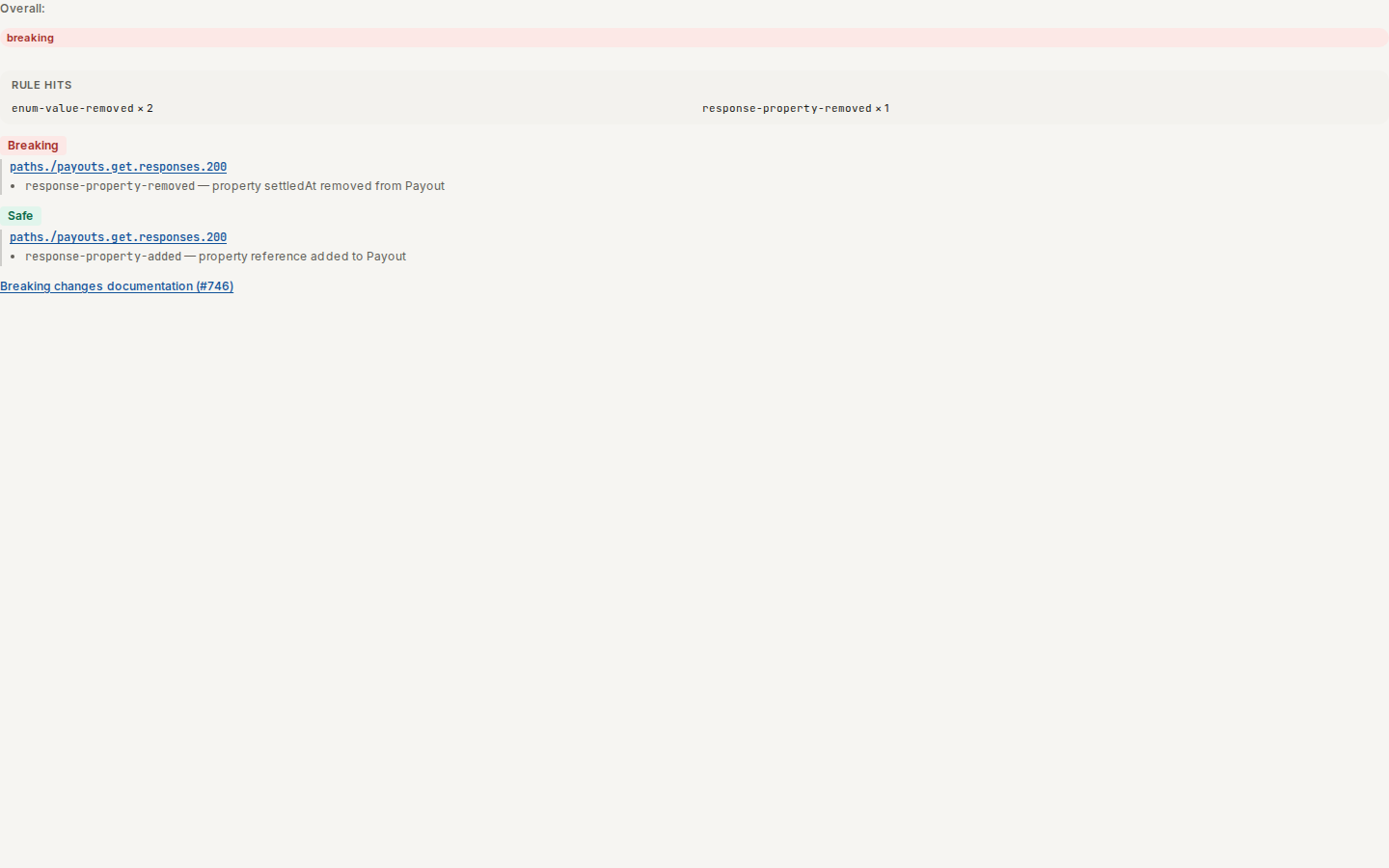
/ade/dashboard/versions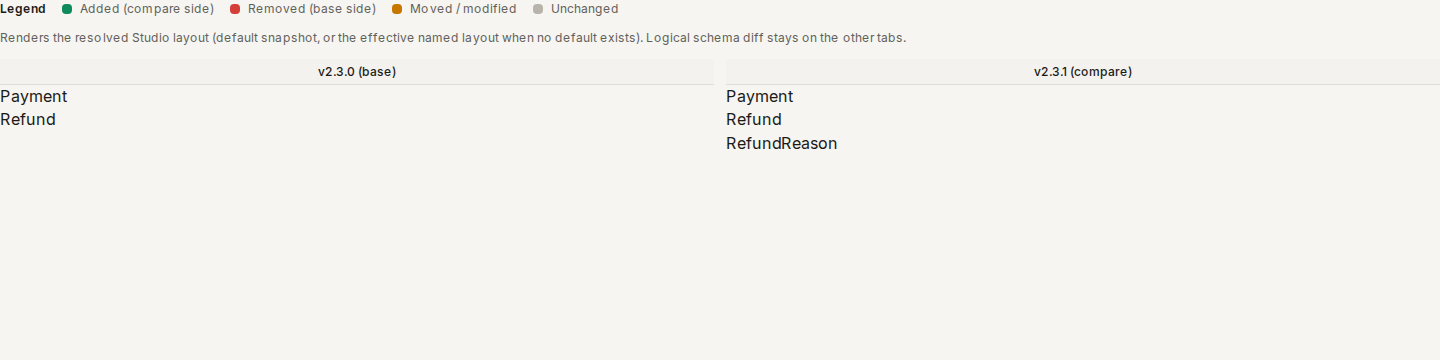
/ade/dashboard/versionsExport
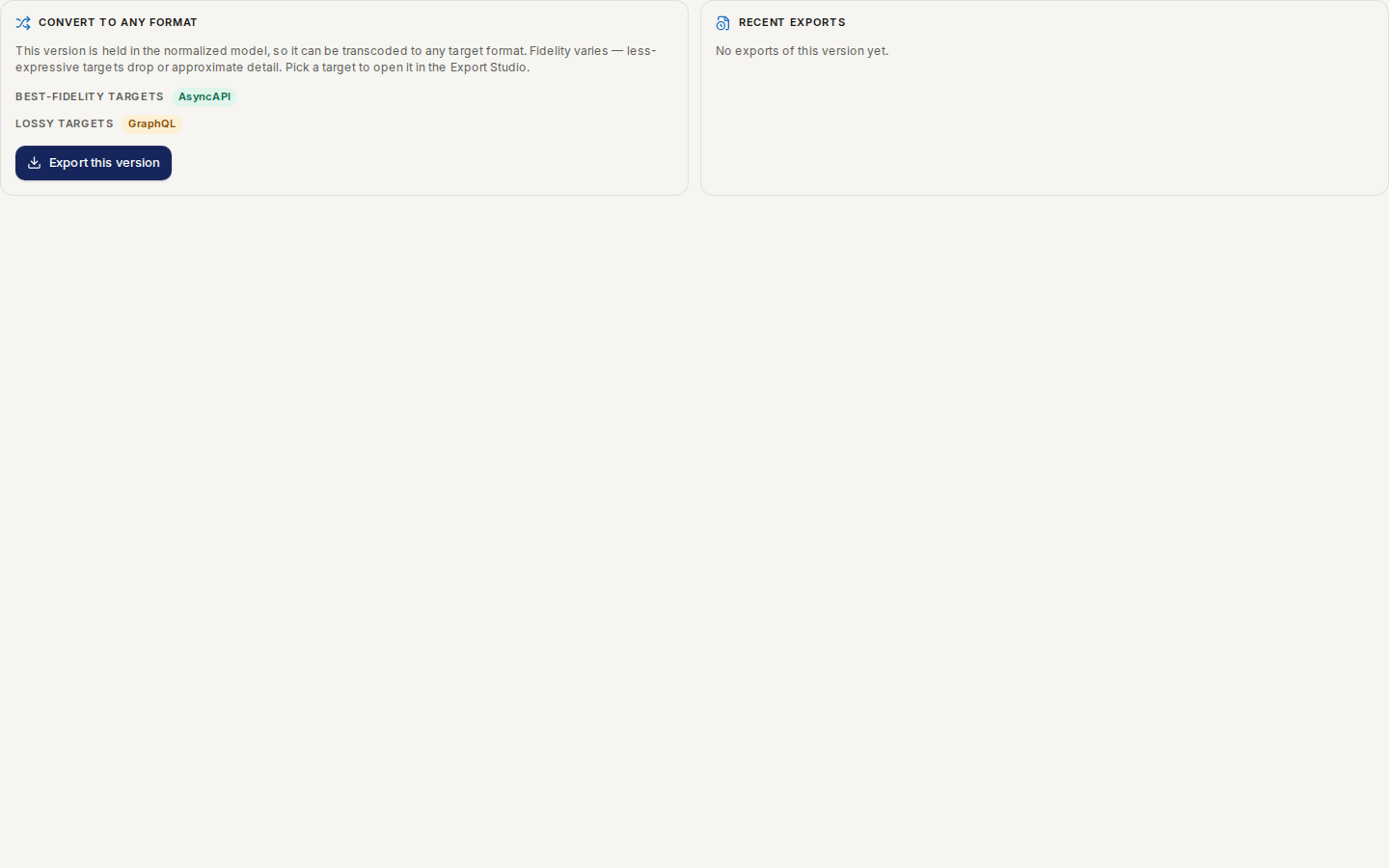
Choose “Export to another format…” from a row's Actions menu. Pick a target format, read its fidelity — what survives the conversion — and click “Export” (or “Export anyway” when the fidelity check warns). “Open in Export Studio” continues in the full Export studio.
/ade/dashboard/versionsView spec from the same menu shows the generated OpenAPI document as JSON or YAML, with “Copy” and “Download”.
Git-like features
Flag offFEATURE_GITLIKE
Apiome has branch, merge, fork and tag tooling for versions, but it is switched off: FEATURE_GITLIKE
is a constant in apiome-ui/lib/feature-flags.ts, false in every shipped build. Production builds
hide these controls; development builds draw them disabled with a gitlike marker. Turning them on
takes a code change and a rebuild.
| Control | What it would do |
|---|---|
| Merge branches (page header) | Preview and apply a merge of two branches, resolving conflicts path by path |
| Branch from here | Start a named branch at a revision |
| Rollback branch to this revision… | Revert a branch to an earlier revision |
| Fork to another project… | Copy a revision into another project |
| Tag this revision | Give a revision a named tag |
| Compare with current, Relationship graph | Compare against the head; show how revisions relate |
| Freeze schema, Lock revision (delete policy), Delete | Protect or remove a revision |
| Change report tab | The publication change report — see Versions |
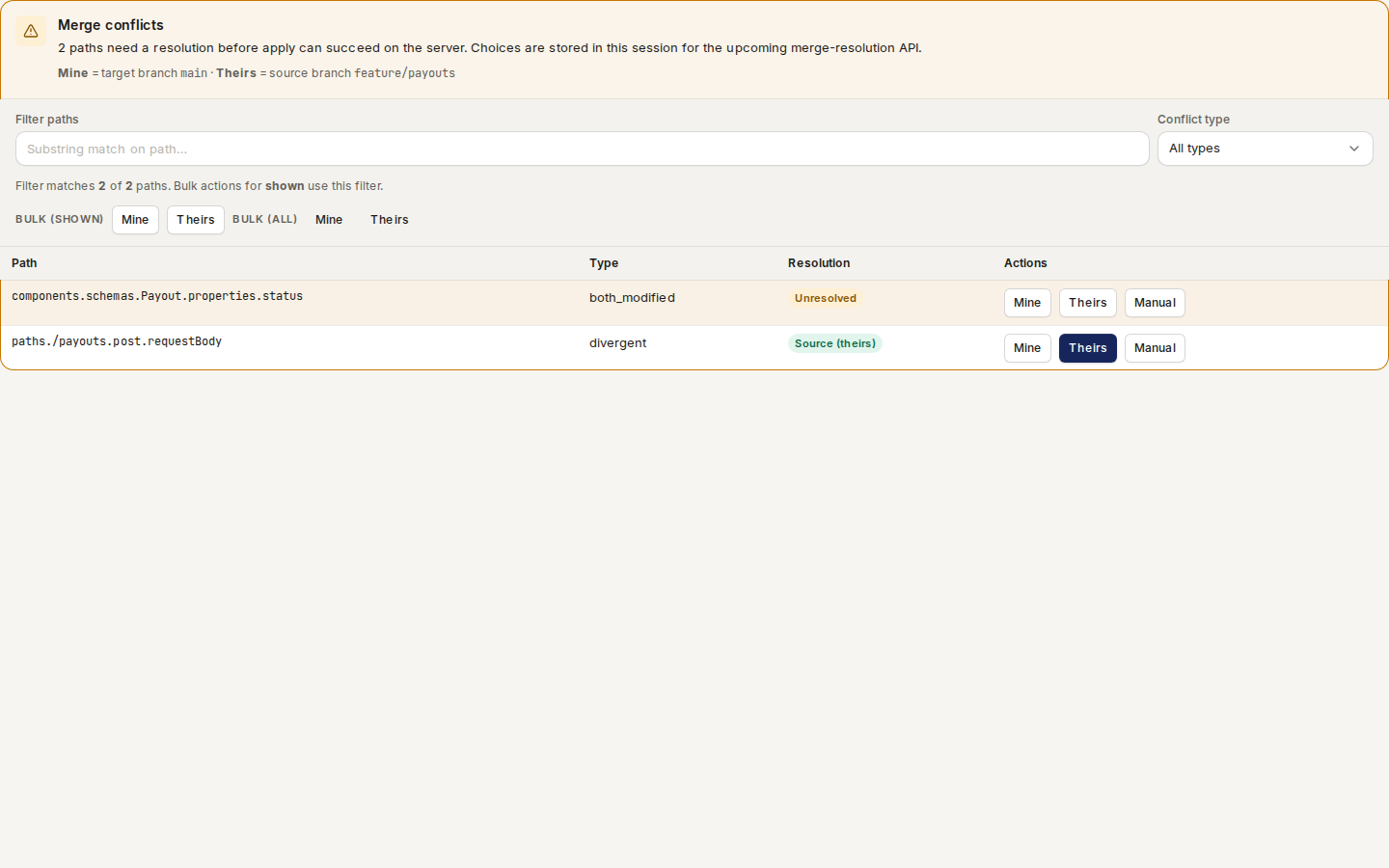
/ade/dashboard/versionsFrom a development build — this screen cannot be opened in a shipped build.With the API
POST /v1/versions/{tenant}/{project} (new), PUT /v1/versions/{tenant}/{project}/{version} (edit
and sunset), POST …/publish, POST /v1/versions/{tenant}/{project}/compatibility and POST /v1/diff/{tenant}/classified (compare), POST /v1/export/{tenant}/document (export). See the API
reference.