Primitives and types
/ade/dashboard/primitives
Primitives & types is the registry of reusable JSON Schema 2020-12 types — the money, address and
identifier shapes your classes and properties point at with $ref. Go to Build → Primitives &
types. It has four tabs: Registry, Namespaces & scopes, Resolver and Settings.
Types come from two scopes: core system types every tenant can use (read-only), and your tenant types.
Registry
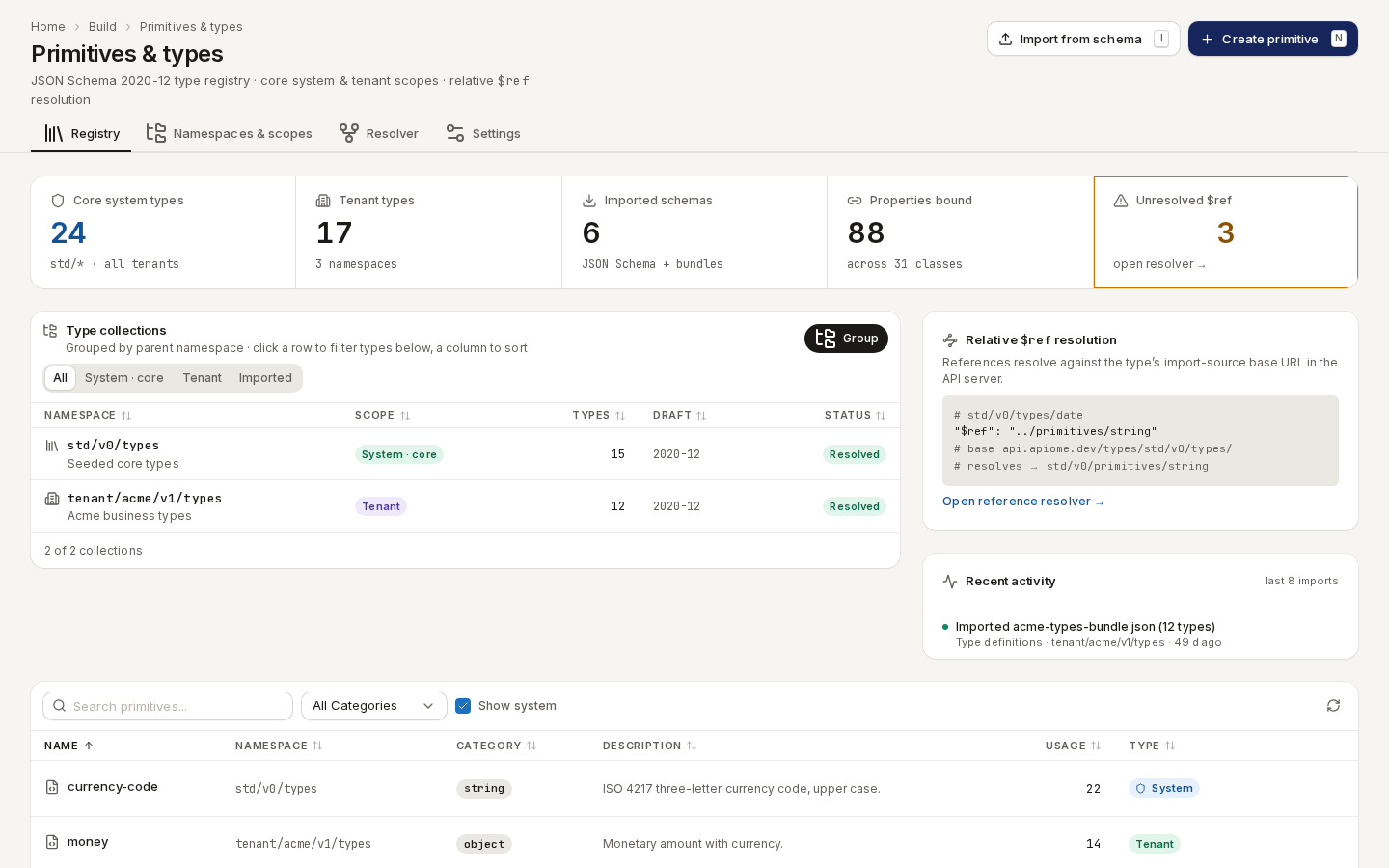
/ade/dashboard/primitivesThe tiles count Core system types, Tenant types, Imported schemas, Properties bound and Unresolved $ref (click it to jump to the resolver). The table lists each type's Name, Namespace, Category, Description, Usage and Type; search it, pick a category, and tick Show system to include the core types.
Click a type to open its page:
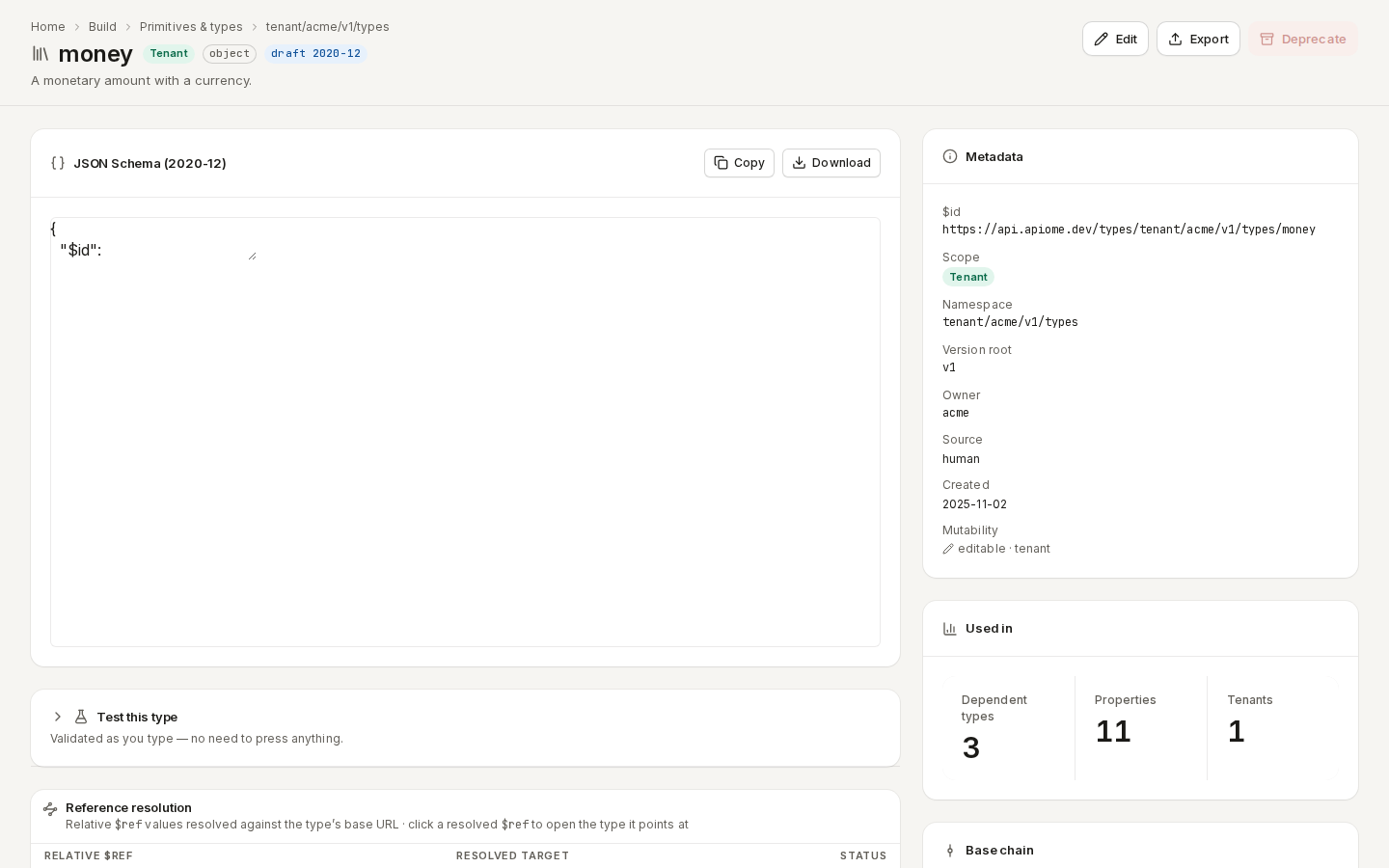
/ade/dashboard/primitives/[id]The page shows the type's JSON Schema (2020-12) (Copy, Download), Test this type, Reference resolution, an Example instance and its Dependents; on the right, Metadata, Used in and Base chain. “Edit” and “Export” are in the header.
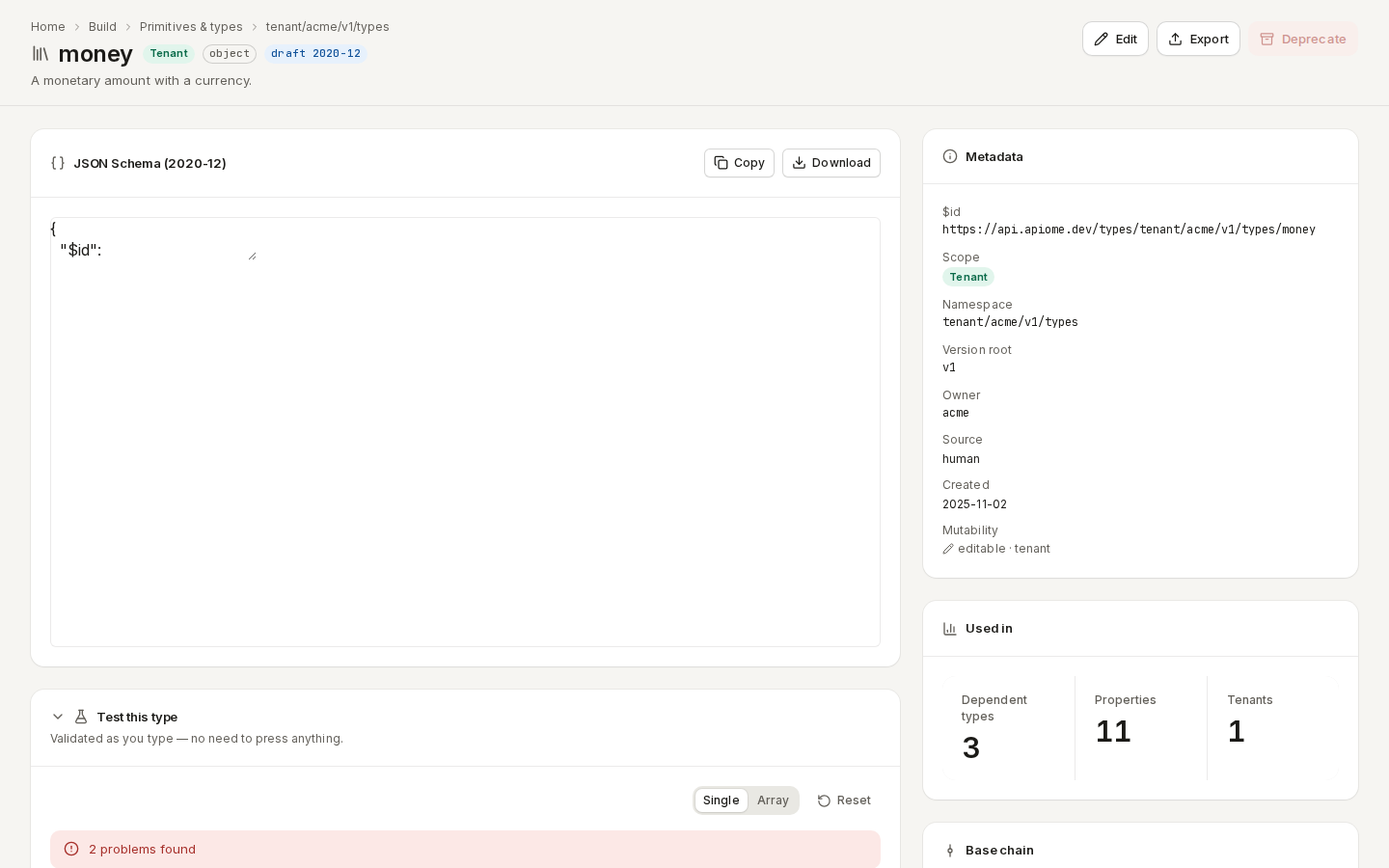
To check a payload against the type, open Test this type, choose Single or Array and type the value — it is validated as you type.
/ade/dashboard/primitives/[id]Create a type
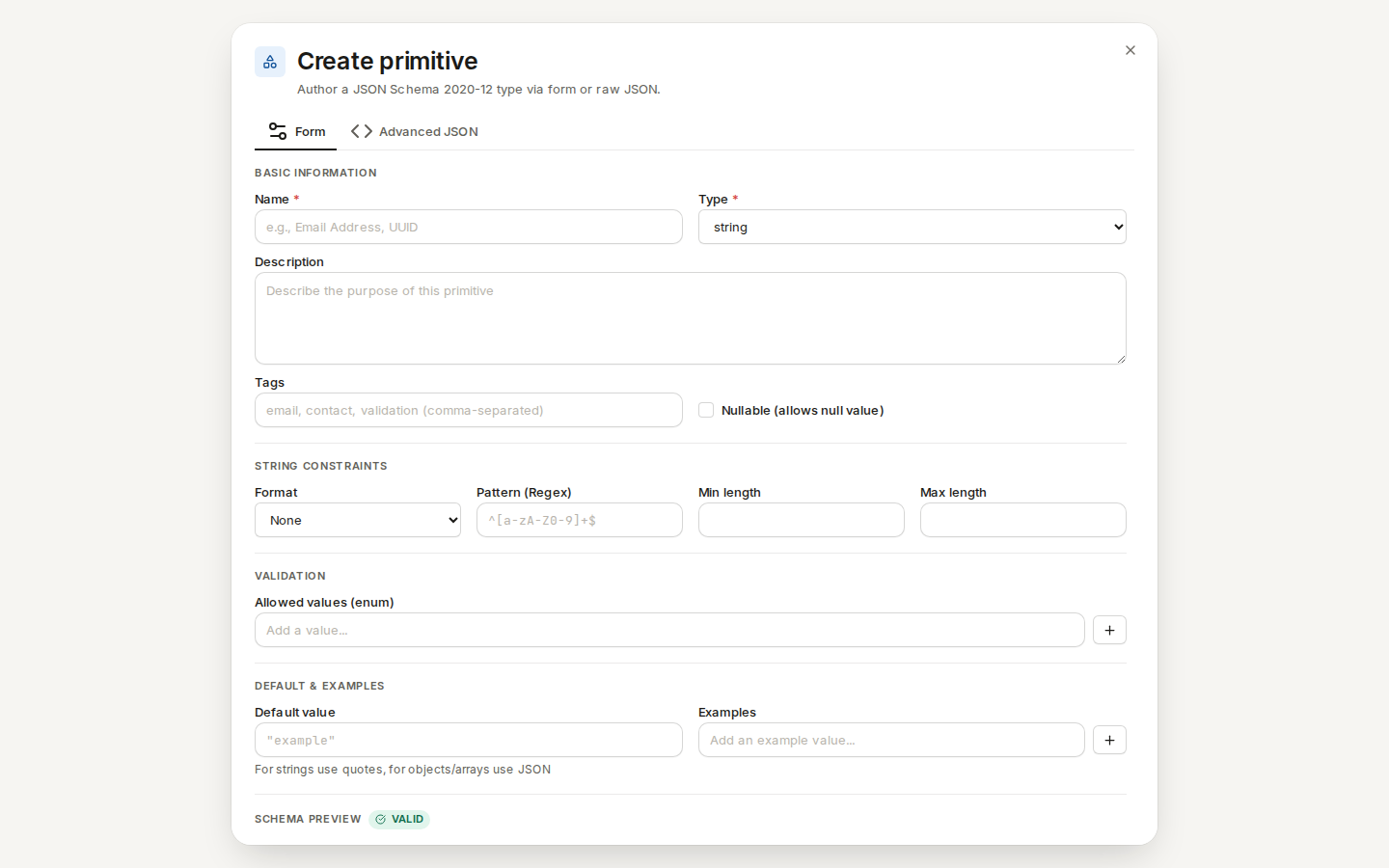
- Click “Create primitive” (or press N).
- On Form, enter a Name (for example
currency-code) and choose its Type (string); the type cannot change after you create it. - Add a Description, Tags, constraints (format, pattern, length), Allowed values (enum), a Default value and Examples. The Schema preview at the bottom shows the result. Advanced JSON edits the schema directly.
- Click “Create”.
/ade/dashboard/primitivesImport types
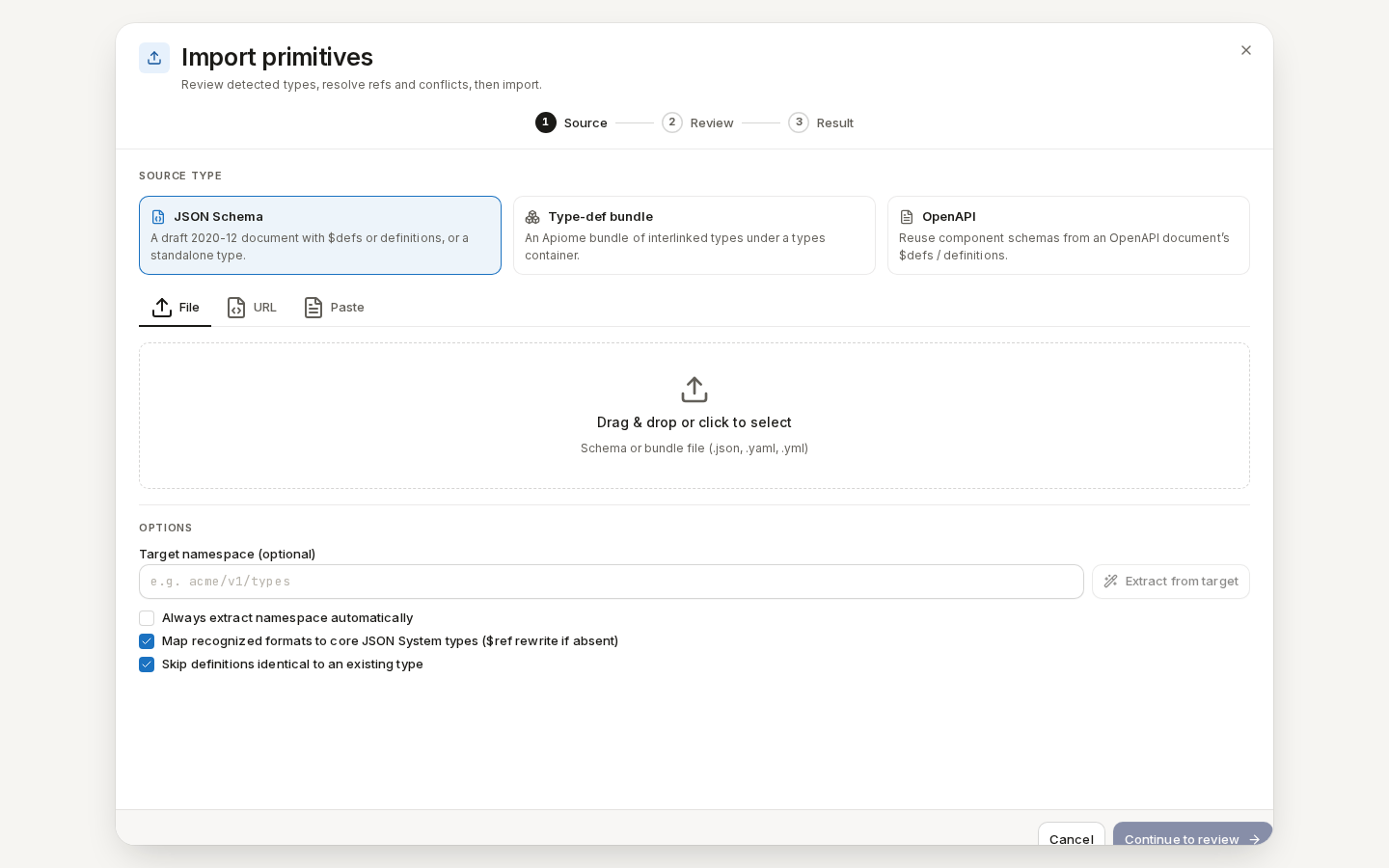
Click “Import from schema” (or press I).
- Source — choose JSON Schema, Type-def bundle or OpenAPI (its component schemas), and give it as a File, a URL or Paste. Pick a Target namespace if the types should not go to the default one.
- Review — Apiome lists the types it found. For each one that clashes with an existing type, choose Keep existing, Overwrite or Import as new name.
- Click “Import N selected”, then read the Result.
/ade/dashboard/primitivesNamespaces & scopes
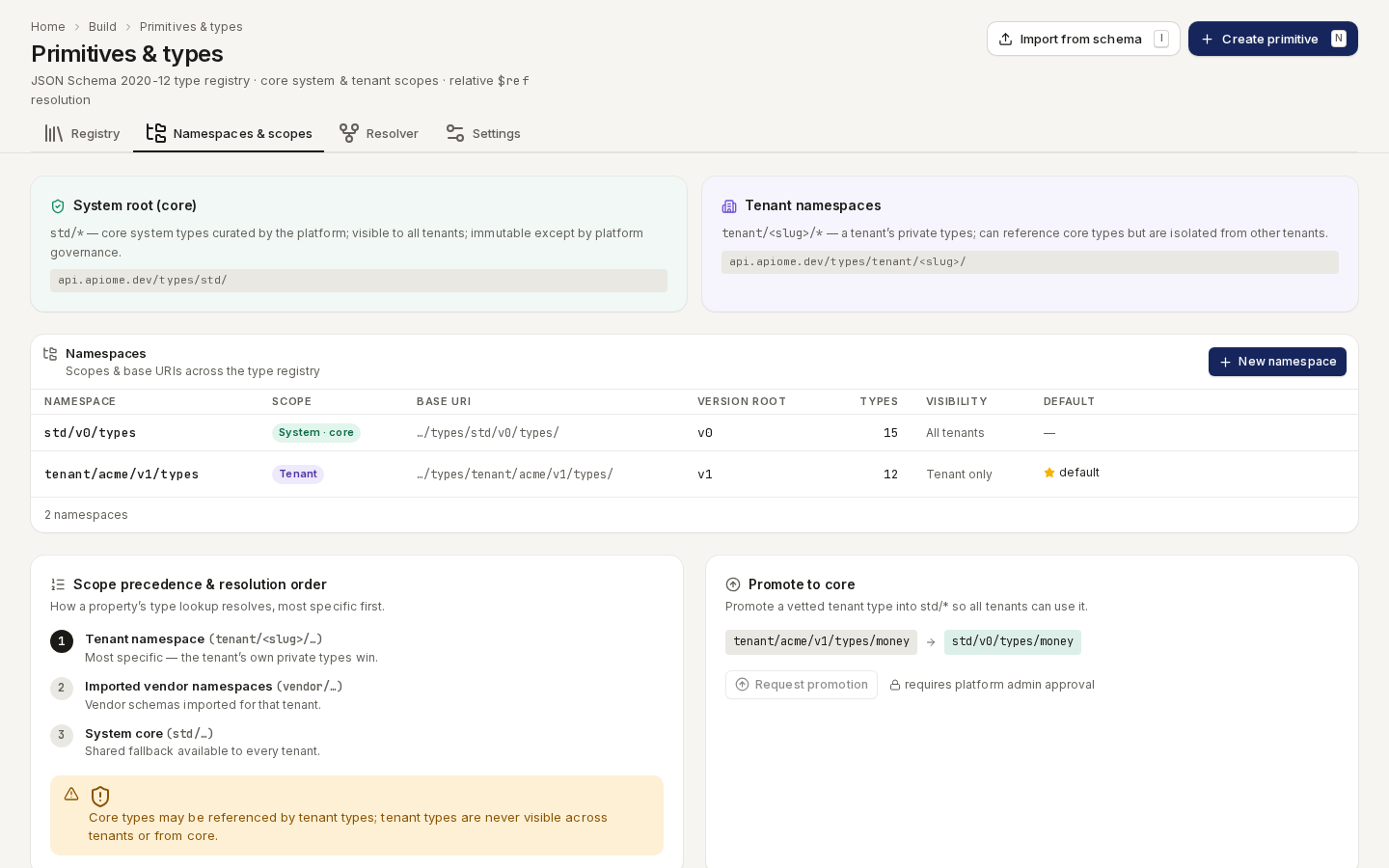
A namespace groups types under a base URI and version, such as tenant/acme/v1/types. The tab
shows the system root and your tenant namespaces, and the order a $ref is resolved in: your tenant
namespace, then imported vendor namespaces, then the core system types.
Click “New namespace” and enter a Namespace path, Base URI, Version root and Description; tick Default namespace to make new types land there. System namespaces are Read-only.
/ade/dashboard/primitivesResolver
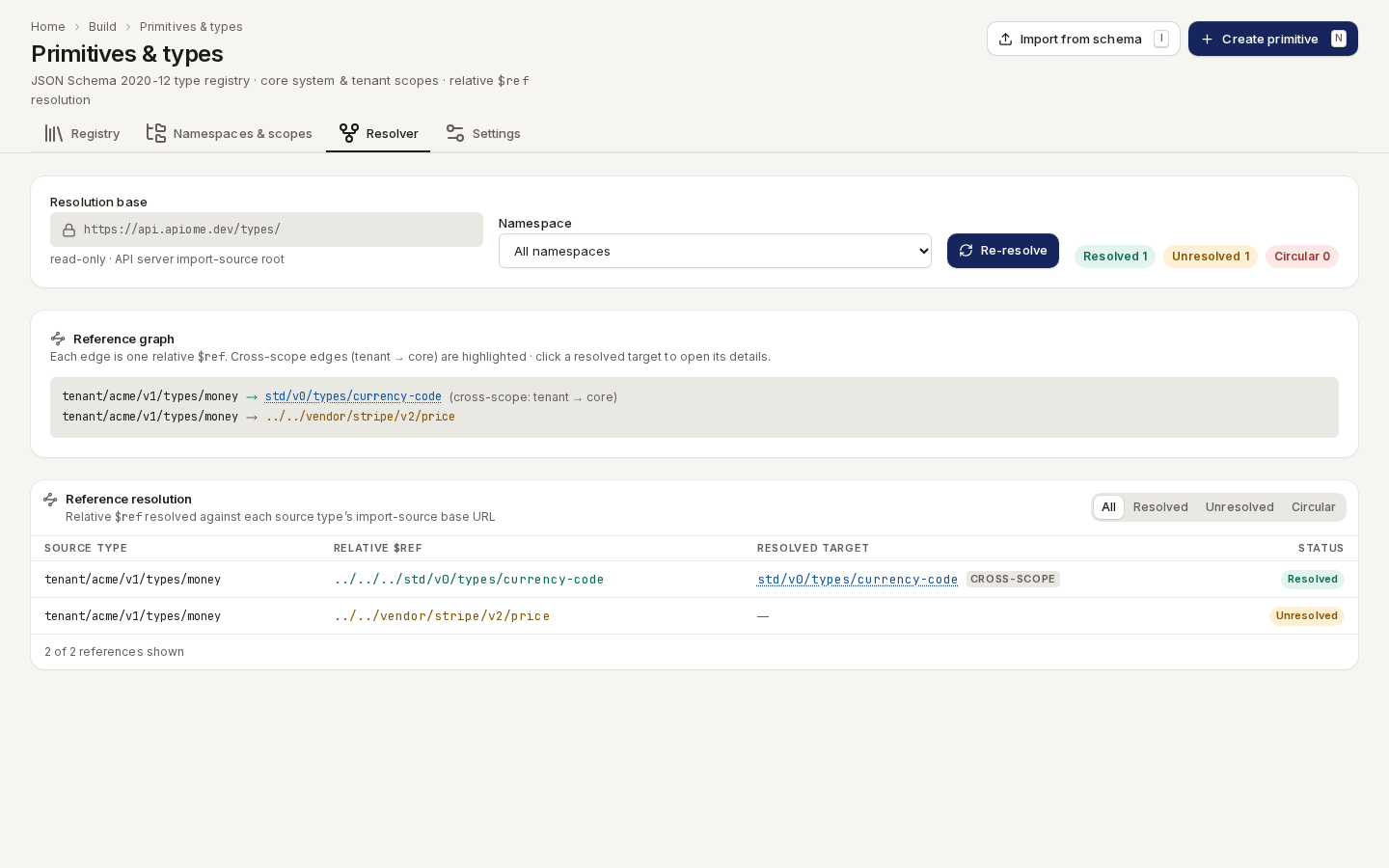
The Resolver shows how every $ref in your types resolves — Resolved, Unresolved or
Circular — as a list and a reference graph. Filter by Namespace, and click
“Re-resolve” after fixing a reference.
/ade/dashboard/primitivesSettings
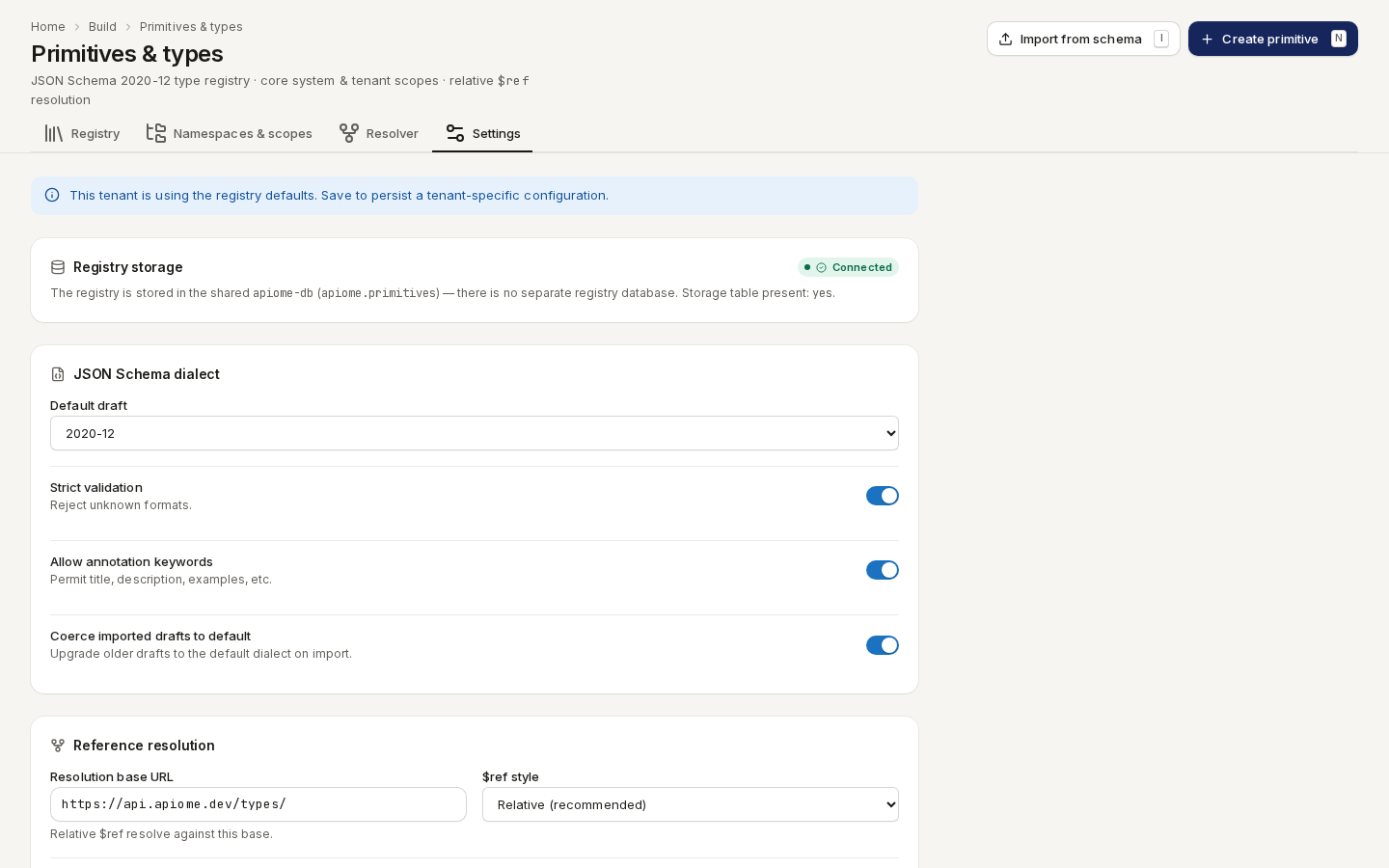
Settings chooses the JSON Schema dialect, how references resolve (the base URL and $ref
style), Import defaults and Validation & publishing rules for this tenant. Click “Save
settings”, or “Reset to defaults”.
/ade/dashboard/primitivesWith the CLI or the API
- CLI:
apiome types list|show|search— see the CLI quick-start. - REST:
GET/POST /v1/primitives/{tenant},POST /v1/primitives/{tenant}/import,GET/POST /v1/types/{tenant}/namespaces,GET/PUT /v1/types/{tenant}/settings,POST /v1/types/{tenant}/resolve— see the API reference.