Catalog
/ade/dashboard/catalog
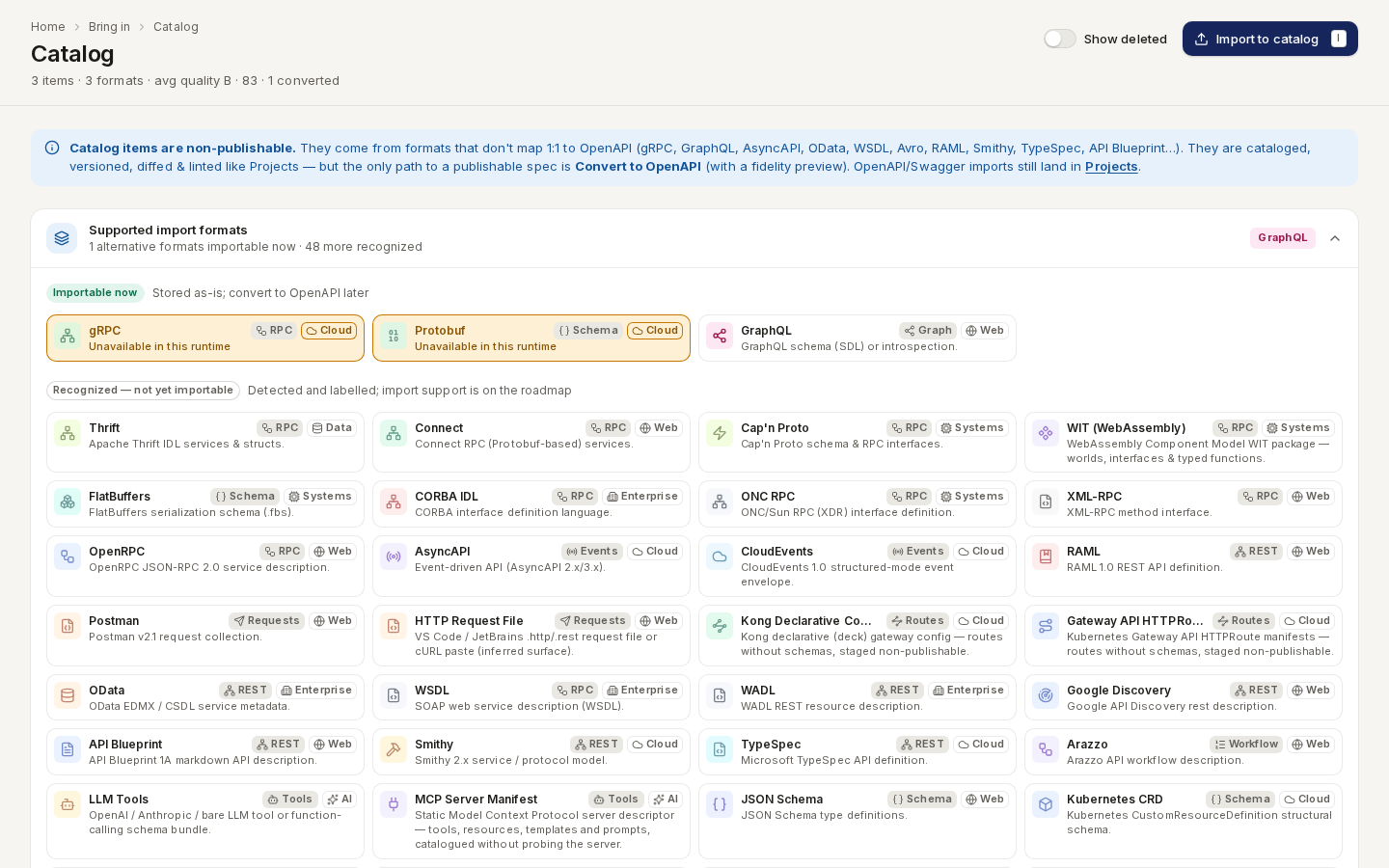
The catalog holds specifications in formats that do not map one-to-one to OpenAPI — gRPC, GraphQL, AsyncAPI, OData, WSDL, Avro, RAML, Smithy, TypeSpec and more. Catalog items keep their original format: you can search, diff, lint and export them, but not publish them. To publish one, convert it to OpenAPI. OpenAPI and Swagger imports go to Projects instead.
Go to Bring in → Catalog.
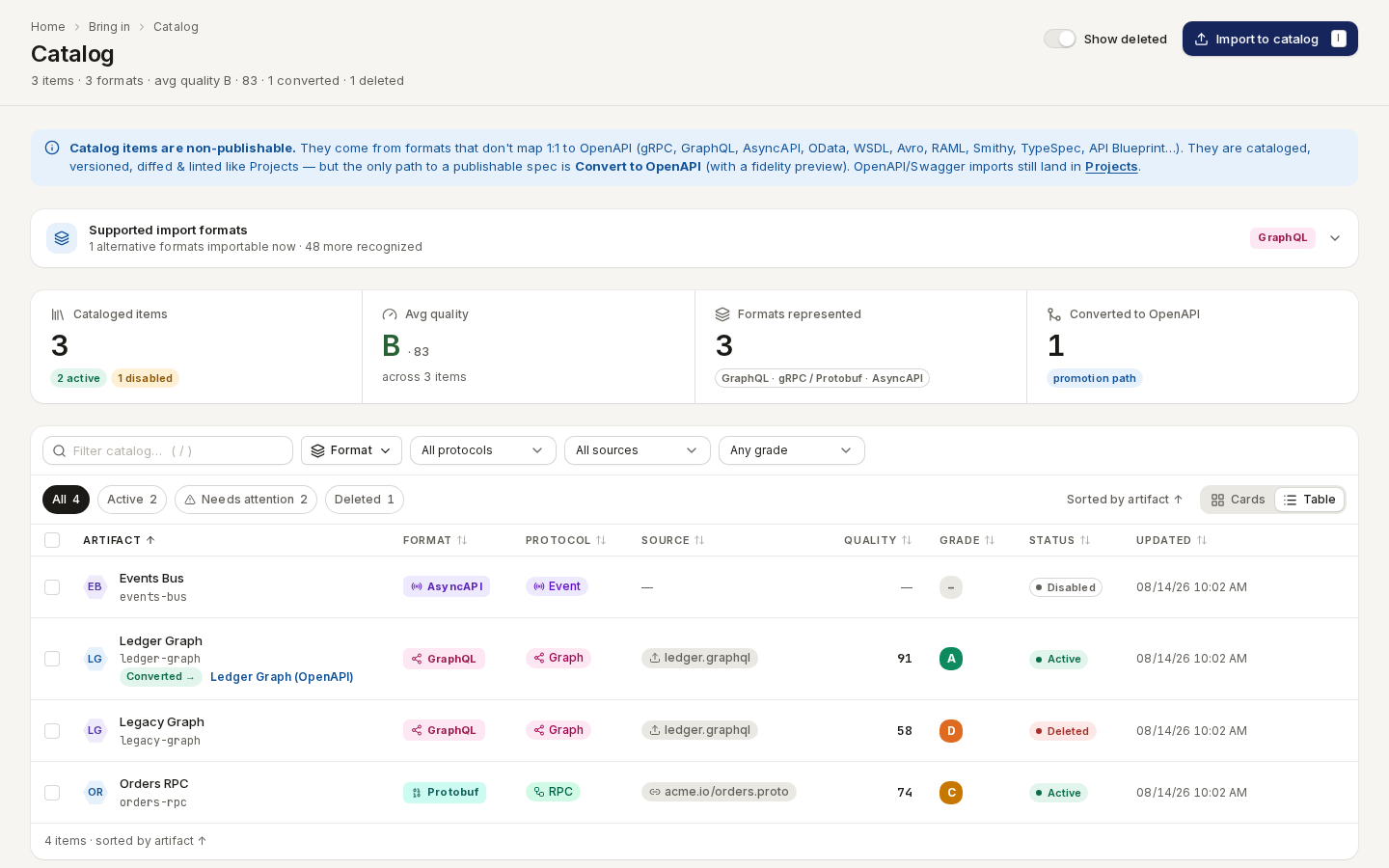
/ade/dashboard/catalogFind an item
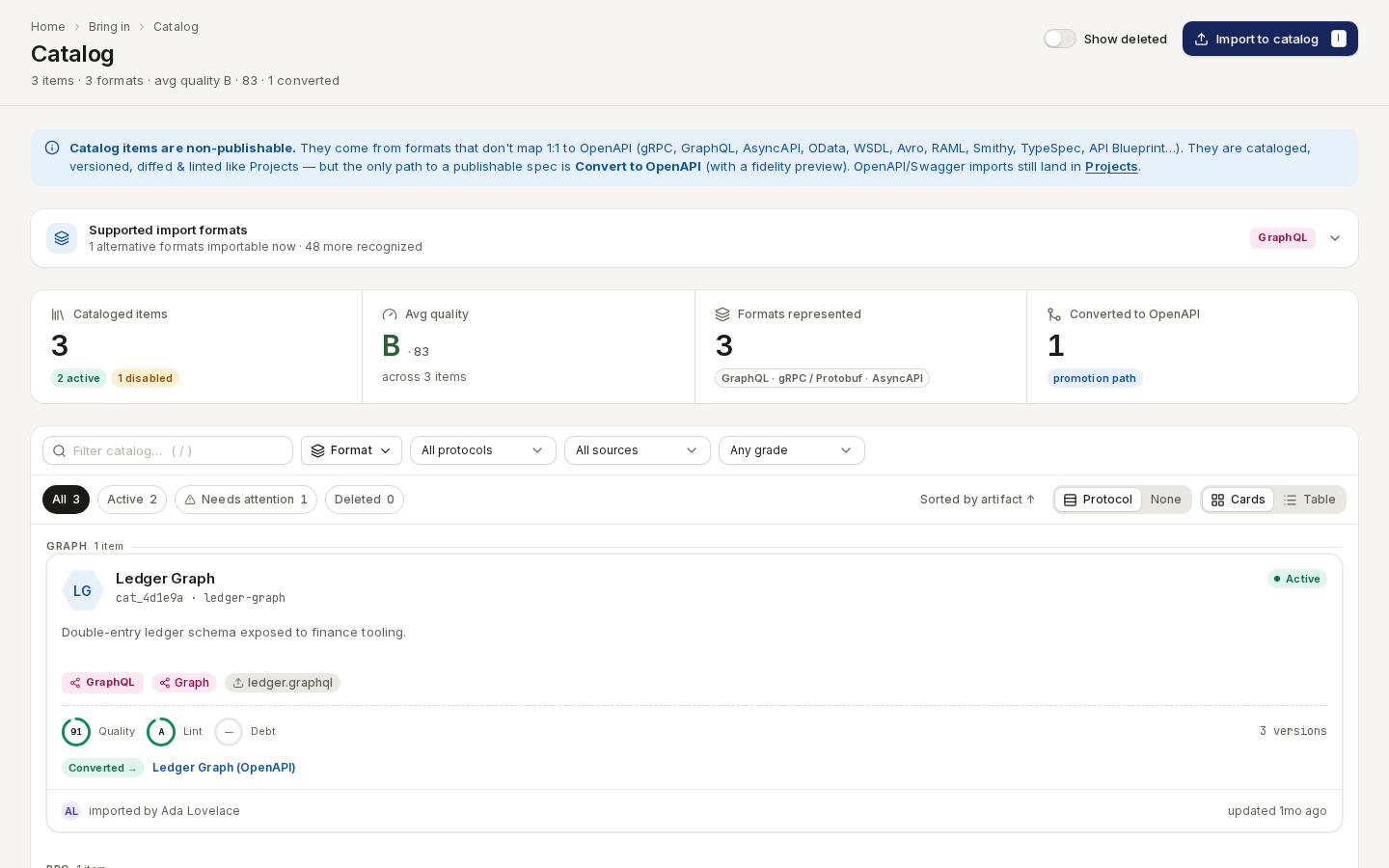
- Filter by text (/), Formats, protocol (REST, RPC, Event, Graph, Data Schema, Agent), source (Uploaded file, Source URL, Pasted content, Live discovery) and grade.
- Chips — All, Active, Needs attention, and Deleted once Show deleted is on.
- Sort by name, created, updated, quality, grade or format; choose the same column again to reverse it.
- Cards or Table; cards can be grouped by protocol. Your choices are remembered in this browser.
/ade/dashboard/catalogSupported import formats (collapsed under the banner) lists every format the catalog imports now, and the ones Apiome recognizes but cannot import yet. The full list is on Supported formats.
/ade/dashboard/catalogAdd an item
Click “Import to catalog” (or press I) — see Import wizard.
An item's page
Route/ade/dashboard/catalog/[id]
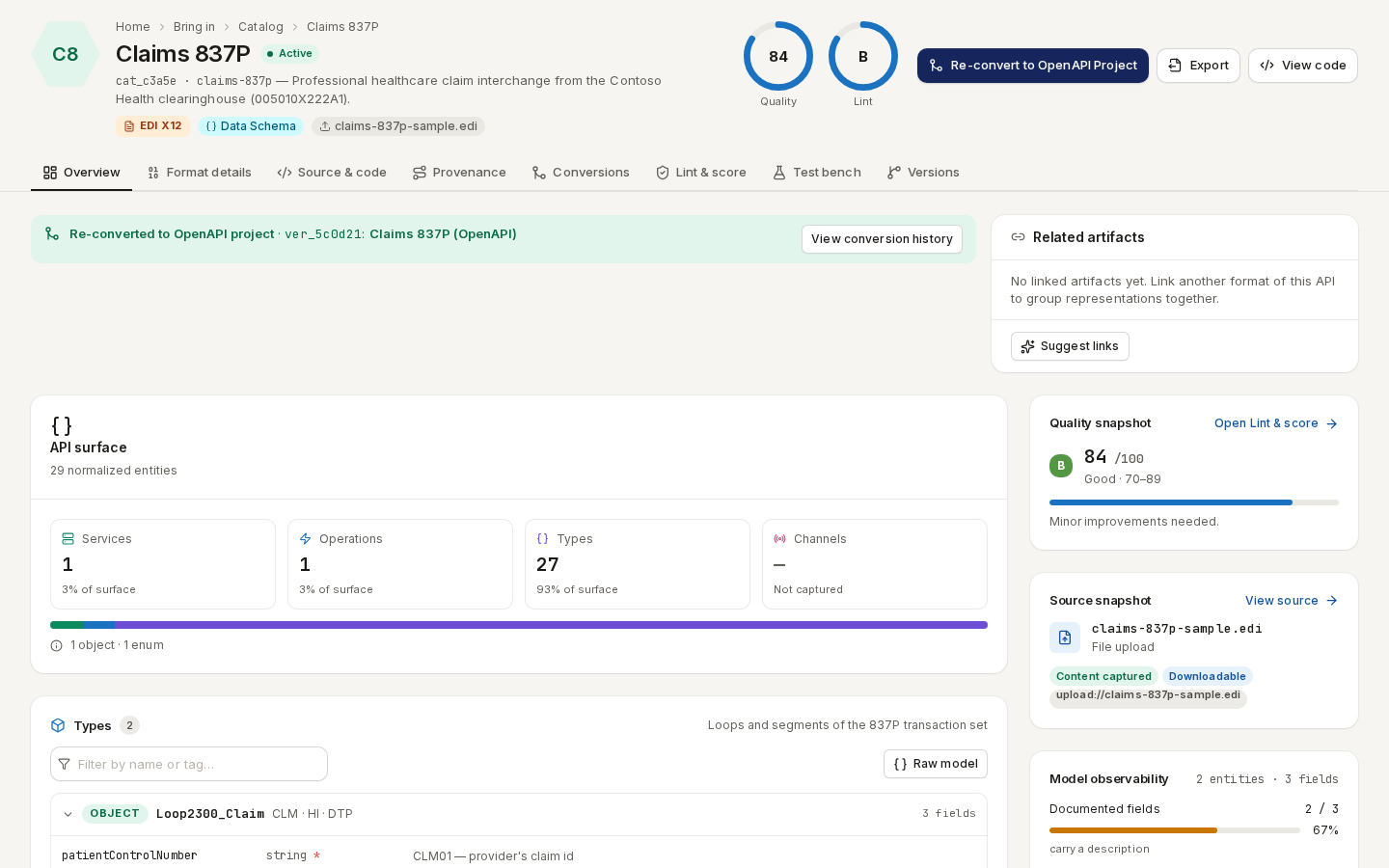
Click an item to open it. The header shows its status, Quality and Lint scores, and “Convert to OpenAPI Project”, “Export” and “View code”. Eight tabs follow:
| Tab | Shows |
|---|---|
| Overview | The API surface (services, operations, types, channels), the quality snapshot and the source snapshot |
| Format details | The payload's native structure in its own vocabulary — see Catalog format details |
| Source & code | The raw imported source, read-only, with “Download raw source” |
| Provenance | Where it came from: intake, format detection, normalization and the import job |
| Conversions | Every conversion to OpenAPI, with its evidence |
| Lint & score | The lint score and findings |
| Test bench | Validate a payload against one of the item's schemas |
| Versions | The item's revisions |
/ade/dashboard/catalog/[id]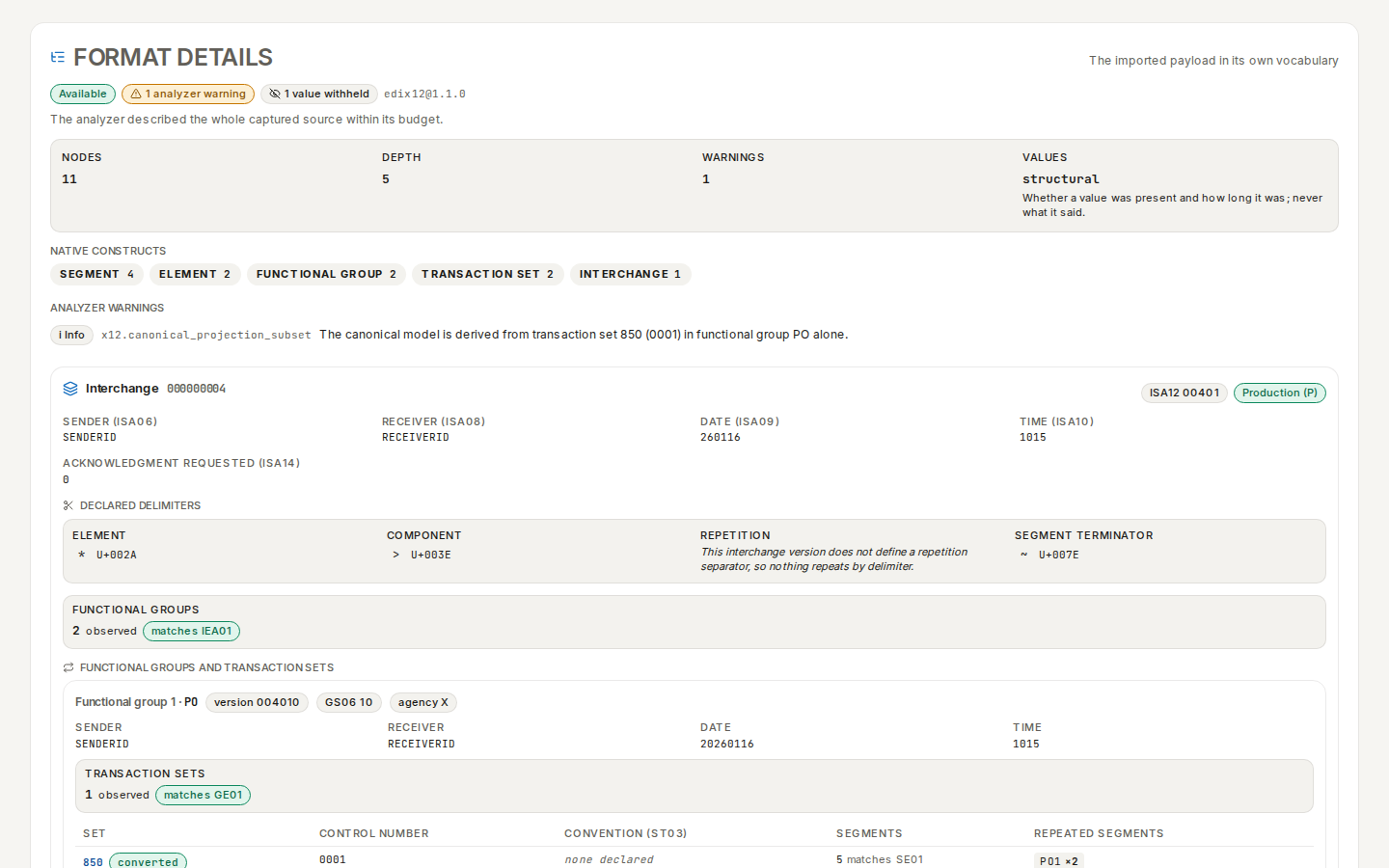
/ade/dashboard/catalog/[id]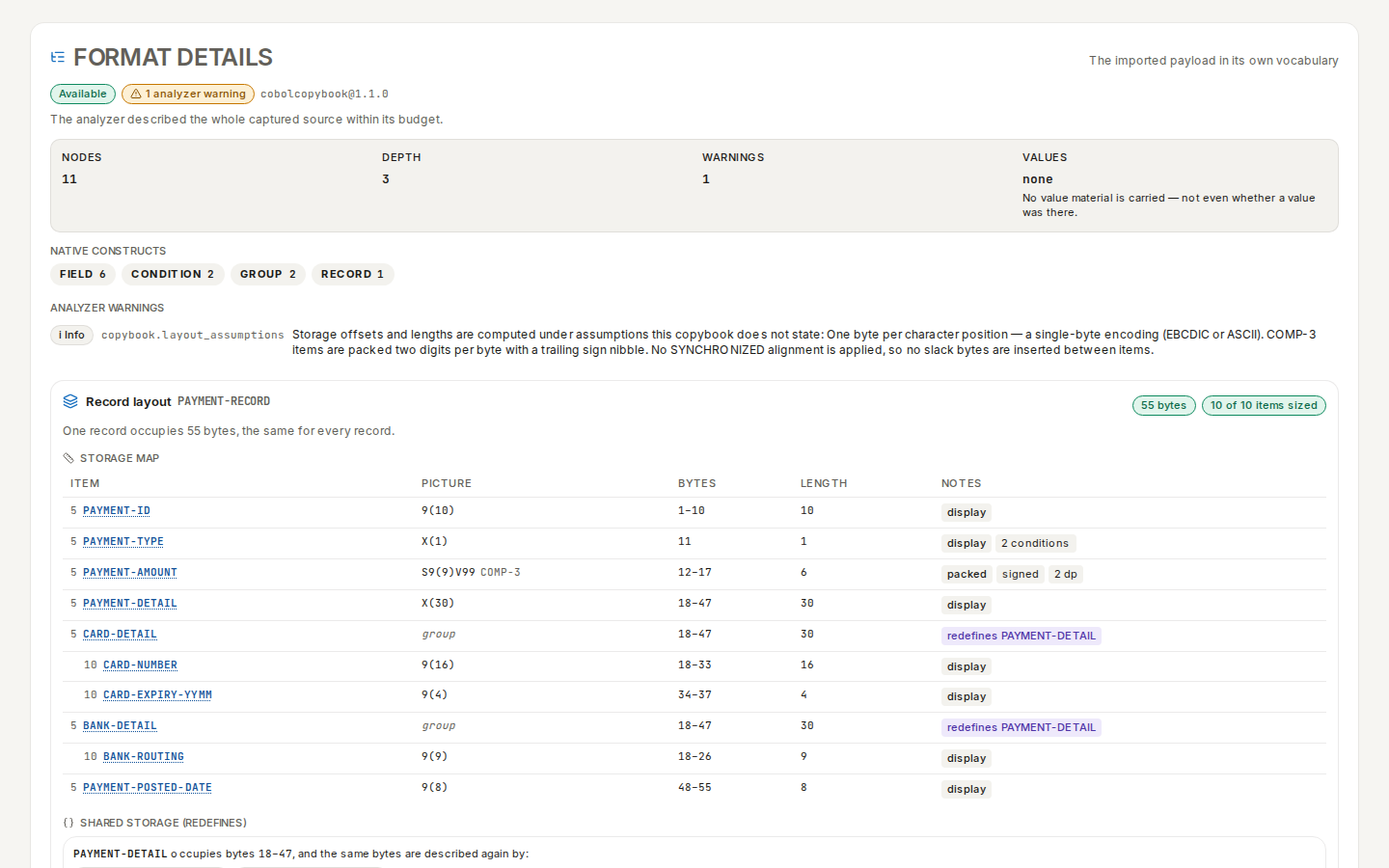
/ade/dashboard/catalog/[id]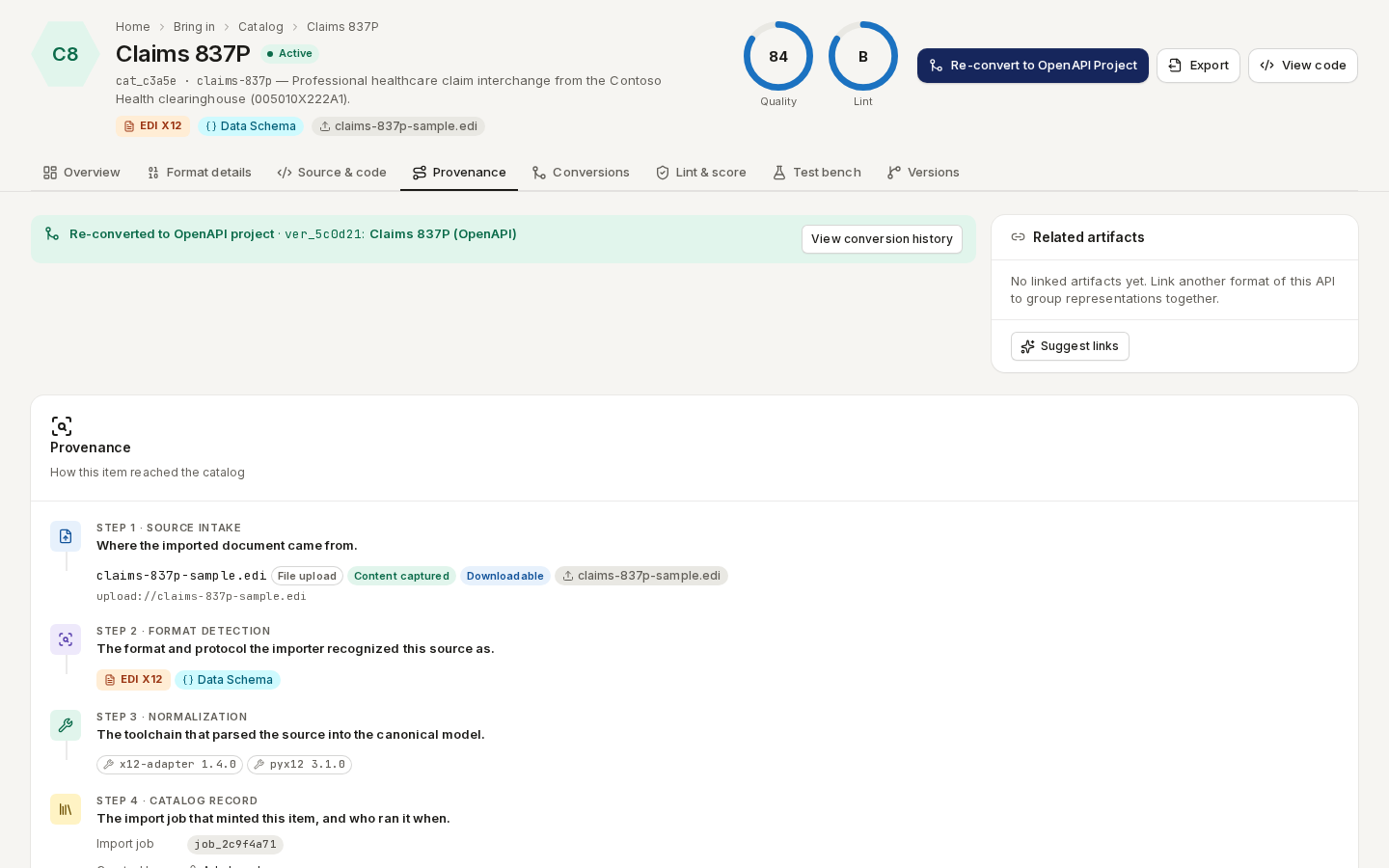
/ade/dashboard/catalog/[id]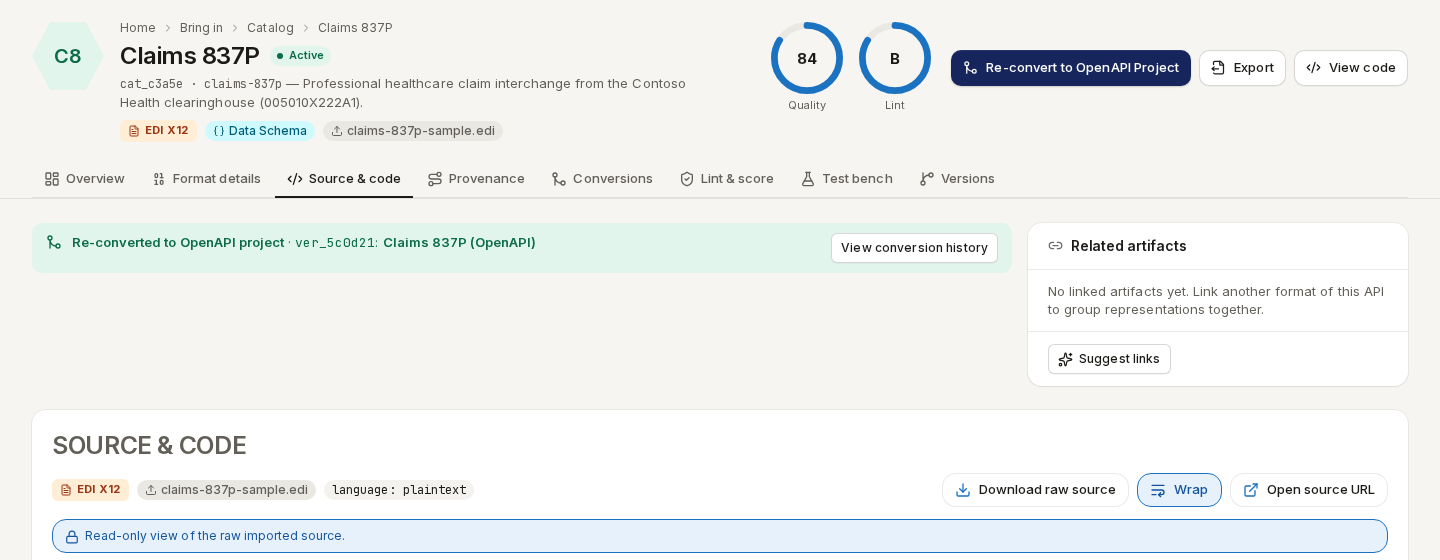
/ade/dashboard/catalog/[id]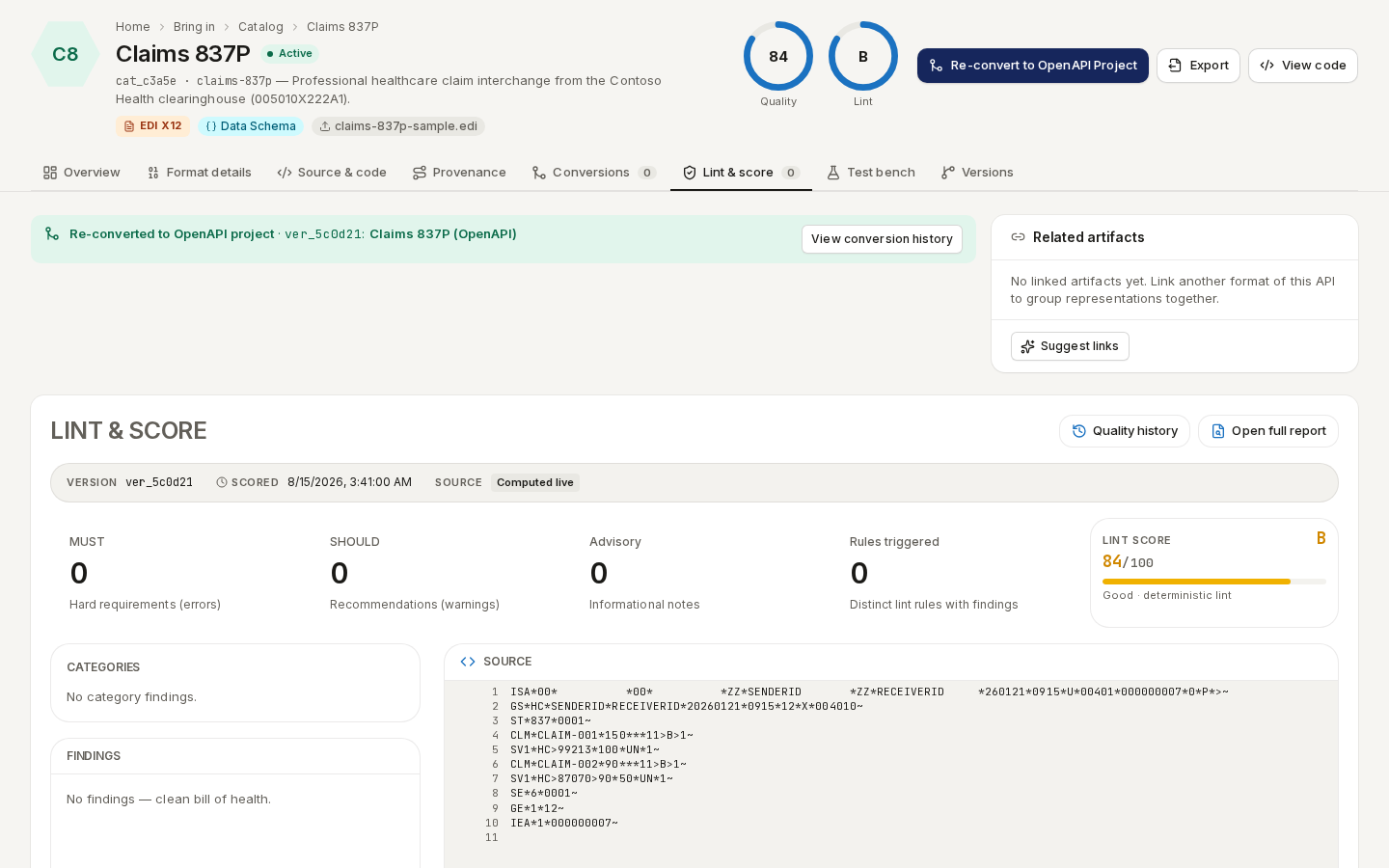
/ade/dashboard/catalog/[id]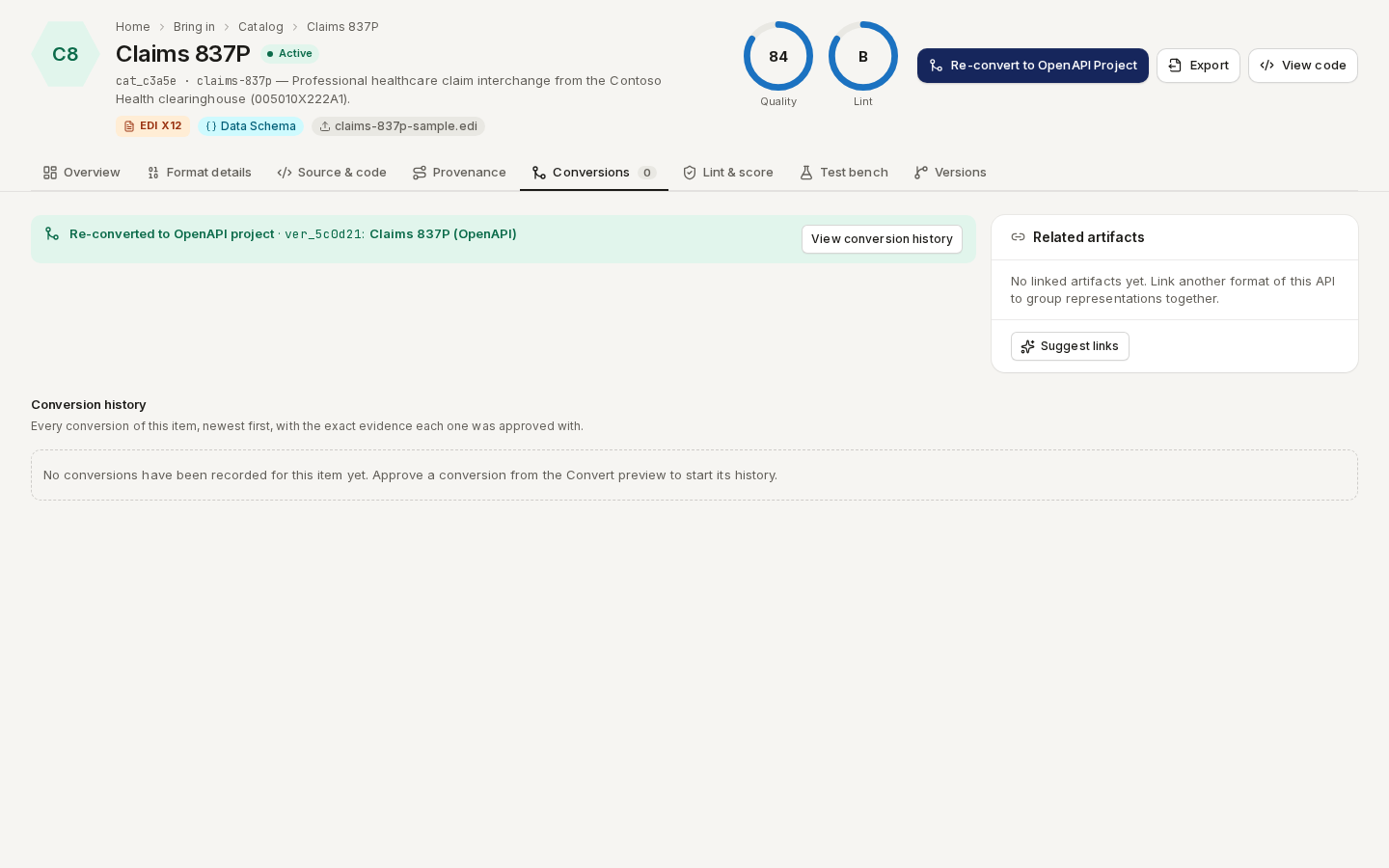
/ade/dashboard/catalog/[id]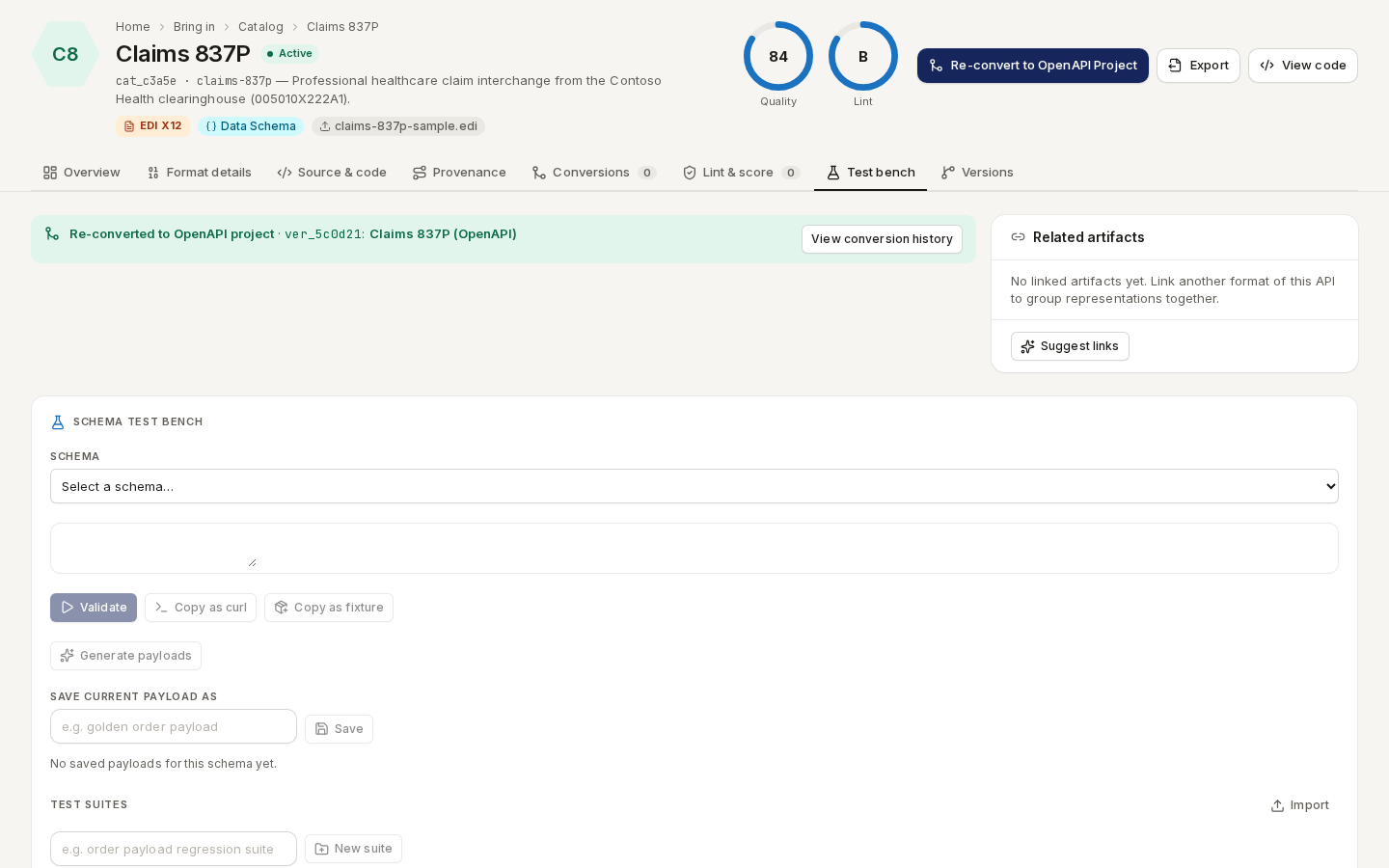
/ade/dashboard/catalog/[id]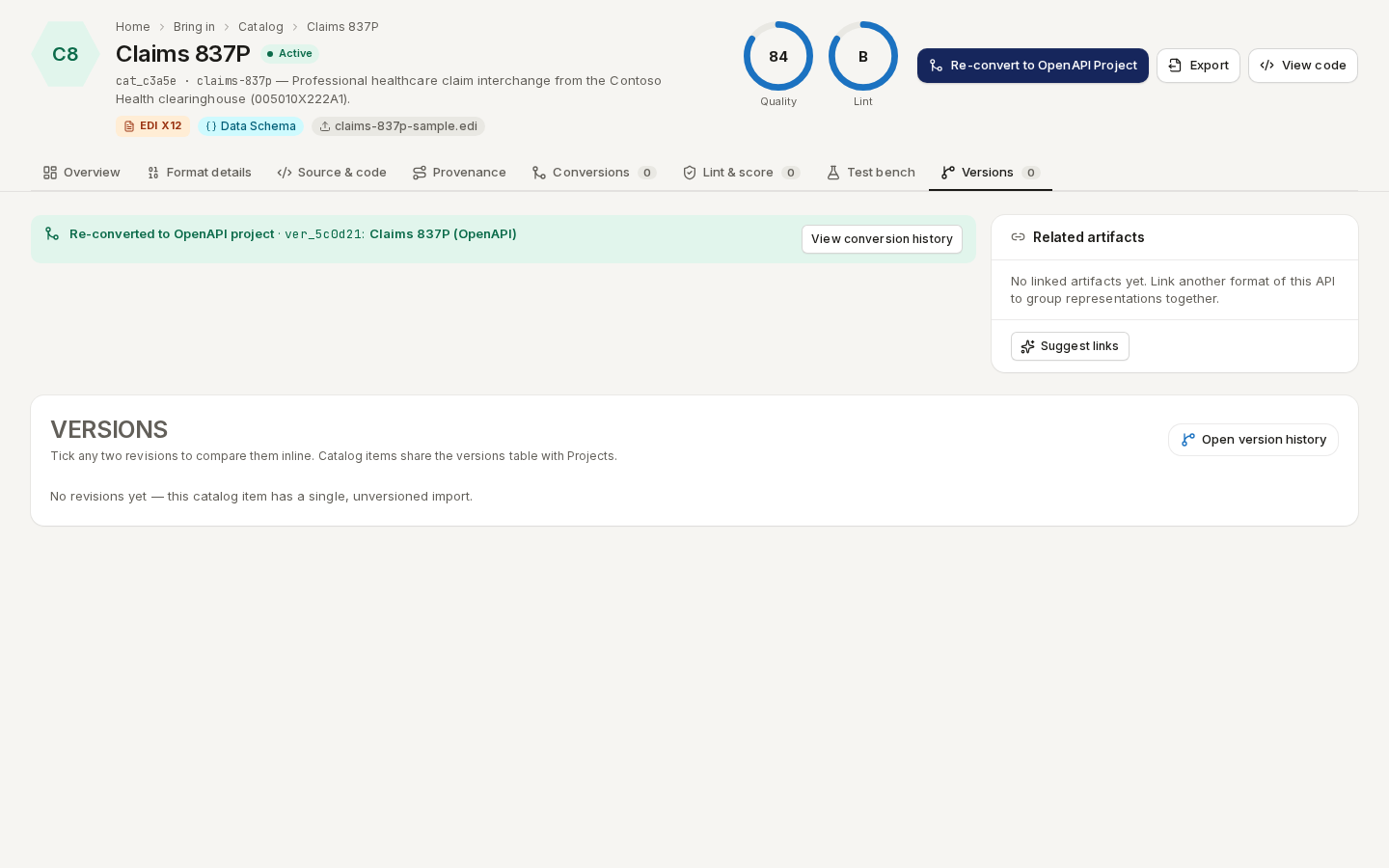
/ade/dashboard/catalog/[id]Convert to OpenAPI
- Click “Convert to OpenAPI Project” on the item (or in its ⋯ menu). Apiome analyzes what the source can carry onto OpenAPI.
- Read the Fidelity grade and the Summary — What the source provides and What OpenAPI favors but is missing. Projection graph shows construct by construct how the source maps.
- Optionally fill Title, Version and Servers under Fill cheap gaps and click “Apply & recompute preview”.
- Click “Convert”. For a low-fidelity conversion, first tick I understand the converted spec will be incomplete and want to convert anyway.
Apiome creates a new OpenAPI project, and the item shows Converted to OpenAPI project. The full explanation of reason codes and evidence is on Convert a catalog item to OpenAPI.
Export to another format… in the item's menu produces a document in another format instead — it never creates a project.
Delete and restore
Delete item hides an item; turn on Show deleted and choose Undelete item to bring it back. Permanently delete asks you to type the item's slug, then “Delete everything”. In Table view, tick items to delete or undelete several at once.
With the CLI or the API
- CLI:
apiome import graphql ./01-simple-user.graphql,apiome convert <item-id> --to openapi --dry-run,apiome formats— see the CLI quick-start. - REST:
GET /v1/catalog/{tenant},GET /v1/catalog/{tenant}/{item},GET …/{item}/analysis|lint|source,POST …/{item}/convert,GET …/{item}/conversions— see the API reference.