Property templates
/admin/dashboard/templates
A property template is a ready-made property — a name, a JSON Schema, a category and tags — that authors can reuse instead of writing the same definition again: a UUID, a Created At timestamp, an Email, a Money Amount. Property Templates in the admin console lists every template in the installation, the system templates shipped with Apiome and the tenant templates workspaces created for themselves. Sign in to the admin console and choose Property Templates in the sidebar.
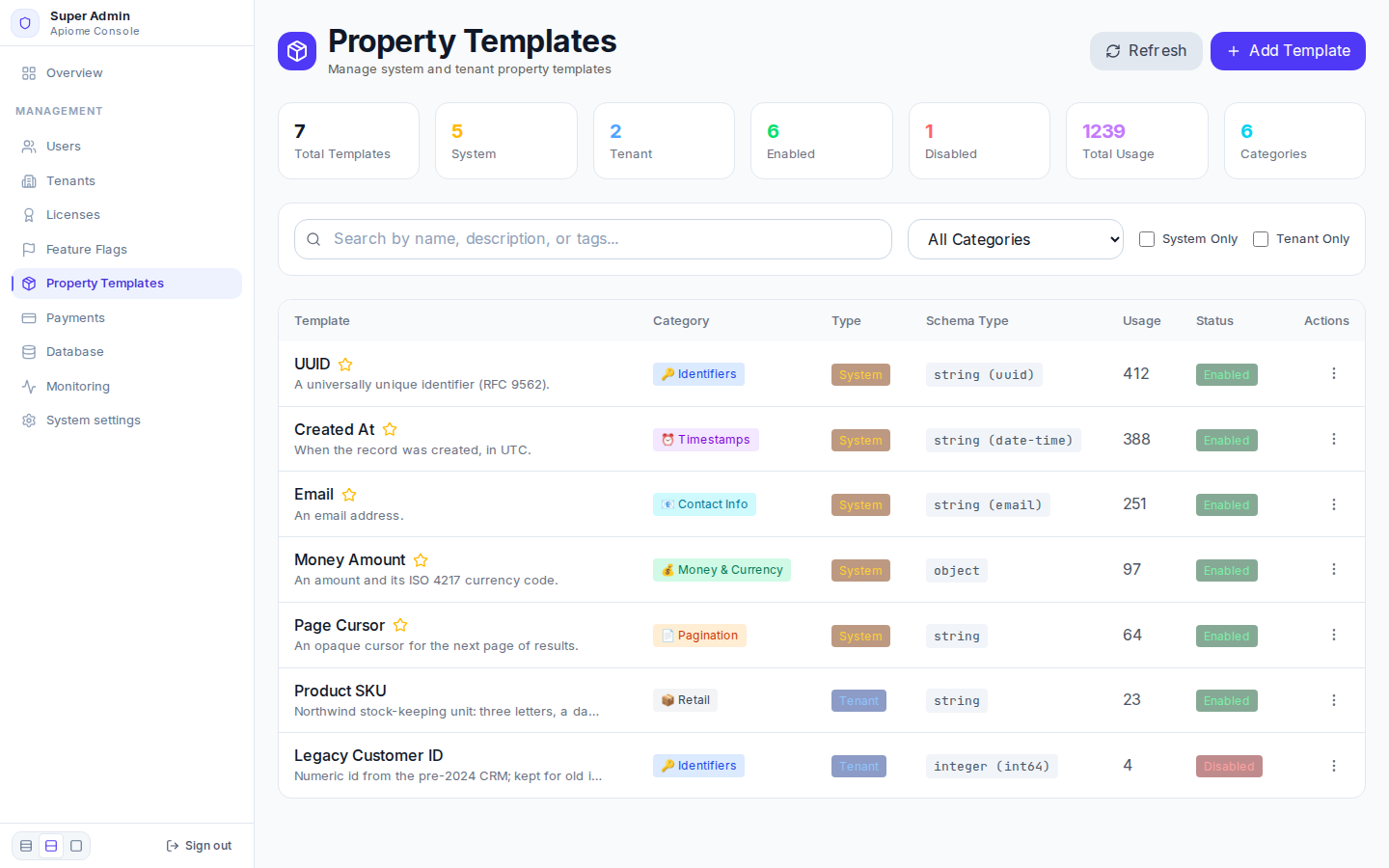
/admin/dashboard/templatesRead the list
The cards at the top count Total Templates, System, Tenant, Enabled, Disabled, Total Usage (how many times templates have been applied) and Categories. Each row shows:
| Column | Shows |
|---|---|
| Template | The name — a star marks a system template — and the description |
| Category | Such as Identifiers, Timestamps, Contact Info, Money & Currency or a custom one |
| Type | System (available to every tenant) or Tenant (one workspace's own) |
| Schema Type | The schema's type, with its format when it has one — string (uuid) |
| Usage | How many times the template has been used |
| Status | Enabled or Disabled |
To narrow the list, search by name, description, or tags, pick a category in All Categories, or tick System Only or Tenant Only. Refresh reloads it.
Act on a template
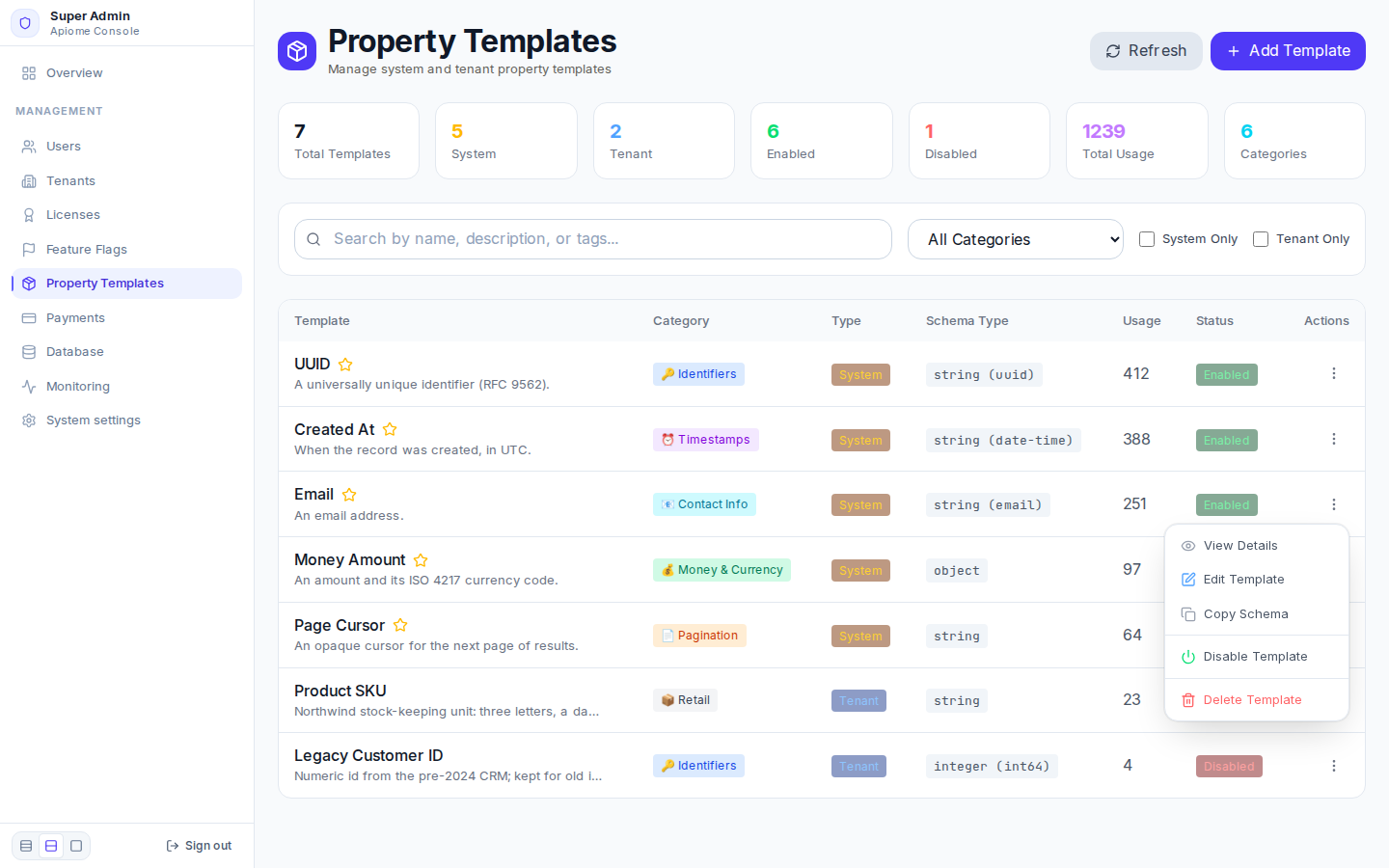
Click ⋮ at the end of a row for its actions:
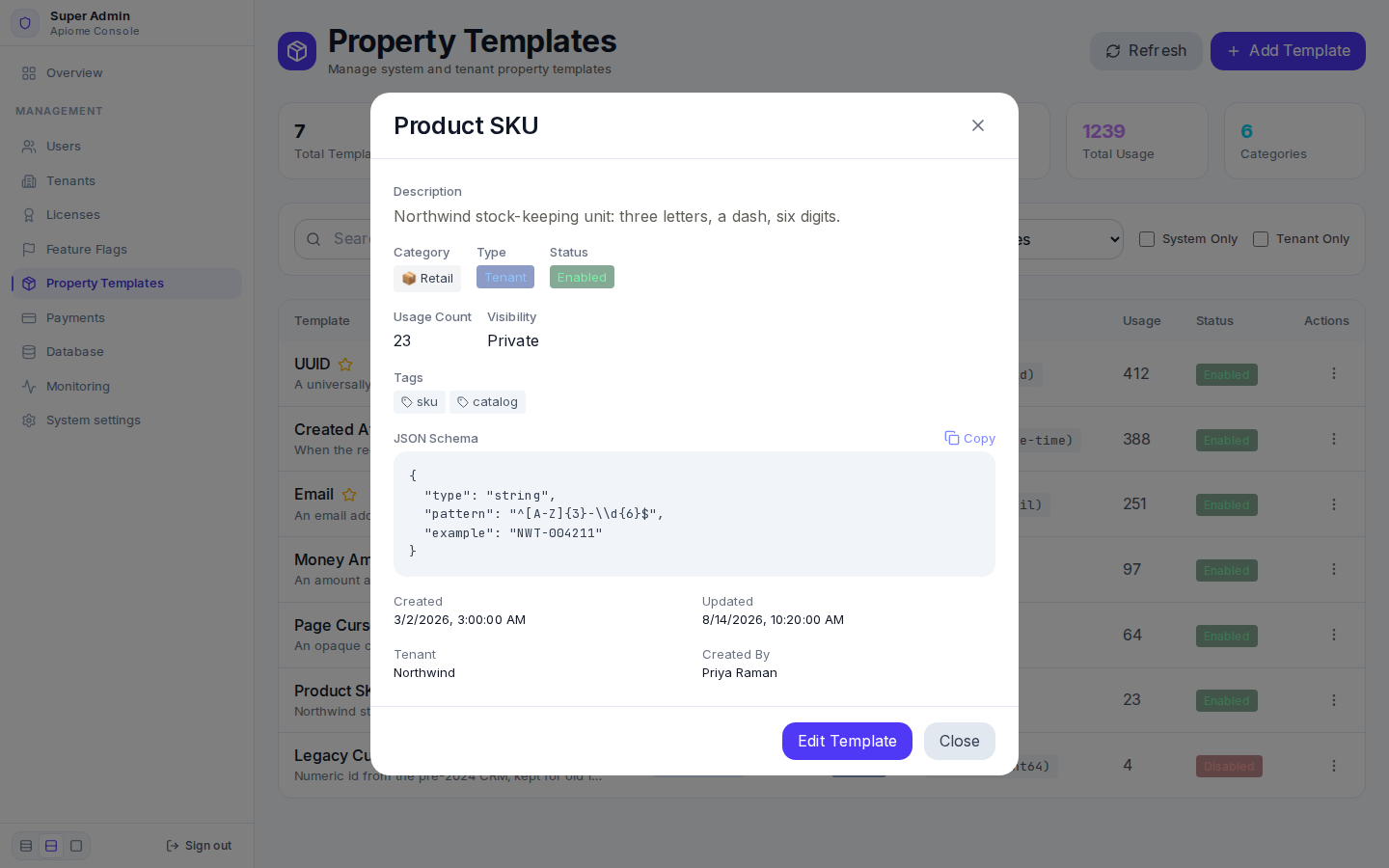
/admin/dashboard/templates- View Details — the description, category, type, status, usage count, visibility, tags, the JSON Schema (with Copy), when it was created and updated, and for a tenant template the Tenant and Created By.
- Edit Template — the same form as a new template, filled in.
- Copy Schema — copies the JSON Schema to the clipboard.
- Disable Template / Enable Template — a disabled template is kept but no longer offered.
- Delete Template — asks Delete template "…"? first. The template stops being offered when authors add a property; properties already created from it are not changed.
/admin/dashboard/templatesAdd a template
- Click “Add Template”.
- Enter a Name (required) and a Description.
- Choose a Category, or tick Create new category and type one — it is saved in lower case
with hyphens for spaces (Medical Records becomes
medical-records). - Write the JSON Schema (required) — for example
{"type": "string", "pattern": "^[A-Z]{2}$", "example": "NZ"}. - Add Tags (comma-separated) to help people find it.
- Leave System Template and Public ticked: a template that is either one is offered to every tenant.
- Click “Create Template”. Template created successfully appears and the list reloads.
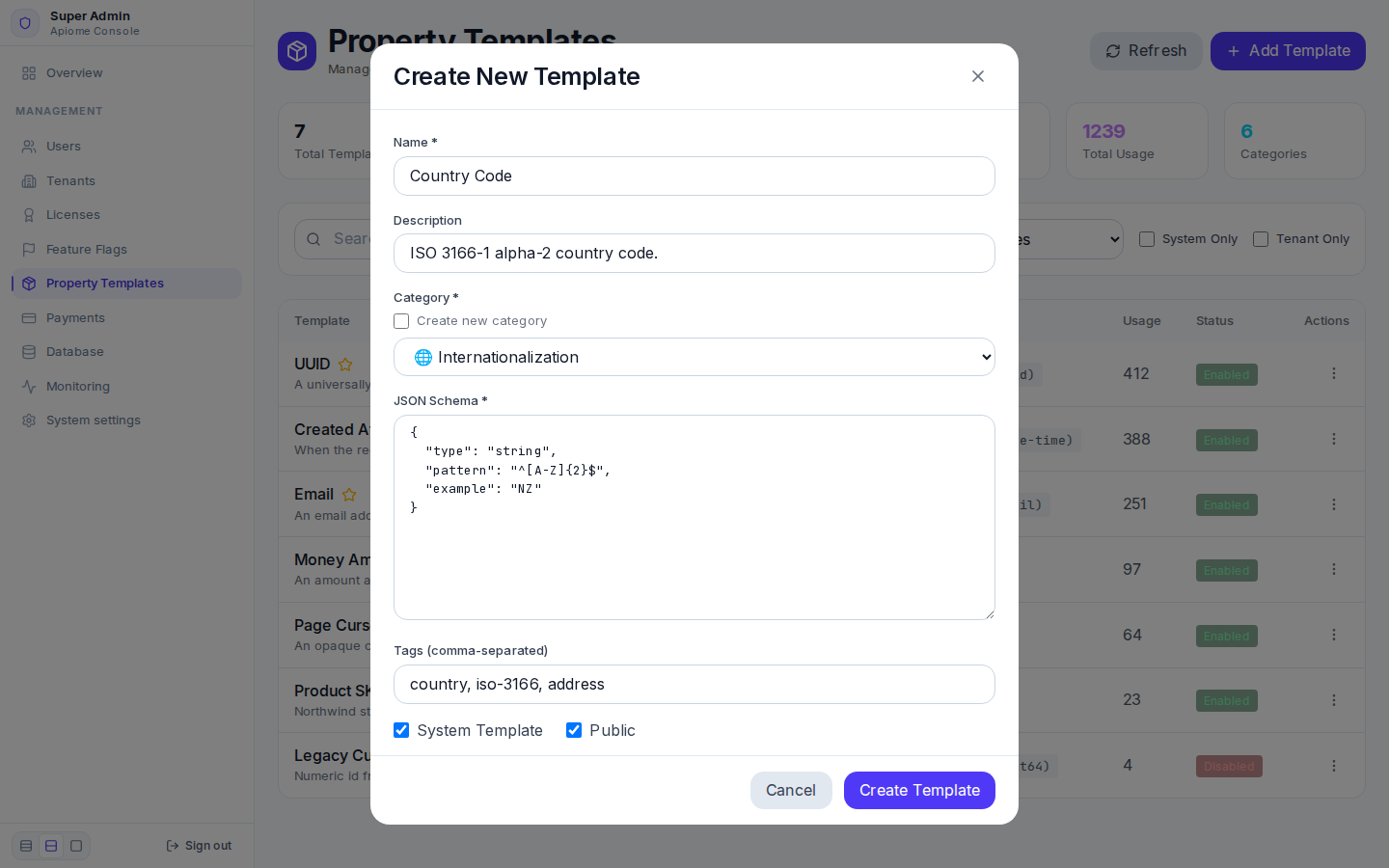
/admin/dashboard/templatesWhen the schema is not valid JSON the form says Invalid JSON schema and nothing is saved. Editing works the same way: Edit Template, change the fields, click “Save Changes”.
With the API
The console reads and writes templates directly in the database; there is no REST endpoint or CLI command for managing them.