Data browser
/ade/database
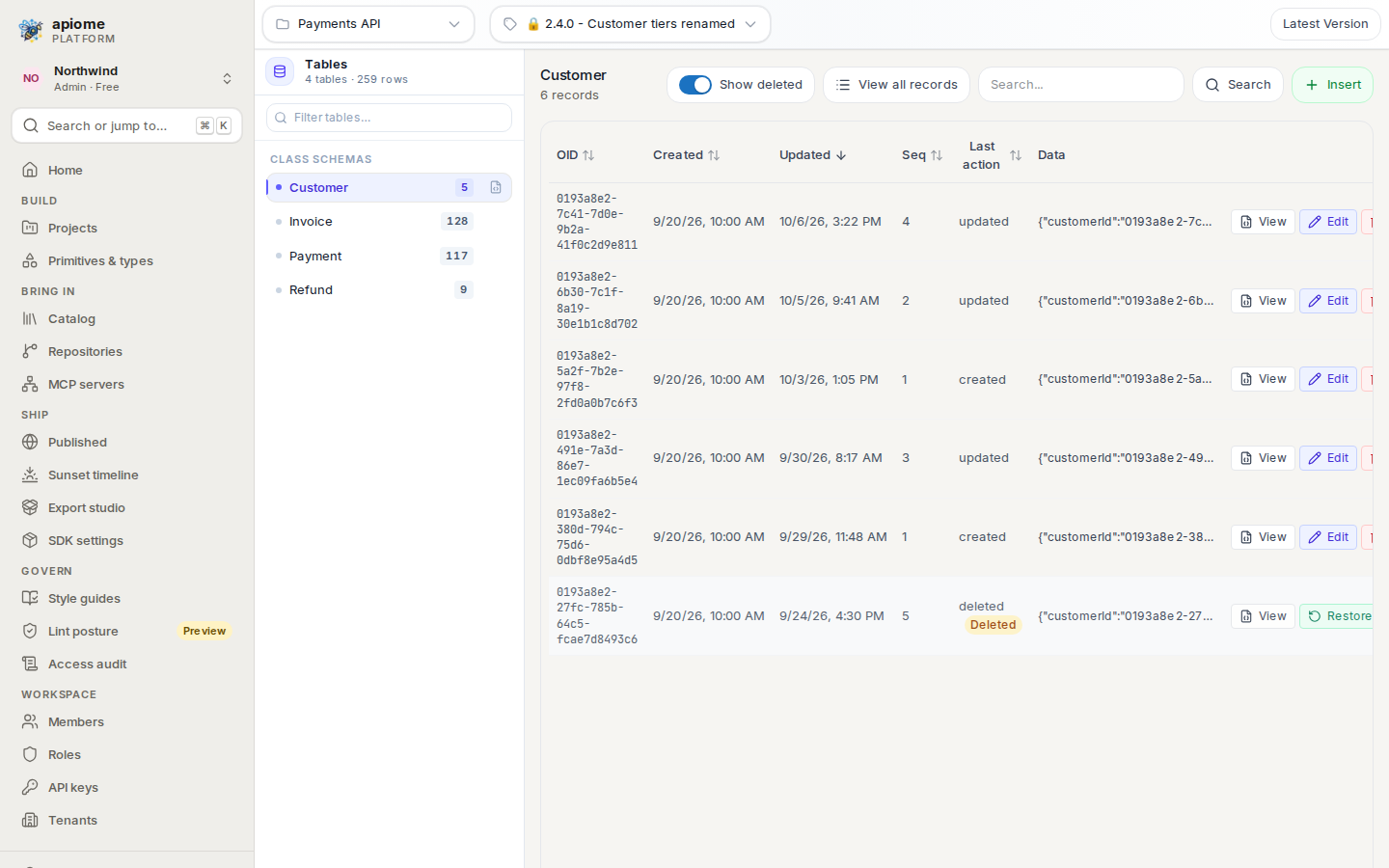
The data browser shows the data records your workspace stores against a version's class schemas — the JSON Schema each class gets when its version is published. Pick a project and a version, pick a class, and its records appear as a table you can sort, search, open, insert into, edit, delete and restore.
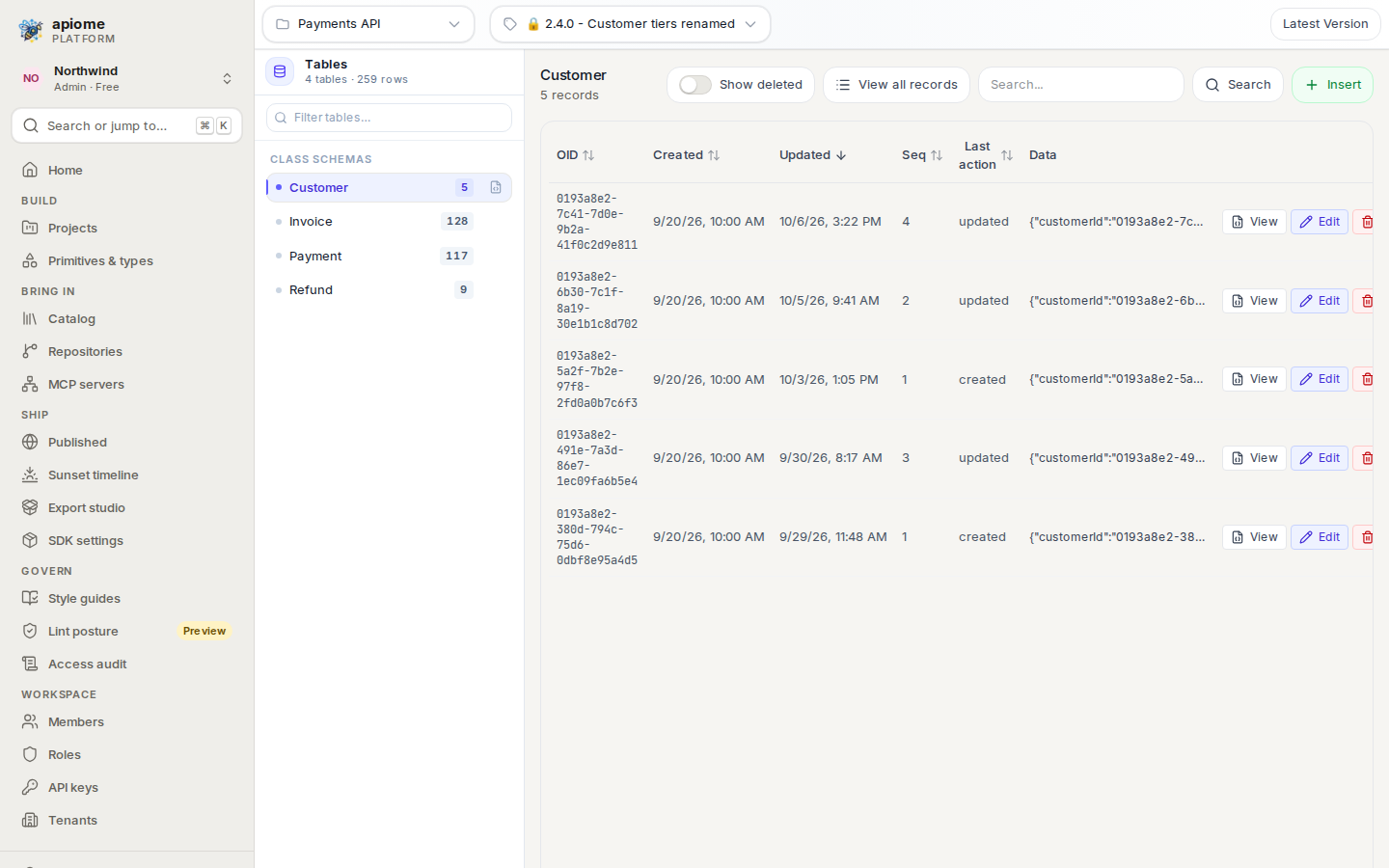
/ade/databaseOpen /ade/database in the app. The data browser is a Tools surface: it has no item in the
navigation rail or the command palette, so reach it by its address.
Pick a project, a version and a table
- Choose a project from Select project... in the toolbar.
- The newest version is chosen for you. To look at another, choose it from Select version....
- Click a table under Class schemas in the Tables sidebar. The count beside each is its number of records; the sidebar's heading totals them (4 tables · 259 rows). Type in Filter tables… to narrow a long list.
The badge at the right of the toolbar says where the chosen version stands:
| Badge | Means |
|---|---|
| Latest Version | You are looking at the newest version. Records can be changed. |
| Newer schema available: consider migrating | A newer published version exists. Move the records with Migrations. |
Only the newest version's records can be changed. On any older version, Insert, Edit, Delete and Restore are not shown — the table is read-only.
A version with no published classes shows Publish a version to see class schemas. — see Publish a version.
Read records
Choosing a table loads its first page, newest change first. Above the table:
- Show deleted adds deleted records, marked Deleted.
- View all records reloads the table without a search.
- Search... and “Search” (or Enter) keep the records whose JSON contains the text you typed, in any field, ignoring case.
Click a column heading — OID, Created, Updated, Seq or Last action — to sort by it; click again to reverse. Data shows the start of each record's JSON. Twenty records fit on a page; Previous and Next move between pages.
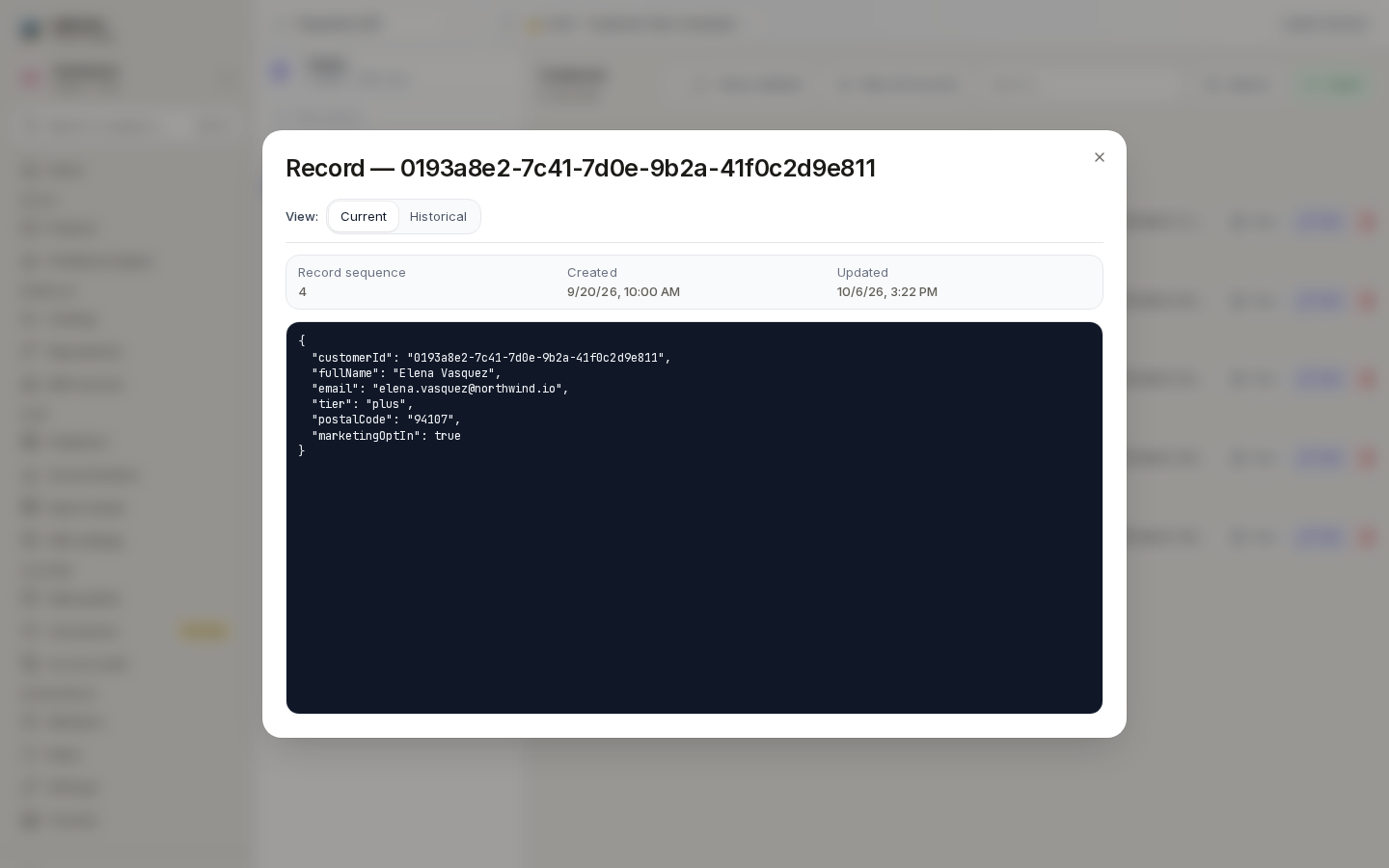
Click “View” on a row to open the record. Current shows its sequence number, when it was created and last updated, and its JSON. Historical lists every event recorded for it — created, updated, deleted, restored — with the sequence, action, time and who made it, and the JSON recorded with the event you pick.
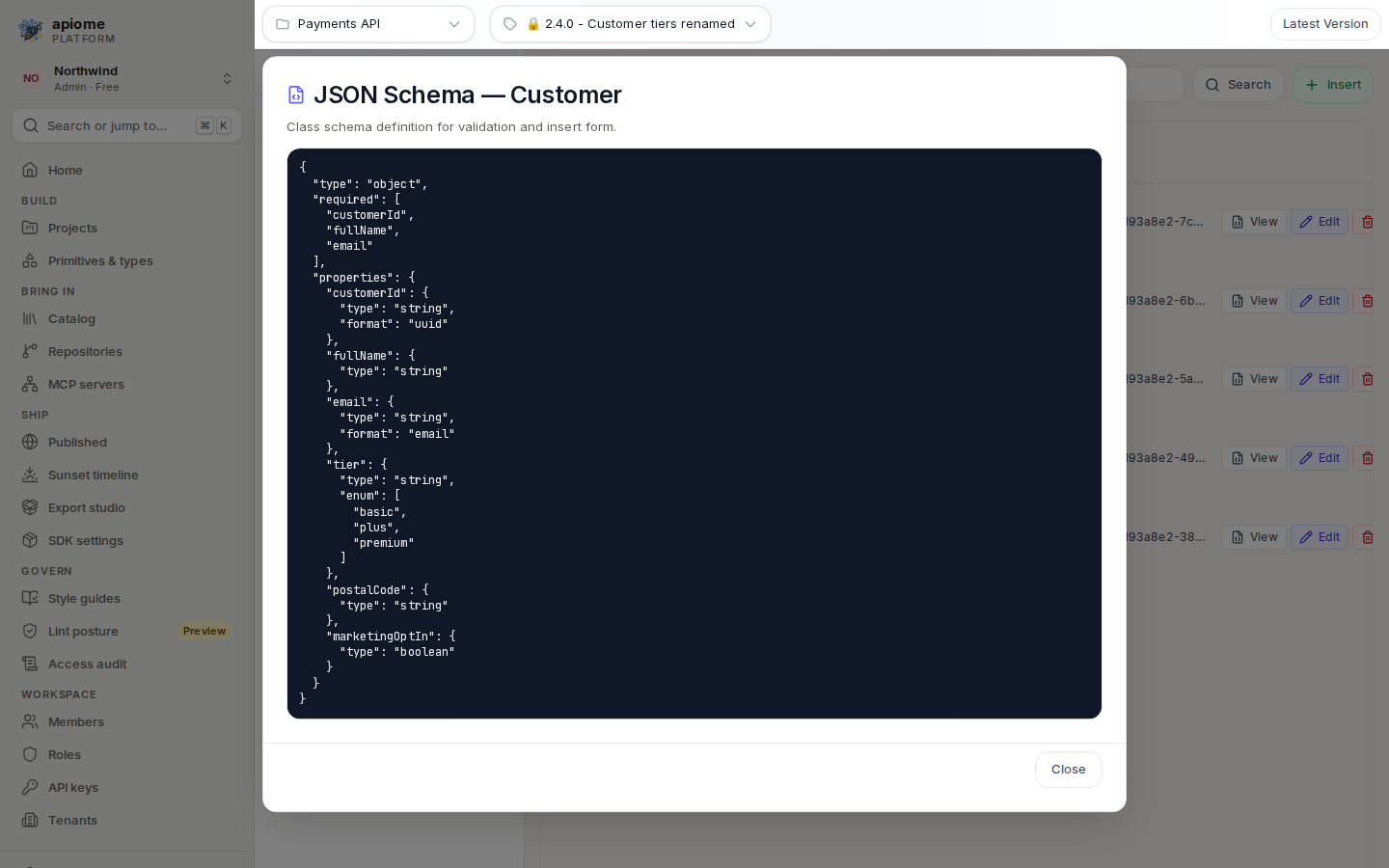
/ade/databaseClick the file icon beside a table in the sidebar (View JSON Schema) to read the class schema the records are checked against.
/ade/databaseInsert or edit a record
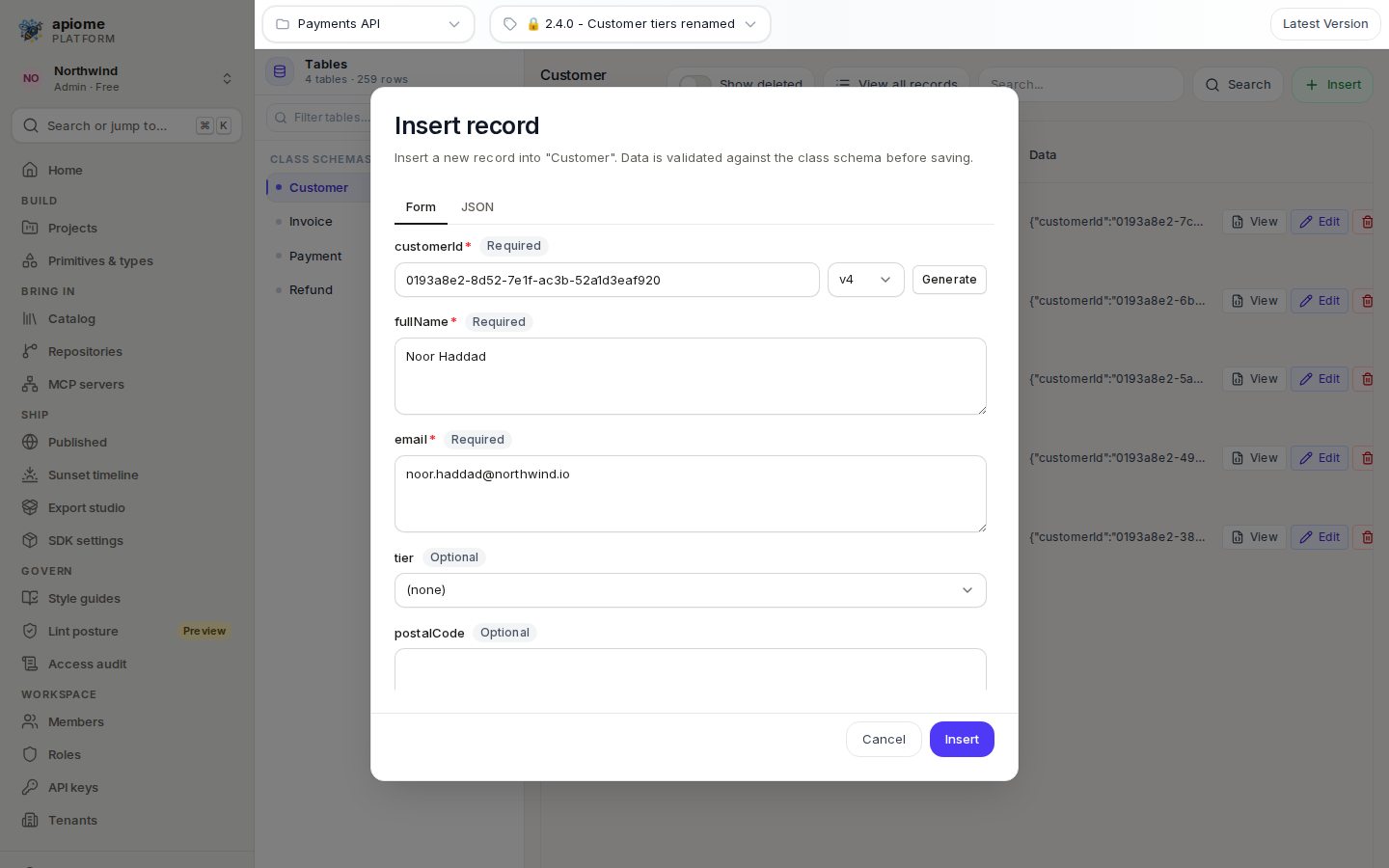
- Click “Insert” (or “Edit” on a row).
- Fill in the Form tab: each property of the class schema has a field, marked Required or
Optional. For a
uuidproperty, choose v1, v4 or v7 and click “Generate”. Or write the whole record on the JSON tab and click “Apply to form”. - Click “Insert” (or “Save”).
The record is checked against the class schema before it is sent and again by the server, and any property that does not match is listed in the dialog. Nothing is saved until it passes.
/ade/databaseDelete and restore
Click “Delete” on a row and confirm. The record leaves the table, but its data is kept in the record's event log, so it can come back: turn on Show deleted, then click “Restore” on the record and confirm.
/ade/databaseWho can do what
| Action | Needs |
|---|---|
| Browse, search, view, read schemas | A member of the workspace |
| Insert | versions:create |
| Edit, restore | versions:edit |
| Delete | versions:delete |
See Roles & permissions.
With the API
Inserts, edits, deletes and restores go through the REST API — see the API reference:
POST /v1/data/{tenant_slug}/records— create a recordGET,PATCH,DELETE /v1/data/{tenant_slug}/records/{record_id}— read, update, delete onePOST /v1/data/{tenant_slug}/records/{record_id}/restore— restore a deleted record
There is no CLI command for data records.
Where next
- Migrations — move records to a newer schema version
- Operating Apiome
- Versions