Sign-in providers
/admin/dashboard/settings
System settings holds the installation's sign-in providers — the OAuth and OpenID Connect
identity providers people can use on the sign-in page and link on
Linked accounts. Each provider can be configured in the
database, from this screen, or in .env; a value stored here overrides the environment, and a
blank field falls back to it. Sign in to the admin console and choose System settings in the
sidebar.
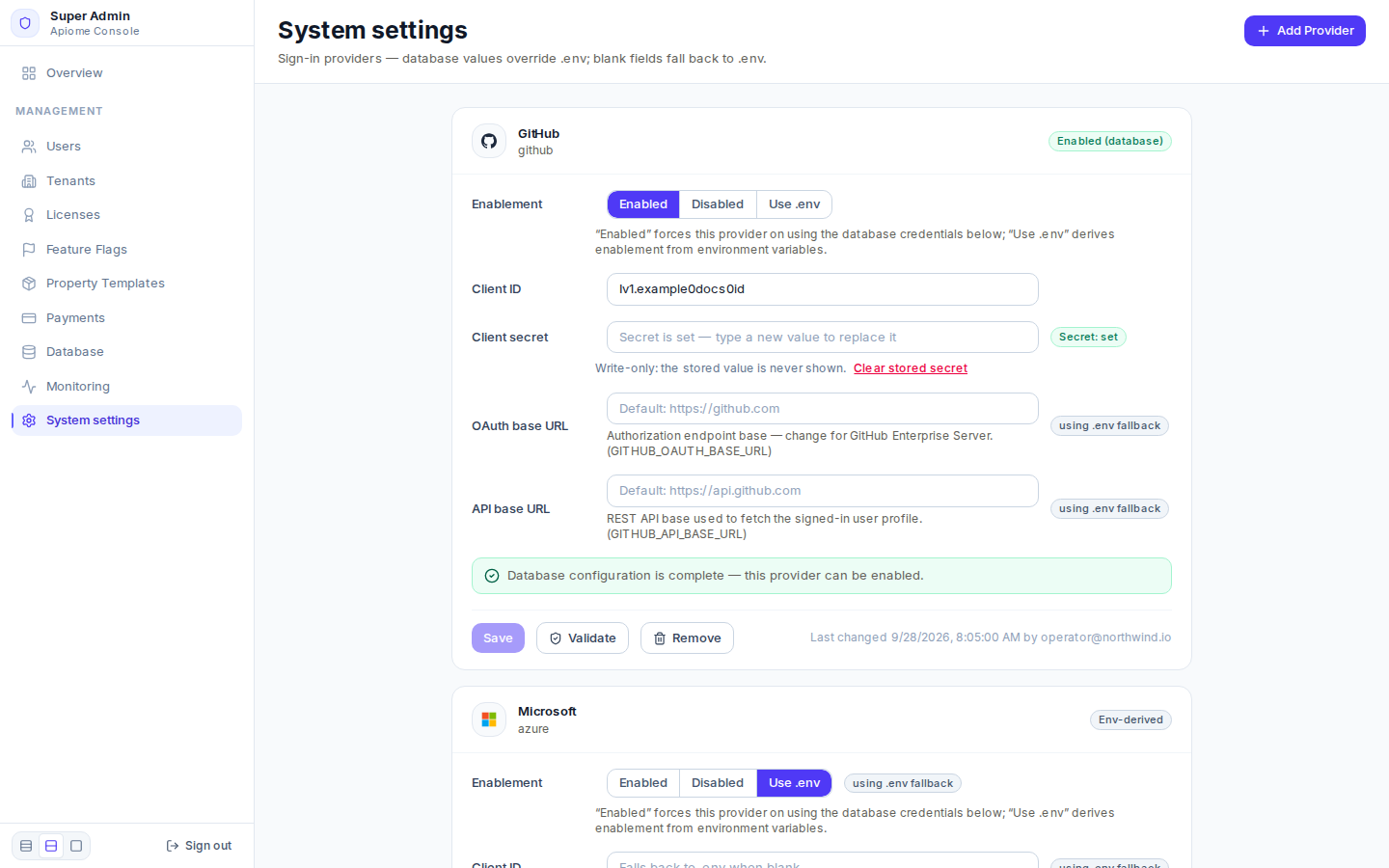
/admin/dashboard/settingsThe list shows only providers that are configured — anything stored in the database for them, or
a row that once existed. A provider set up purely in .env does not appear until you add it.
The providers
| Provider | Id | Required to enable | Extra settings |
|---|---|---|---|
| GitHub | github | client ID, client secret | OAuth base URL, API base URL (GitHub Enterprise Server) |
| GitLab | gitlab | client ID, client secret | Base URL (self-hosted GitLab) |
| Microsoft | azure | client ID, client secret | Tenant (common allows any), Authority base URL |
google | client ID, client secret | Workspace domain — restrict sign-in to one domain | |
| Okta | okta | client ID, client secret, issuer | Issuer |
| AWS (Cognito) | aws | client ID, client secret, issuer | Issuer (the user-pool issuer) |
| Keycloak | keycloak | client ID, client secret, issuer | Issuer (the realm issuer) |
| OIDC | oidc | client ID, client secret, issuer | Issuer, Display name, Scopes |
| Auth0 | auth0 | client ID, client secret, issuer | Issuer |
| LINE | line | client ID, client secret | — |
| VK | vk | client ID, client secret | — |
wechat | client ID, client secret | — |
OIDC is any conformant OpenID provider (Authentik, PingFederate, ZITADEL and others); one generic OIDC provider is supported per installation.
Register the OAuth application
Each provider needs an OAuth (or OIDC) application registered on its side. Its callback or redirect URI is:
<BETTER_AUTH_URL>/api/auth/oauth2/callback/<id>
where <BETTER_AUTH_URL> is the public URL of the Apiome web app and <id> is the provider's id from
the table — for example https://apiome.example.com/api/auth/oauth2/callback/github. Copy the
application's client ID and client secret; issuer-based providers also give you an
issuer URL, such as https://acme.okta.com/oauth2/default.
Settings on the provider's side
Apiome requests the scopes it needs itself and trusts an email address only when the provider says it is verified — a missing claim counts as unverified. A few providers need more than the callback URI:
| Provider | Where to register | What else to set |
|---|---|---|
| GitHub | Settings → Developer settings → OAuth Apps → New OAuth App (or the organization's settings) | Nothing — copy the client secret straight away; GitHub shows it once |
| GitLab | Settings → Applications → Add new application (user, group or instance) | Tick Confidential and the read_user scope. For a self-managed instance, set Base URL |
| Microsoft | Entra admin center: Identity → Applications → App registrations → New registration, platform Web | Copy the secret's Value, not its ID. Add the xms_edov optional claim (Token configuration → ID token) — without it every Entra address counts as unverified and people must verify their email instead of joining their tenant. Single-tenant apps set Tenant |
| Cloud console: APIs & Services → Credentials → OAuth client ID, type Web application | Configure the consent screen first (Internal for one Workspace). Workspace domain rejects any account outside that domain — the check is on the returned token, not just the sign-in page | |
| Okta | Applications → Create App Integration → OIDC → Web Application | Assign who may sign in. Issuer: https://<okta-domain>/oauth2/default, or /oauth2/<server-id> for a custom authorization server |
| AWS (Cognito) | User pool: App integration → App clients, a confidential client with the authorization-code grant | Configure a Cognito domain for the Hosted UI. Issuer: https://cognito-idp.<region>.amazonaws.com/<user-pool-id> |
| Keycloak | Realm: Clients → Create client, OpenID Connect with client authentication on | Map email and email verified onto the ID token. Issuer: https://<host>/realms/<realm> |
| OIDC | A confidential client with the authorization-code grant | The issuer must serve <issuer>/.well-known/openid-configuration and emit email and email_verified |
| Auth0 | Applications → Create Application → Regular Web Applications | Issuer: https://<tenant>.auth0.com, or your custom domain |
The full per-provider guide — including LINE, VK and WeChat, the environment variable matrix, boot
validation and secret encryption — is
apiome-ui/docs/AUTH_PROVIDER_SETUP.md
in the repository.
Add a provider
-
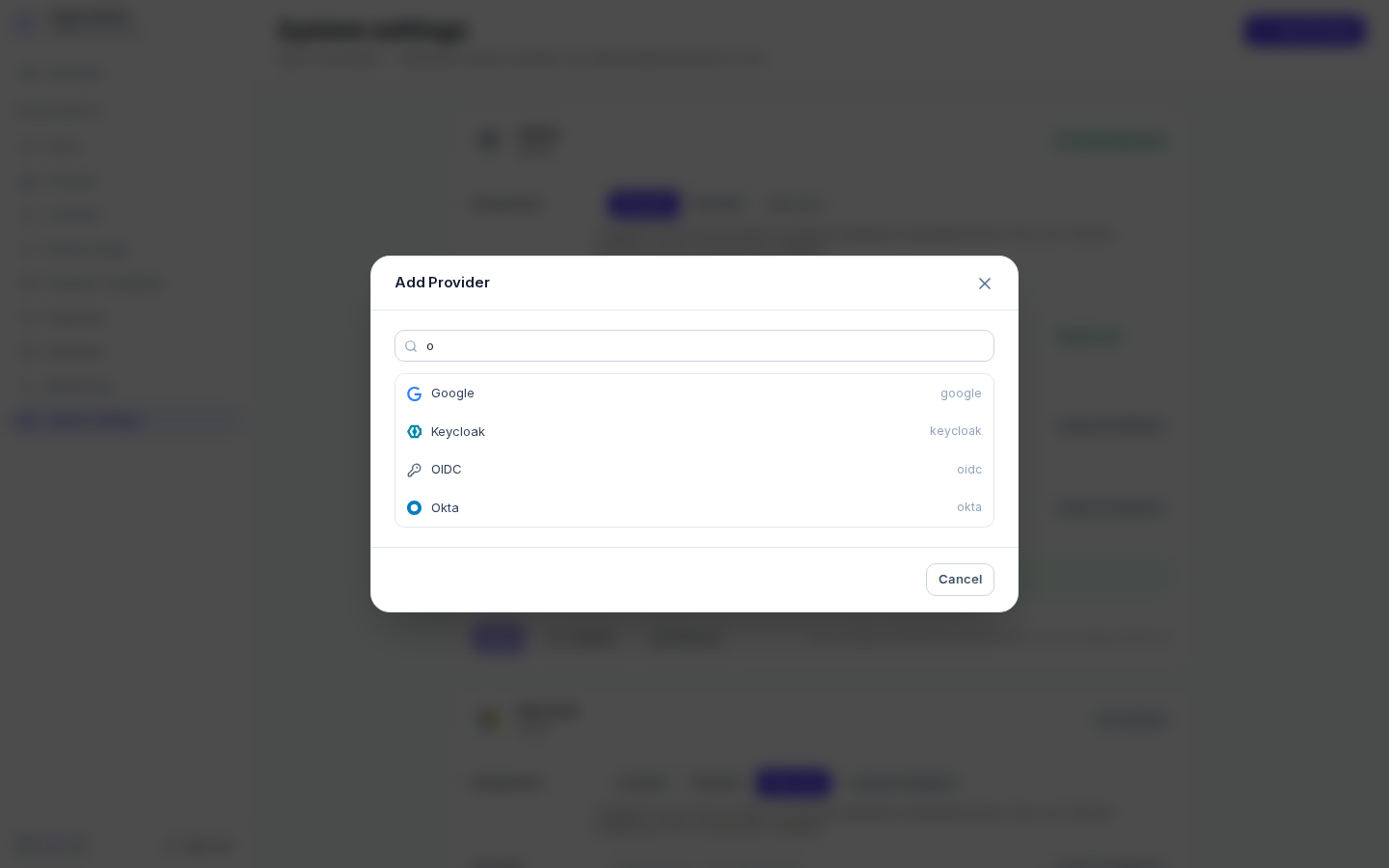
Click “Add Provider” at the top right.
-
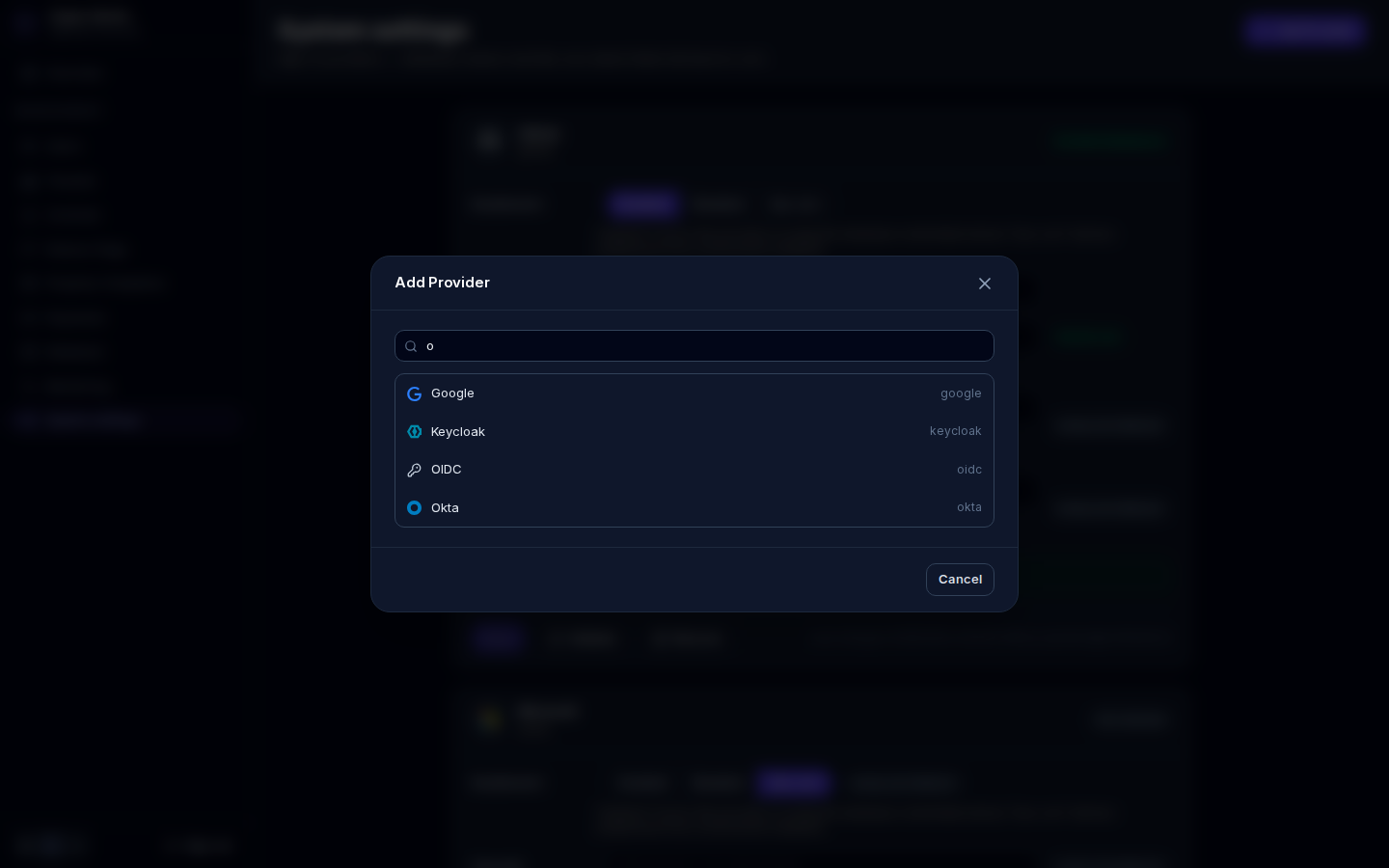
Search or scroll the list and click the provider — for example Okta.
Route /admin/dashboard/settings -
In Configure Okta, choose the Enablement:
- Enabled — turn the provider on, using the credentials stored here;
- Disabled — turn it off, whatever
.envsays; - Use .env — leave it to the environment variables.
-
Enter the Client ID, the Client secret and any extra settings, such as the Issuer. Leave a field blank to fall back to
.env. -
Click “Save”. The provider's card appears in the list.
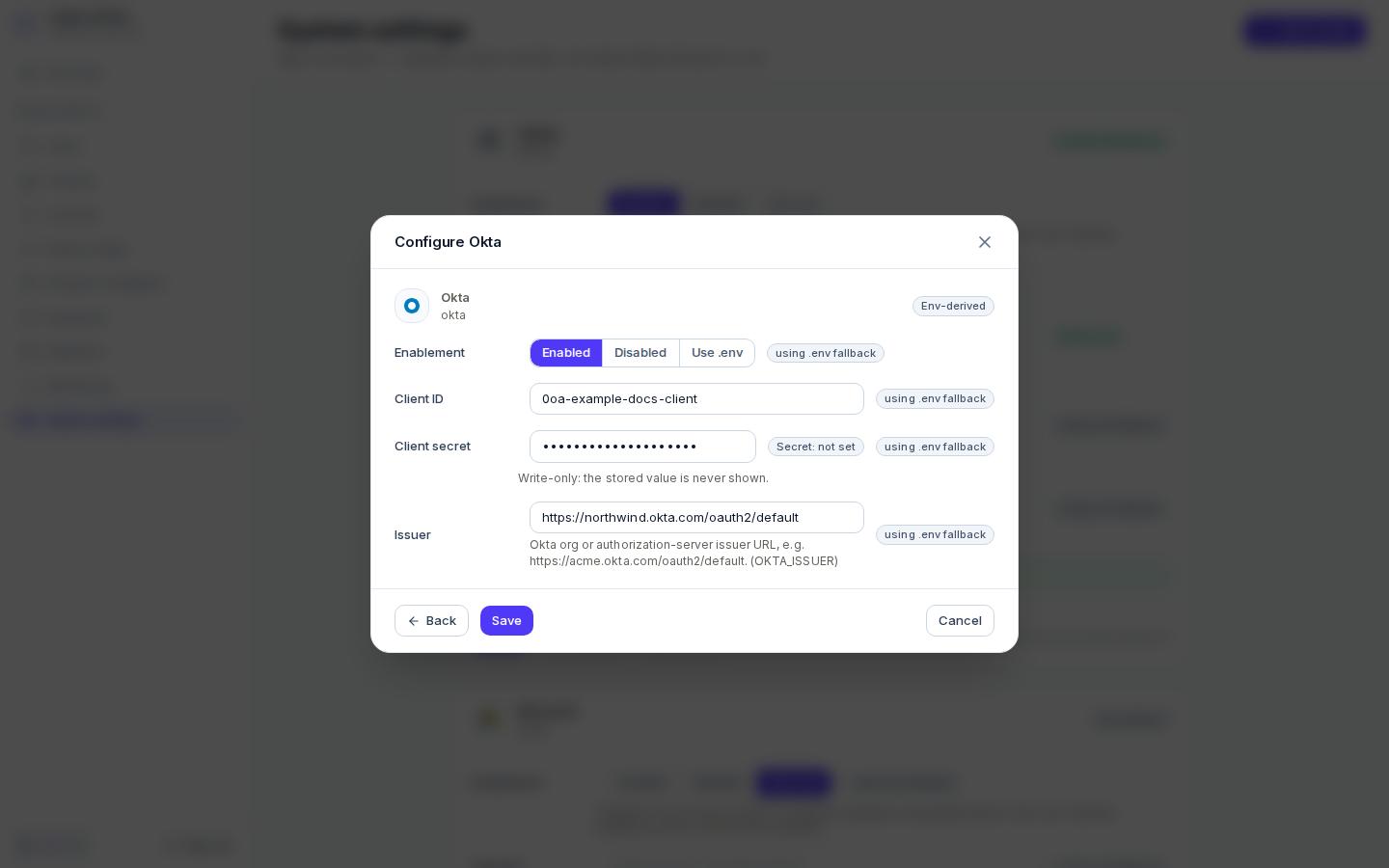
/admin/dashboard/settingsBack returns to the list of providers; Cancel closes the dialog without saving.
Edit a provider
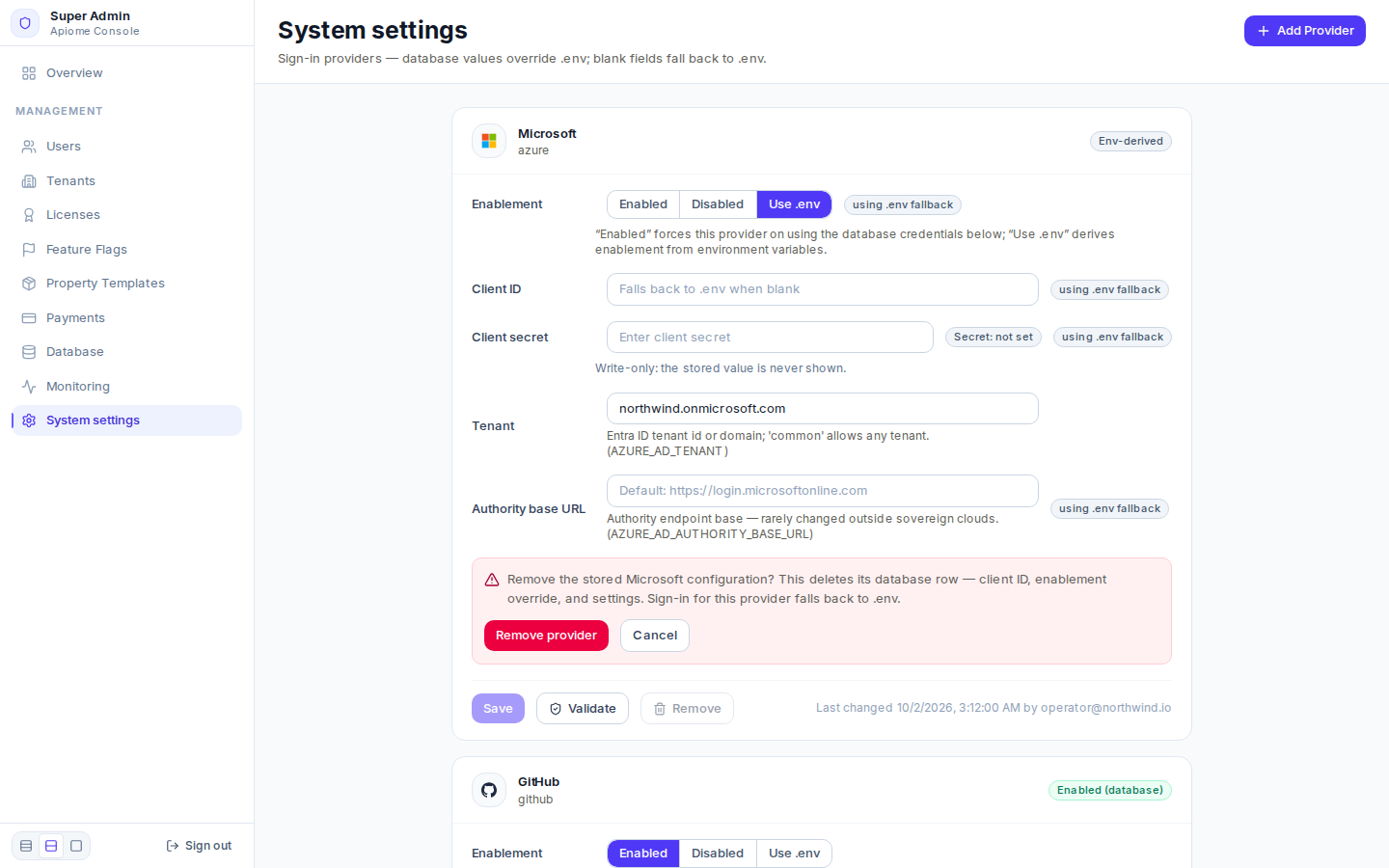
Each card carries the same fields. Its chip says how the provider is enabled now — Enabled (database), Disabled (database) or Env-derived — and every field that has no stored value shows using .env fallback.
- Change a field and click “Save”. Only the fields you changed are sent. A Saved note confirms it, and the footer reads Last changed … by ….
- The client secret is write-only. The card shows only Secret: set or Secret: not set —
never the value. Type a new value to replace it, or click “Clear stored secret” to remove it
on the next save (the provider then uses
.env); Undo cancels that. - Choosing “Enabled” needs every required field stored here. Values in
.envdo not count. If one is missing, saving is refused and the card lists what to fill in.
Changes reach the sign-in page on the next sign-in, after the configuration cache expires — within
30 seconds by default (AUTH_PROVIDER_CONFIG_CACHE_TTL_MS, 5–60 seconds). No restart is needed.
Validate a provider
Click “Validate” to check whether the stored configuration is complete:
- Database configuration is complete — this provider can be enabled.
- Not ready to enable — missing: … — save the listed fields on the card first.
For OIDC, Validate also fetches the issuer's discovery document
(<issuer>/.well-known/openid-configuration) and reports the error if it cannot be read, so a wrong
issuer fails here rather than on the sign-in page.
Remove a provider
Click “Remove” and then “Remove provider” to confirm. This deletes the provider's stored row —
client ID, stored secret, enablement override and settings — and sign-in for the provider falls back
to .env. A removed secret cannot be recovered. The provider then appears in Add Provider again.
/admin/dashboard/settingsConfigure in .env instead
Every field has an environment variable in apiome-ui/.env — the console shows the variable under
each extra setting. The client credentials are:
| Provider | Client ID | Client secret |
|---|---|---|
| GitHub | GITHUB_ID | GITHUB_SECRET |
| GitLab | GITLAB_CLIENT_ID | GITLAB_CLIENT_SECRET |
| Microsoft | AZURE_AD_CLIENT_ID | AZURE_AD_CLIENT_SECRET |
GOOGLE_CLIENT_ID | GOOGLE_CLIENT_SECRET | |
| Okta | OKTA_CLIENT_ID | OKTA_CLIENT_SECRET |
| AWS (Cognito) | COGNITO_CLIENT_ID | COGNITO_CLIENT_SECRET |
| Keycloak | KEYCLOAK_CLIENT_ID | KEYCLOAK_CLIENT_SECRET |
| OIDC | OIDC_CLIENT_ID | OIDC_CLIENT_SECRET |
| Auth0 | AUTH0_CLIENT_ID | AUTH0_CLIENT_SECRET |
| LINE | LINE_CLIENT_ID | LINE_CLIENT_SECRET |
| VK | VK_CLIENT_ID | VK_CLIENT_SECRET |
WECHAT_CLIENT_ID | WECHAT_CLIENT_SECRET |
apiome-ui/.env.example lists them all with their extra settings — see
Operating Apiome.
With the API
The console calls the REST API's super-admin endpoints:
GET /v1/admin/auth-providers— every provider's configuration, with secrets masked;PUT /v1/admin/auth-providers/{provider_id}— update the fields sent;DELETE /v1/admin/auth-providers/{provider_id}— remove the stored row.
See the API reference. There is no CLI command for sign-in providers.
Where next
- Sign in — what people see on the sign-in page
- Linked accounts
- Users
- Operating Apiome